Quick answer
Add the niches and cities you sell to and start a campaign. AM Jarvis reads Google Maps, checks every business's website and Google profile against the local top 3, and scores each lead. You open a lead to see why it is a good fit, send a ready WhatsApp or email message, and follow up from the pipeline.
Local Lead Finder Pro is for agencies and freelancers who sell websites, SEO or Google Business Profile work to local businesses. It finds businesses on Google Maps, checks their website and Google profile, scores how much they need help, and gives you a ready message that names their actual problems. It is part of the Pro and Agency plans and uses Google Maps data through a key the admin of AM Jarvis adds.
In this guide we look for plumbers and drain cleaning companies in two cities, open the best lead, message it on WhatsApp, and track it in the pipeline.
1 Set up a new campaign
Open Lead Finder in the Find menu. On Find leads, choose the country, add the kinds of business you want (niches) and the cities. Press Enter after each one, or tap a suggested city.
 1
2
3
4
5
6
7
1
2
3
4
5
6
7
- The Find leads tab. Your plan's limits are shown at the top right of the card.
- Niches: the kind of business, for example plumber, dentist or car detailing. Each niche is searched in every city.
- Cities: type a city or tap one of the suggestions for the country.
- Country of the cities.
- Listings per search: how many Google Maps pages to read per niche and city. About 20 is 2 Maps pages.
- The estimate: how many searches, how many listings at most, how many credits at most and what you have left this month.
- Start campaign. It runs on the AM Jarvis server, so you can close the page and come back.
Tick Skip businesses already in my pipeline so you do not pay for leads you are already working on. The campaign name is optional.
2 Follow your campaigns
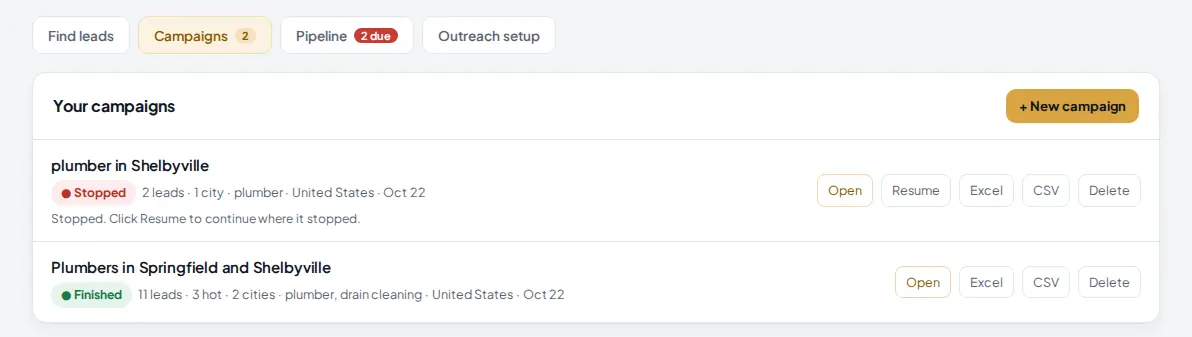
The Campaigns tab lists every campaign with its status, how many leads and hot leads it found, the cities and niches.
 1
2
3
4
1
2
3
4
- The Campaigns tab with the number of campaigns.
- The status: Running, Finished or Stopped. A stopped campaign says why, for example when credits ran out.
- Resume continues a stopped campaign where it stopped.
- Open shows the results. Excel and CSV export the campaign; Delete removes it.
3 Read the market scores
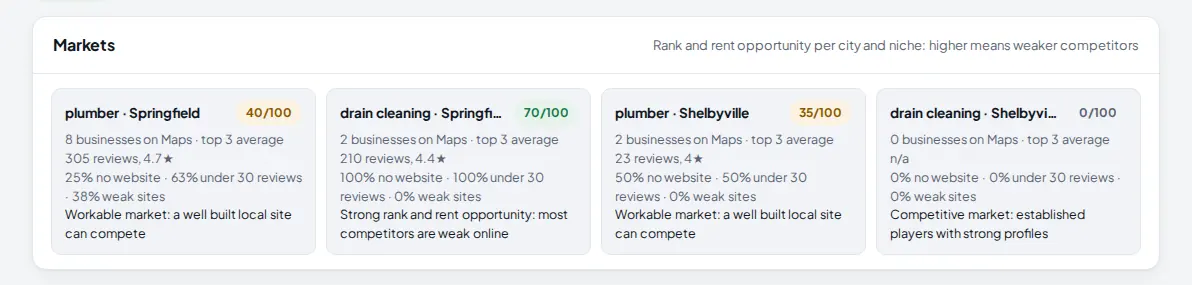
Open a campaign. At the top, Markets scores each city and niche from 0 to 100: higher means weaker competitors and a bigger chance for a client to rank and rent well.
 1
2
1
2
- What the market score means.
- Each combination shows how many businesses were found, the top 3's average reviews and rating, the share with no website, under 30 reviews or a weak site, and a one line verdict.
4 Filter and pick your best leads
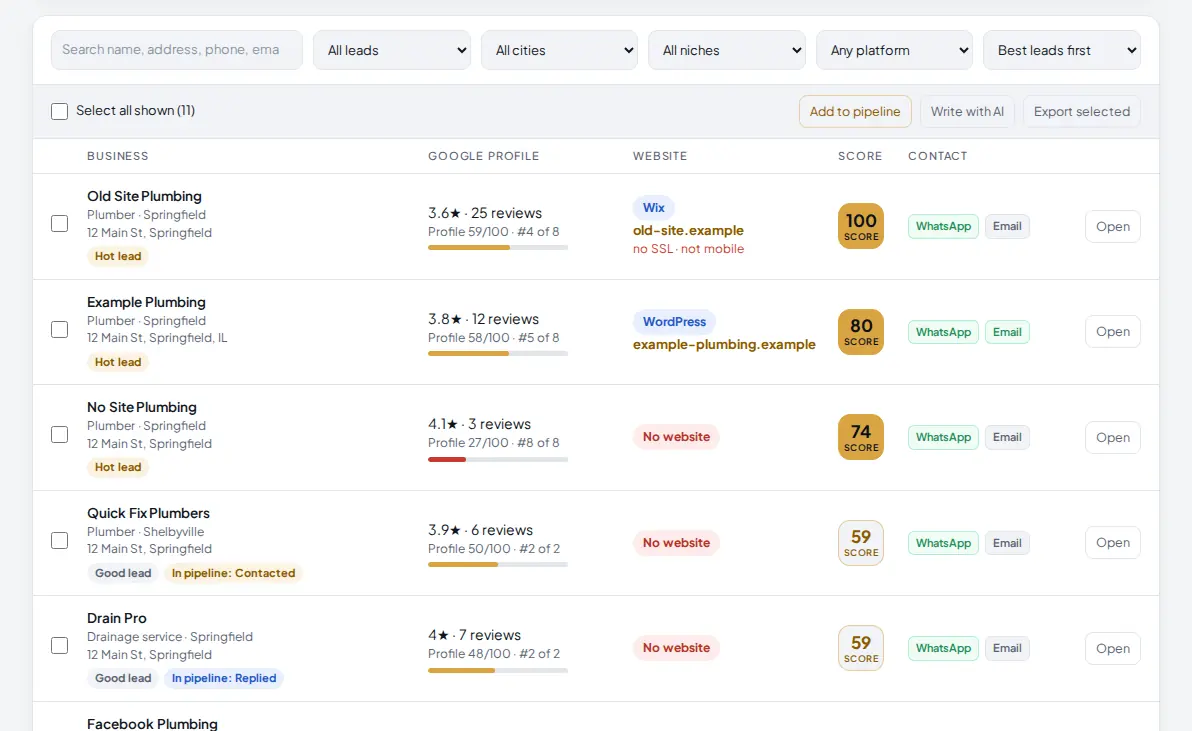
Below the markets, every business is listed with its Google profile, website check and a lead score. The list starts with the best leads.
 1
2
3
4
5
6
7
1
2
3
4
5
6
7
- Search by name, address, phone or email.
- Show all leads, hot leads (score 60 and up), businesses with no website, weak websites and more. Next to it you filter by city, niche and website platform, and sort.
- The lead label: Hot lead, Good lead or Low priority. "In pipeline" shows leads you are already working on.
- The website check: the platform (WordPress, Wix and others), or No website, Social page only, Website down, Parked domain, with problems such as no SSL or not mobile.
- The lead score: how much the business needs your help and how easy it is to reach.
- Contact options found: WhatsApp, email, social profiles.
- Add to pipeline adds the ticked leads at once. Write with AI writes messages for them with your AI, and Export selected downloads them.
5 Open a lead and send your first message
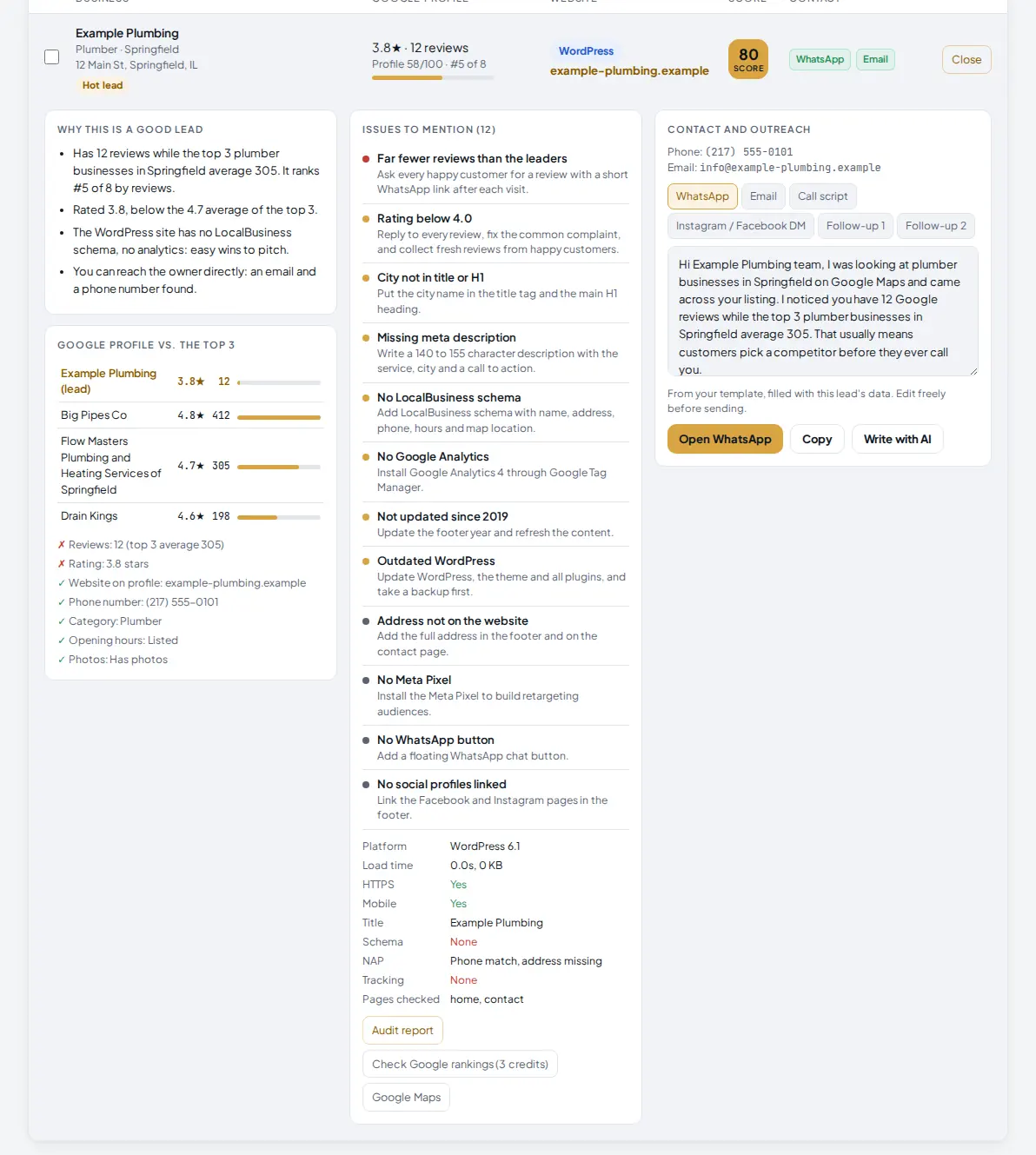
Click Open on a lead. You see why it is a good lead, how its Google profile compares with the local top 3, a list of issues you can mention, and the outreach box with your message already filled in.
 1
2
3
4
5
6
7
8
1
2
3
4
5
6
7
8
- Why this is a good lead: the facts in plain words, for example 12 reviews against a top 3 average of 305.
- Google profile vs. the top 3: rating and reviews next to the three strongest competitors, and a checklist of the profile.
- Issues to mention: each problem found on the website and profile, with a one line fix you can offer. Below it, the website facts: platform, HTTPS, mobile, schema, tracking and the pages checked.
- The channel: WhatsApp, Email, Call script, Instagram / Facebook DM, Follow-up 1 and Follow-up 2.
- The message, filled from your template with this lead's data. Edit it freely before sending.
- Open WhatsApp (or Open email) opens your own app with the text ready, and marks the lead as contacted with a follow-up date. Copy and Write with AI are next to it.
- Audit report opens a printable report with your branding to send to the business.
- Check Google rankings checks whether the business is on page 1 for its local searches (up to 3 credits).
6 Track replies in the pipeline
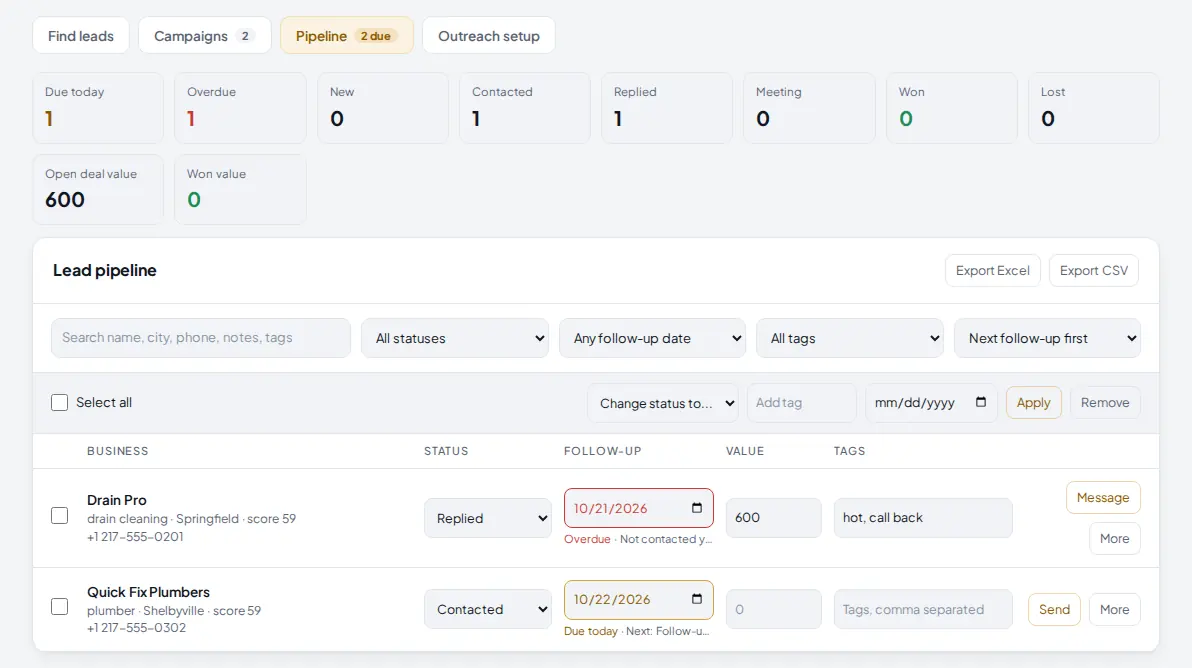
Every lead you contacted or added is in Pipeline. The counters at the top show what is due today, overdue, and how many leads are at each stage, plus your open and won deal value.
 1
2
3
4
5
6
1
2
3
4
5
6
- The Pipeline tab shows how many follow-ups are due.
- Counters: due today, overdue, each status, open deal value and won value. Click a counter to filter.
- Status: New, Contacted, Replied, Meeting, Won or Lost.
- Follow-up date, red when overdue. Value and tags are next to it.
- Send or Message opens the next message (first message, Follow-up 1 or Follow-up 2). More shows notes and history.
- Bulk changes: tick leads, then change their status, add a tag or set a follow-up date in one go. Export Excel and CSV are at the top of the card.
7 Make the messages yours in Outreach setup
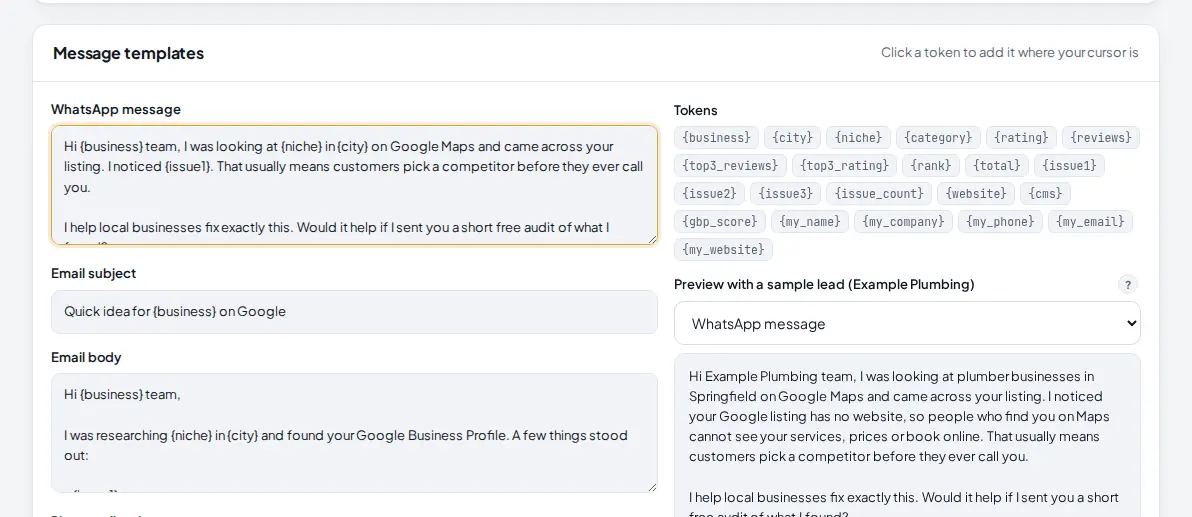
Open Outreach setup. First fill in Your details: your name, company, phone, email, website, logo link and report color. They are used in messages and on the audit reports, and the language you pick is used for AI written messages. Then edit the Message templates.
 1
2
3
4
1
2
3
4
- The template text. There is one for WhatsApp, email subject and body, the call script, the DM, and the two follow-ups (3 and 7 days later).
- Tokens: click one to add it where your cursor is, for example {business}, {city}, {issue1} or {top3_reviews}.
- Pick which template to preview.
- The preview, filled with a sample lead, so you can check it reads well. Click Save templates when you are done.
Tips
- Start with one niche in two or three cities. Check the market scores, then widen the campaign where competitors are weakest.
- Lead with one specific issue, not a list. "Your Google listing has no website" gets more replies than a full audit in the first message.
- Send the audit report after the business replies. It shows your work and your branding.
- Work the pipeline every day: the Due today counter tells you exactly who to message.
Common mistakes
- Too many cities at once. Each niche is searched in every city, so 5 niches in 30 cities is 150 searches. Watch the estimate before you start.
- Sending the template unchanged to everyone. Read each message and add one personal line.
- Not filling in Your details. Messages and reports then show placeholder names. Save your details first.
- Forgetting to follow up. Most replies come after the first follow-up. Use Follow-up 1 and 2.
What to do next
Build a site for a new client quickly with Build a complete niche site from one topic. More on the Local Lead Finder page.
Frequently asked questions
Which plans include Lead Finder?
Pro and Agency. Pro includes 100 leads a month with up to 10 cities and 3 niches per campaign; Agency includes 1,000 leads a month with up to 30 cities and 5 niches per campaign.
What does a campaign cost?
1 credit for each Google Maps page that returns listings (about 10 businesses). The form shows the most a campaign can cost before you start. Website checks, scores, the audit report and outreach templates are free. Checking a business's Google rankings from its lead costs up to 3 credits.
Where does the data come from?
Businesses come from Google Maps through a search API key (Serper) that the admin of AM Jarvis adds. Websites are opened and checked by AM Jarvis itself. Until the key is added, the page says "Lead Finder is not switched on yet" and campaigns cannot start.
Does AM Jarvis send the messages for me?
No. Open WhatsApp and Open email open your own WhatsApp or email app with the message filled in, so it comes from you. AM Jarvis then marks the lead as contacted and sets the next follow-up date.
Can I export my leads?
Yes. Each campaign has Excel and CSV buttons, the results have Export selected, and the pipeline has its own Excel and CSV export.

Founder of AM Jarvis. More than a decade running e-commerce stores, Google Shopping campaigns and niche sites. About the author
The app changes often. If a screen here no longer matches what you see, let us know and we will update the guide.