Quick answer
Type a niche such as "home coffee brewing", pick the language, site type and content depth, and click Build my site. AM Jarvis plans 3 main guides with 3 supporting articles each, writes every page in full, links them together and packages the site with its trust pages, sitemap and llms.txt. When it says Ready, download the files or publish them.
The AI Site Builder is for people who want a complete content, affiliate or service website from a single topic, without planning and writing every page by hand. You need an AM Jarvis account and an AI key in Settings (your own key, for example a free Gemini key, or the platform key if the admin has set one). Everything else, from the page plan to the sitemap, is done for you.
If you want each page backed by real Google data (search volume, competitors, People Also Ask), plan the site in Niche Research first and build it from there. This guide covers the quick way: one topic in, one site out.
1 Type your topic and choose the basics
Open Site Builder in the Build menu. Type your niche in Niche or topic, using the words a reader would use, for example "home coffee brewing" or "aquarium air pump". Then set the language, site type and content depth.
 1
2
3
4
5
1
2
3
4
5
- Niche or topic: at least 3 characters. One clear topic gives a tighter site than a broad one like "food".
- Language: English, Spanish, German, French, Italian, Portuguese, Dutch, Arabic or Urdu. Every page is written in it.
- Site type: what the site earns from. See the table below.
- Content depth: Standard is about 1,500 words a page. Deep is about 2,500 words with tables and step by step sections.
- Publish to: only shows when you have a WordPress site connected. Leave it on Download to get the files, or pick a WordPress site to write for it.
| Site type | What you get |
|---|---|
| Content site (AdSense-ready) | Guides and articles with a clean reading layout. With the Reader theme, ad slots are placed for you. |
| Affiliate site | Roundup, comparison (vs) and review pages with product boxes, pros and cons, star ratings and Check Price buttons, an AFFILIATE-LINKS.txt guide and a disclosure page. Choosing it switches depth to Deep. |
| Service business site | Pages written for a business that sells a service, with the same trust pages. |
2 Pick a theme under More options
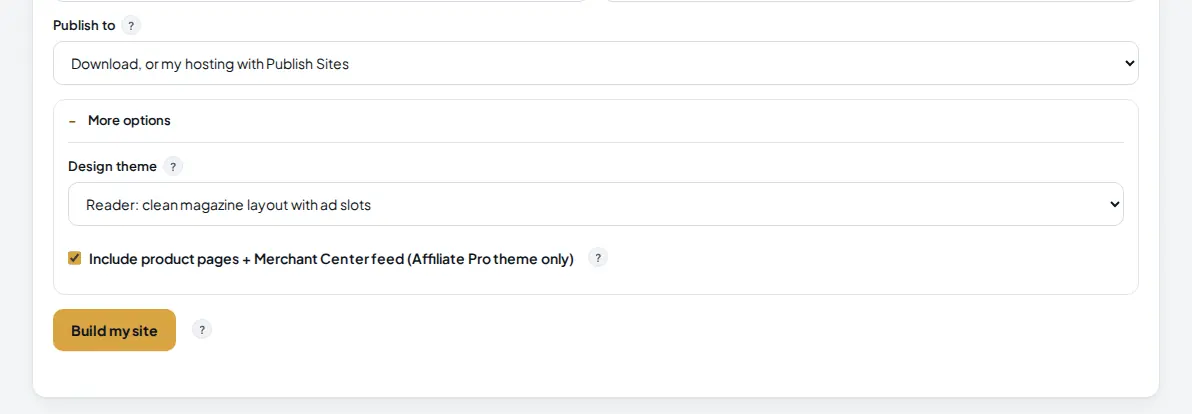
Click More options to choose the design. Auto picks a theme that matches your site type, so you can skip this step if you are happy with that.
 1
2
3
1
2
3
- Design theme: Auto, Affiliate Pro (review site with product boxes and buttons), Reader (clean magazine layout with ad slots), Tools / App (modern utility look) or Classic.
- Include product pages + Merchant Center feed: only used with the Affiliate Pro theme. It writes real product pages with prices and adds a products.csv feed. On other themes these topics become normal articles.
- Build my site starts the build.
3 Click Build my site and watch the progress
Click Build my site. The site appears in Your sites below the form. First it is Planning: the AI plans 3 main guides (pillars), each with 3 supporting articles, using the LLMS method so every page targets its own search and links up to its pillar. Then it moves to Writing and finally Assembling.
 1
2
3
1
2
3
- The status and progress, for example Writing 4/12: 4 of 12 pages are done.
- What the writer is doing right now (the page title and the section) and about how long the build has left. The estimate gets better after the first pages.
- Ready means the site is assembled and can be downloaded or published.
Each page is written in parts: an outline first, then every section with its own word target, then the intro, ending and FAQ, and a length check that rewrites short sections. That is why a page takes a minute or two. You can leave the page; the table refreshes on its own every few seconds while a site is building. Only one site builds at a time.
Tip: if a build stops with Failed, the reason is shown under the niche in red. The most common one is an AI key that ran out of credit.
4 Download the site or publish it
When the status is Ready, the actions appear in the same row.
 1
2
3
1
2
3
- Download saves the whole site as a zip (jarvis-site.zip): every HTML page, style.css, sitemap.xml, robots.txt, llms.txt and llms-full.txt. Upload it to any web host.
- Publish to WordPress opens WordPress > Publish articles with this site picked, so its articles go to a connected WordPress site on a drip schedule.
- Delete removes the site and its files from AM Jarvis.
To put the downloaded site on your own hosting without unzipping anything, open Publish Sites in the Build menu, add your hosting once (FTPS, FTP or a cPanel API token), pick the site and publish. Site Builder and Programmatic SEO sites both appear there.
5 Check the SEO health of the finished site
Under Your sites, the SEO health and drip schedule card checks the finished site for keyword overlap. Each page owns its main keyword, and the card warns you when two live pages target the same search or the same FAQ question appears twice.
 1
2
3
4
1
2
3
4
- Site: pick which finished site to check.
- The totals: live pages, pages waiting in the drip queue, the next go live date and overlaps found.
- Healthy means no keyword is on two live pages. If overlaps are found, each one has a Fix button, plus Fix all.
- Every page with its status, primary keyword and the keywords it owns.
The drip schedule (pages going live a few a day) is used by sites built from a Niche Research site plan. A site built from one topic has all its pages live at once.
6 Look at what you built
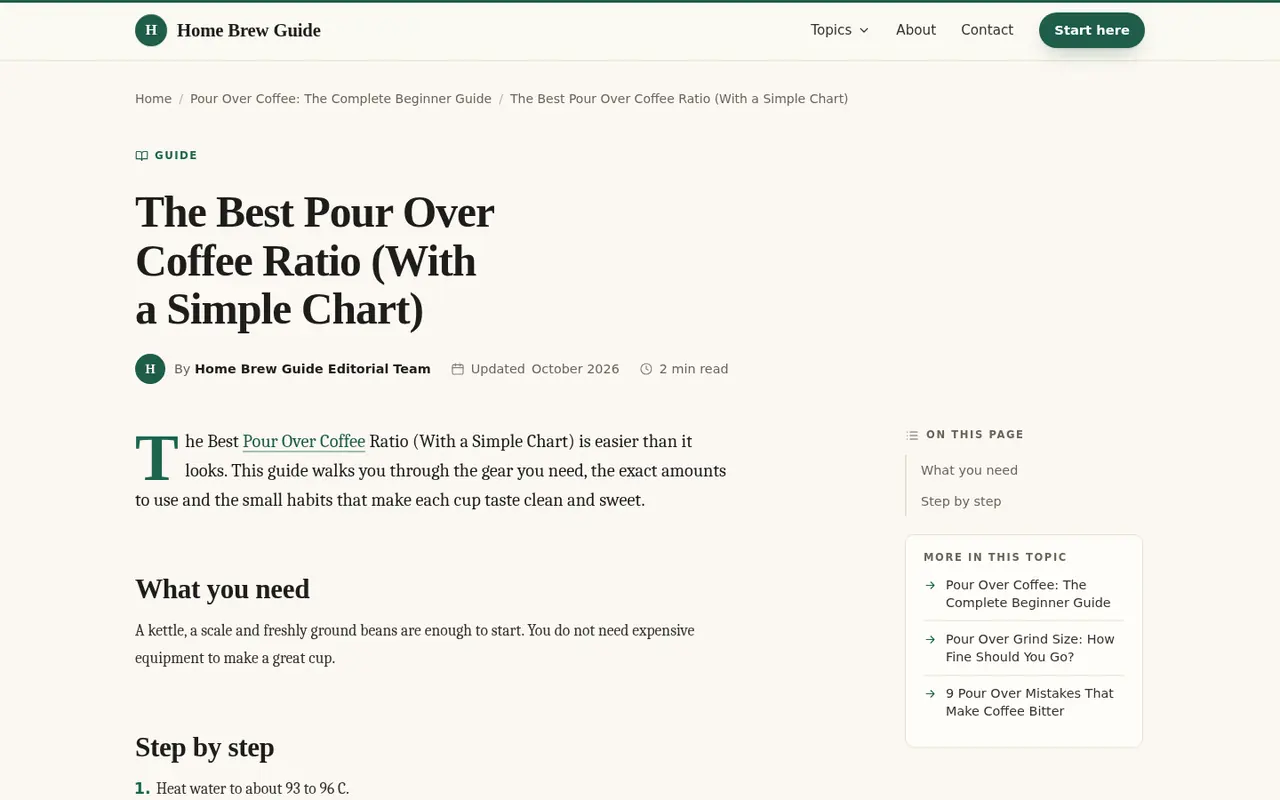
Open the downloaded index.html, or the site on your hosting. The home page lists your topic hubs, the menu groups every article under its pillar, and each article has breadcrumbs, a table of contents and links to the other articles in its topic.

Before you apply for AdSense or share the site, read every page once, replace the placeholder email (contact@yourdomain.com) on the Contact page, and on the Affiliate Disclosure page of affiliate sites, with your own, and on affiliate sites replace the Check Price buttons with your links using the AFFILIATE-LINKS.txt guide in the zip.
Tips
- Narrow topics build better sites. "Aquarium air pump" gives 12 pages that support each other; "pets" gives 12 pages on unrelated things.
- Use Deep for affiliate and money pages, Standard for informational blogs.
- Check your monthly Site Builder pages on Home under This month's usage before a big build. A build needs at least 3 pages left.
- Building for a WordPress site you already run? Pick it under Publish to so topics the site already covers are left out.
Common mistakes
- No AI key. The build will not start. Add a key in Settings first.
- Starting a second build. You get "A site is already building". Wait for the first to finish.
- Expecting product pages on the Reader theme. Product pages and the Merchant Center feed are made with the Affiliate Pro theme only.
- Publishing without reading. AI writes well, but you are the publisher. Check facts, prices and contact details before the site goes live.
What to do next
Want one page for every row of real data instead? Read Programmatic SEO. To share your new articles, see Turn a link into scheduled posts. More on the AI Site Builder page.
Frequently asked questions
How many pages does one build make?
A build from a topic plans 3 main guides with 3 supporting articles each, so 12 articles, plus the home page and the trust pages (About, Contact, Privacy Policy and Terms, an Affiliate Disclosure on affiliate sites, and an Editorial Policy on health, money and legal topics). Your plan can cap it: Free builds up to 5 pages, Starter up to 50 per build, Pro and Agency have no per build cap. Pro includes 500 Site Builder pages a month and Agency has no monthly cap.
How long does a build take?
Each page is written section by section. Standard depth takes about 1 to 2 minutes a page and Deep about twice that, so a 12 page site is usually ready in 15 to 45 minutes. The table shows the page being written and an estimate of the time left.
Do I need an AI key?
Yes, the Site Builder writes with AI. Add your own key in Settings (Gemini has a free tier), or use the platform key if the admin has set one. Without either, Build my site stops with a message that tells you so.
Can I build a site for my existing WordPress blog?
Yes. Connect the blog in WordPress first. A Publish to field then appears in the Site Builder. Pick the blog and AM Jarvis reads it before planning, leaves out topics it already covers, and you publish the new articles from WordPress > Publish articles.
Can I build two sites at the same time?
No. One build runs at a time per account. Start the next one when the first says Ready or Failed.

Founder of AM Jarvis. More than a decade running e-commerce stores, Google Shopping campaigns and niche sites. About the author
The app changes often. If a screen here no longer matches what you see, let us know and we will update the guide.