Quick answer
In Bulk Edit you load the products of a connected store, pick what to change (title, price, tags and more), select the products, and click Review changes to see each before and after. Nothing is saved until you click Apply, and every job can be undone later from History and undo.
Bulk Edit is for store owners who need the same change on many products: a price increase, a seasonal tag, a title fix. It works on the products already in your connected Shopify or WooCommerce store. You need a connected store (see Import one product, step 1) and, only for the AI changes, an AI key in Settings.
The page is built around one rule: you see every change before it is saved, and you can undo it afterwards. In this guide we raise mug prices by 10%, add "12 oz" to their titles and tag them for a sale.
1 Pick the store and load your products
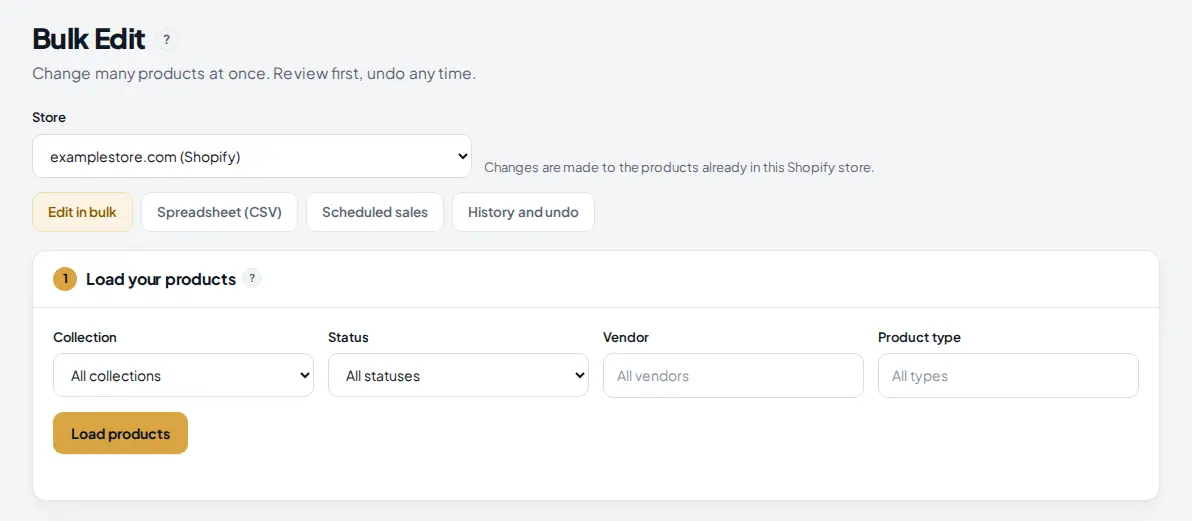
Open Bulk Edit in the Build menu and choose the Store. Stay on the Edit in bulk tab. In card 1, leave the filters on All to load every product, or narrow the list first, then click Load products.
 1
2
3
4
5
1
2
3
4
5
- Store: every connected store. Changes go to the products already in this store.
- The tabs. Edit in bulk is this guide. Spreadsheet (CSV), Scheduled sales and History and undo are covered at the end.
- Collection (a category on WooCommerce): load only one collection.
- Status: load only active, draft or archived products. Vendor and Product type filters work the same way on Shopify.
- Load products loads up to 1,000 products at a time.
2 Choose what you want to change
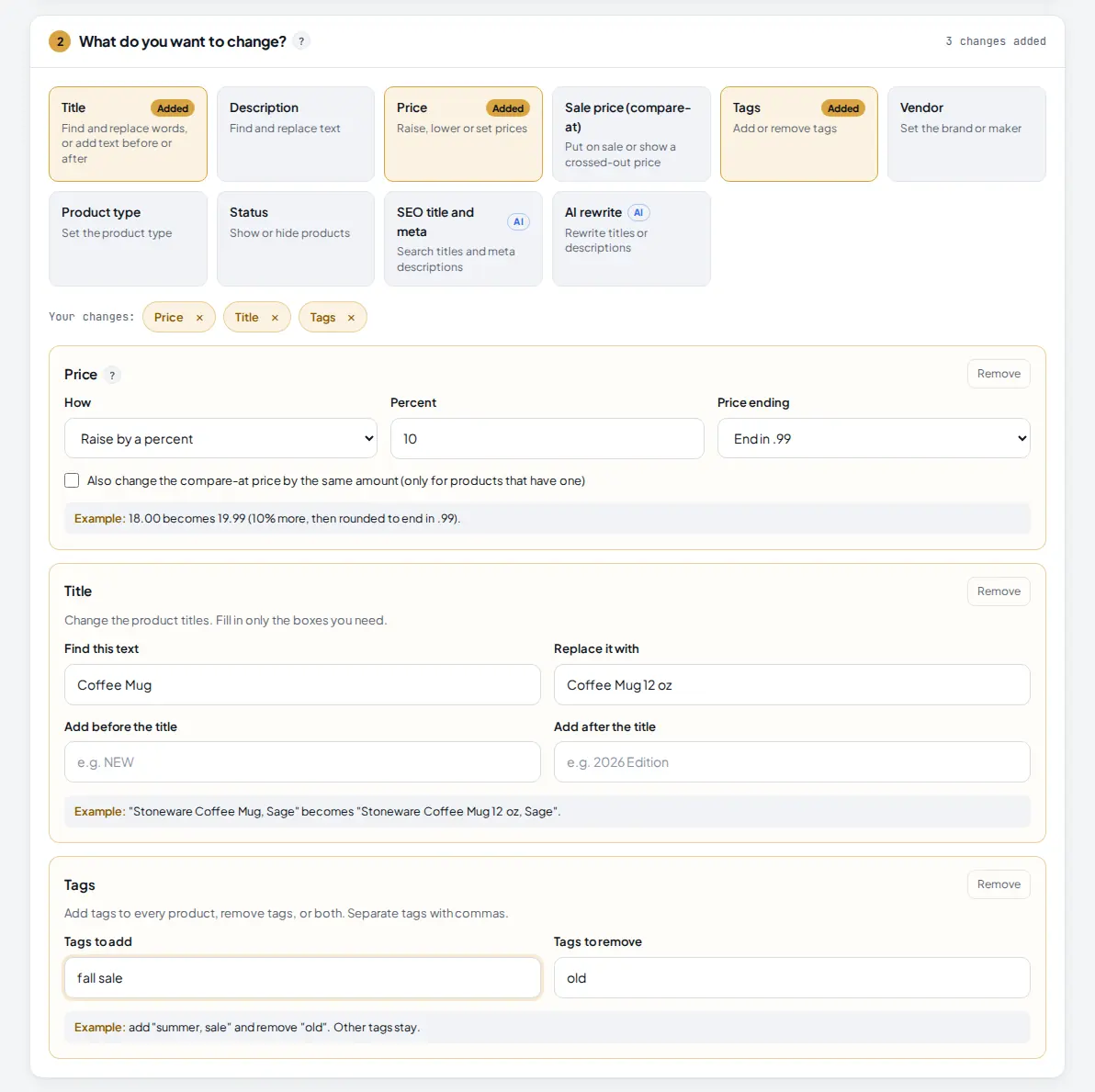
In card 2, click a tile to add a change. You can add several; only the changes you add are made and everything else stays as it is. Each tile opens a small panel with its options and a live example worked out from your first selected product.
 1
2
3
4
5
1
2
3
4
5
- A tile marked Added is part of the job. Click Remove in its panel to take it out.
- How many changes you added.
- Title: find and replace text, or add words before or after every title. Here "Coffee Mug" becomes "Coffee Mug 12 oz".
- Price: raise or lower by a percent, multiply, or set an exact price, with an optional .99 or .95 ending. The example line shows 18.00 becoming 19.99.
- Tags: tags to add and tags to remove, separated by commas. Other tags stay.
| Change | What it does |
|---|---|
| Title | Find and replace, add before, add after. |
| Description | Find a word or sentence in every description and replace or delete it. |
| Price | Changes the selling price of every variant. The compare at price stays unless you tick the box to change it by the same amount. |
| Sale price (compare-at) | Puts products on sale with a percent off, or sets or clears the crossed out "was" price. |
| Tags | Adds and removes tags. |
| Vendor, Product type | Sets the same vendor or product type on every selected product (Shopify only). |
| Status | Shows or hides products, for example Draft for sold out seasonal items. |
| SEO title and meta (AI) | AI writes the search title and meta description, with an optional focus keyword and the cornerstone flag. |
| AI rewrite (AI) | AI rewrites titles, descriptions or both, in the language you pick. |
3 Select the products to change
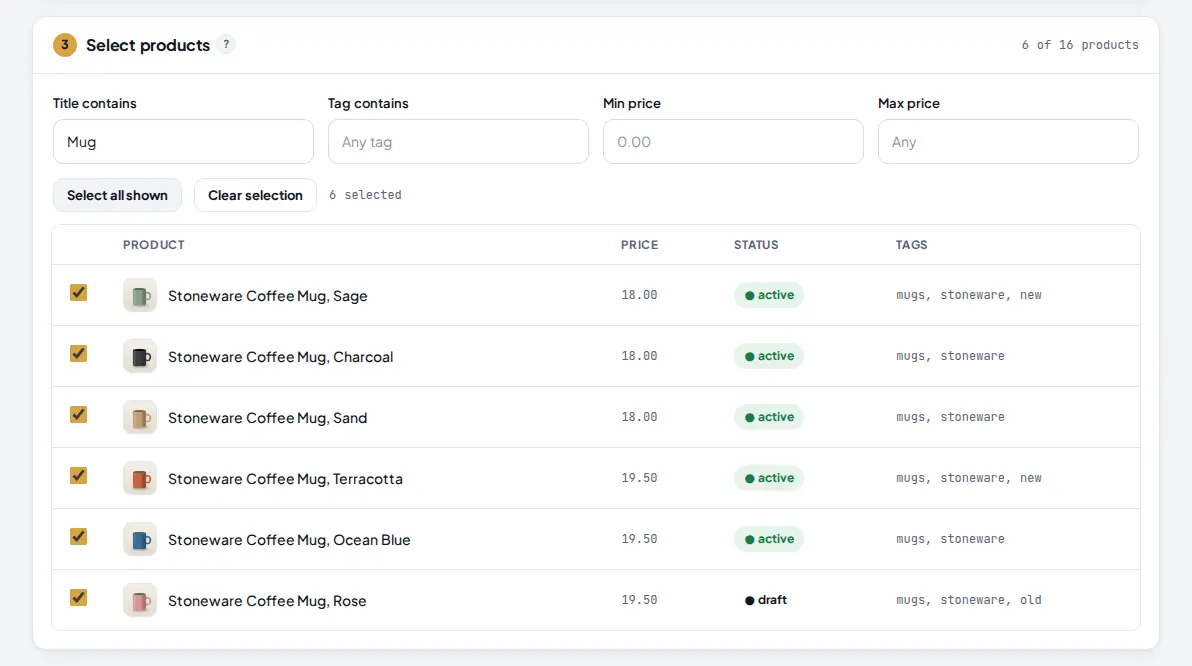
Card 3 lists the loaded products with their photo, price, status and tags. The filters at the top work instantly on the loaded list. Tick products one by one, or filter and click Select all shown.
 1
2
3
4
1
2
3
4
- Title contains, Tag contains, and a min and max price narrow the list.
- Select all shown ticks every product the filters show. Clear selection unticks them all.
- How many products are selected.
- Tick or untick a single product here.
4 Review every change before it is saved
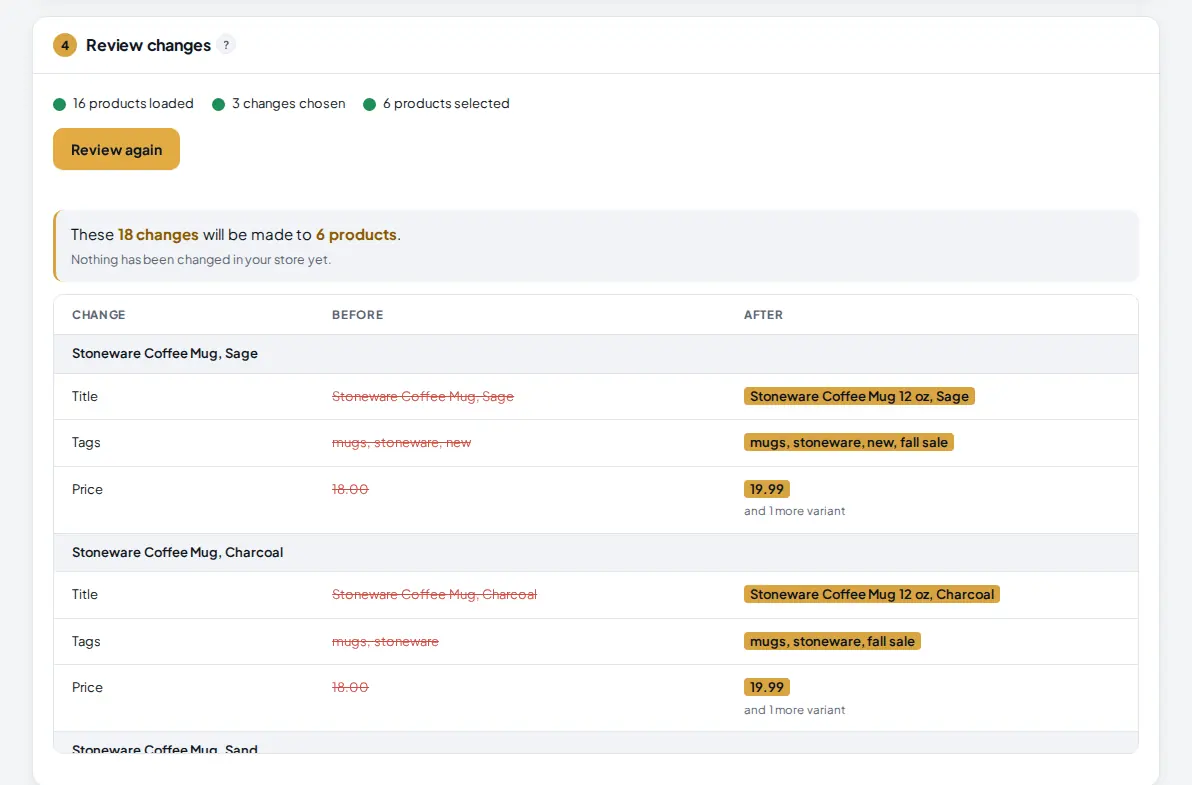
Card 4 checks that you have products loaded, changes chosen and products selected. Click Review changes. AM Jarvis reads the selected products from your store and lists, for each one, only the fields that will change, old value next to new value. Nothing is written to your store in this step.
 1
2
3
4
1
2
3
4
- The checklist: products loaded, changes chosen, products selected. All three need a green dot.
- The summary: how many changes will be made to how many products, and a reminder that nothing has changed yet.
- Before: the current value, crossed out.
- After: the new value. "and 1 more variant" means the same change applies to the other variants too.
If you change a filter, a change or the selection after reviewing, the review is cleared and you review again. Products that already match are listed as No change and skipped.
5 Apply the changes
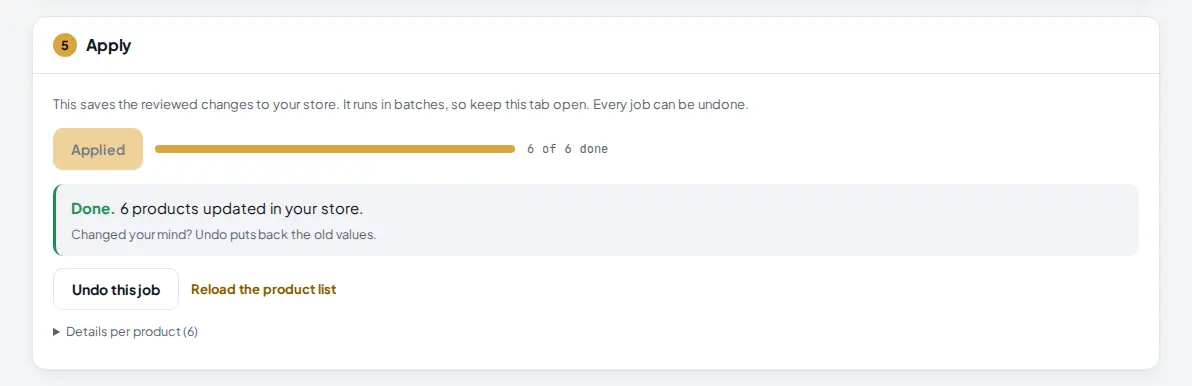
In card 5, click Apply to 6 products (the button shows your number). The changes are saved in batches of 10 with a progress bar. Keep the tab open until it says Done.
 1
2
1
2
- The progress bar and count, for example 6 of 6 done.
- Done with the number of products updated. Undo this job puts the old values back right away, and Details per product shows the result of each one.
Tip: try a new kind of change on two or three products first. When the result looks right in your store, select the rest.
6 Undo a job later from History and undo
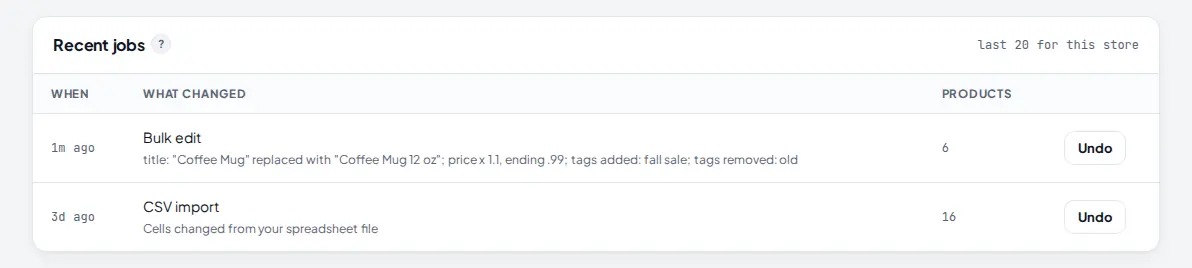
Every applied job and every CSV import is saved as a job. Open the History and undo tab to see the last 20 jobs for the store, what each one changed and how many products it touched.
 1
2
1
2
- When the job ran and what it changed, in plain words.
- Undo restores the old values of only the fields that job changed. Later edits to other fields stay.
7 Use the spreadsheet or a scheduled sale for bigger jobs
Two other tabs cover jobs that do not fit one rule:
- Spreadsheet (CSV): download your products as a CSV, change the cells you want in Excel or Google Sheets, and upload the file. Keep the id and handle columns. AM Jarvis compares the file with your store, lists only the cells that differ, and applies them when you click Apply. Up to 5,000 rows per file.
- Scheduled sales: load and select products, pick a discount and the start and end time. The sale starts and ends on its own and prices go back automatically. You can also add a word before titles, such as SALE, and show the old price crossed out.
Tips
- Use the price example line in the panel to check your math before you review.
- Add "Find this text" changes with care: the text is matched in every selected title, so check the review for titles you did not expect.
- For a storewide sale, Sale price (compare-at) with a percent off shows shoppers the crossed out original price.
- Keep a short tag for each campaign (for example "fall sale") so you can filter and remove it in one job when the campaign ends.
Common mistakes
- Applying without selecting. The checklist in card 4 shows a grey dot for products selected. Tick products in card 3 first.
- Closing the tab during Apply. Batches are sent from your browser. Leave it open until Done.
- Running AI changes without a key. The review warns you, and Apply stops with "These operations need AI". Add your key in Settings.
- Going over the plan limit. On Free one job may change 50 products. Select fewer or upgrade.
What to do next
Bring new products in with Import many products at once, or check your catalog against Google's rules with Scan a store and fix Merchant Center issues. More on the Bulk Product Editor page.
Frequently asked questions
How many products can I change at once?
Bulk Edit loads up to 1,000 products at a time; use a collection or status filter to reach the rest. Your plan sets how many products one job may change: 50 on Free, 5,000 on Starter, and no cap on Pro and Agency.
Does Review changes write anything to my store?
No. Review reads the current products and shows exactly which fields would change. Your store is only changed when you click Apply.
How does Undo work?
Before a product is changed, AM Jarvis saves the old values of the fields the job touches. Undo in History and undo puts those values back. Fields you edited later in other ways are left as they are. Scheduled sales are undone in the Scheduled sales tab.
Why can I not see Vendor and Product type for my WooCommerce store?
Those two changes are for Shopify stores only, because WooCommerce has no vendor or product type field. Every other change works on both platforms.
Can I preview the AI rewrite before it is saved?
No. AI text is written at the moment you apply, so the review shows "written by AI when you apply" instead of the new text. You can still undo the job afterwards if you do not like the result.

Founder of AM Jarvis. More than a decade running e-commerce stores, Google Shopping campaigns and niche sites. About the author
The app changes often. If a screen here no longer matches what you see, let us know and we will update the guide.