Quick answer
You paste the link of a Shopify or WooCommerce product page, pick the store it goes to, choose a pricing rule and an optional AI rewrite, then click Import with Jarvis. AM Jarvis copies the title, description, images, variants, SKUs and prices into your store and sets your new price.
This guide is for store owners and dropshippers who want to copy one product into their own Shopify or WooCommerce store without retyping it. You need an AM Jarvis account (every plan includes imports), one connected store, and the link of a product page you have the right to sell, such as your supplier's catalog or your own second store.
It takes about two minutes. At the end the product is live in your store with its images, variants, SKUs and your own price, and, if you want, a fresh title and description written by AI.
1 Connect the store you import into
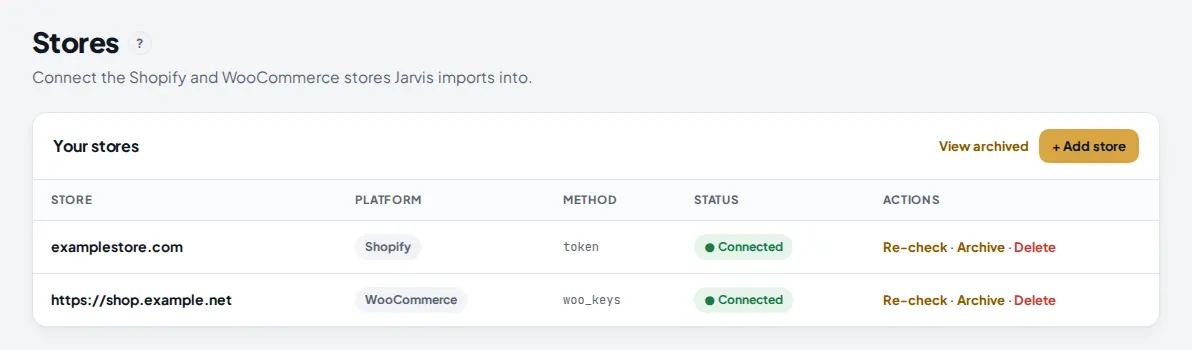
The importer can only send products to a store that AM Jarvis is connected to. Open Stores in the Build menu. If your store is already listed with a green Connected badge, you can skip to step 2.
 1
2
3
1
2
3
- + Add store opens the connect window. Pick Shopify or WooCommerce and follow the short how-to inside it.
- The platform of each store. Shopify stores connect with a Client ID and Secret from a Shopify app you create; WooCommerce stores connect with a Read/Write REST API key.
- Connected means AM Jarvis can create products there. If it says anything else, click Re-check in the same row.
Tip: for WooCommerce, the API key must have Read/Write permission. A Read only key connects, but imports fail when AM Jarvis tries to create the product.
2 Open the Product Importer and confirm your rights
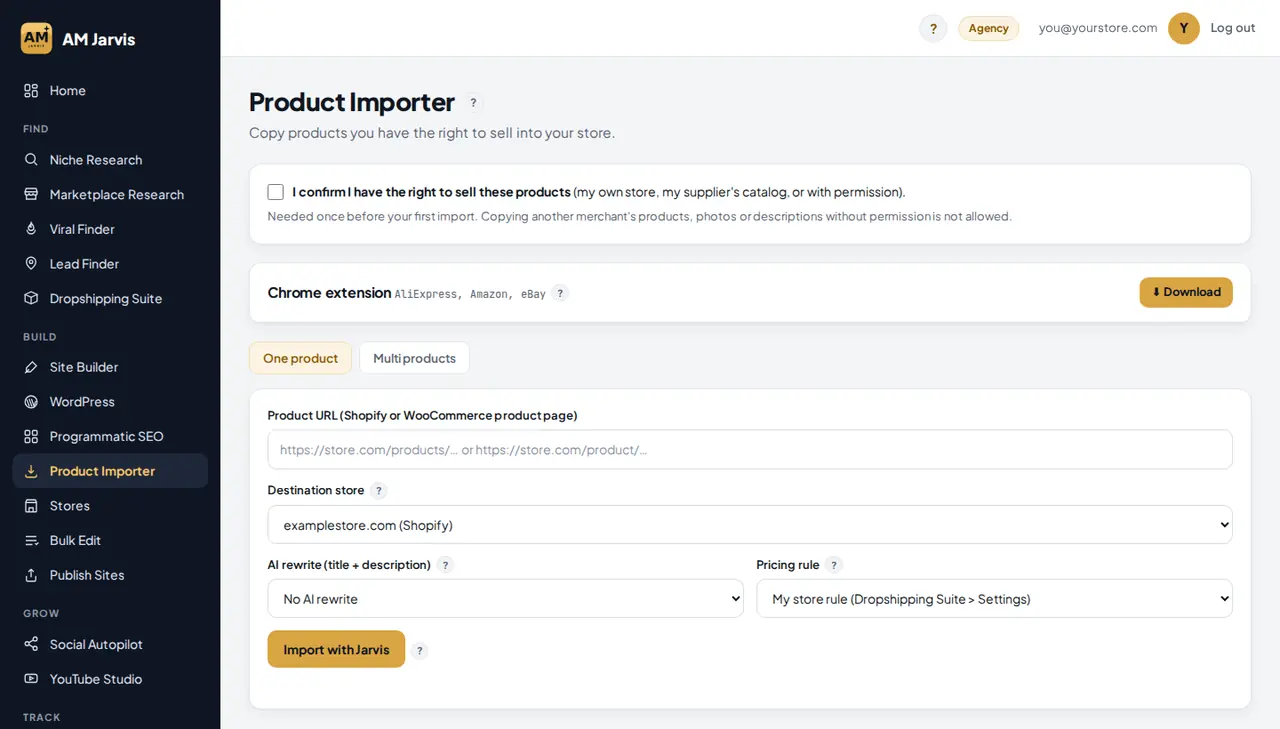
Click Product Importer in the Build menu. The first time you use it, a box at the top asks you to confirm that you have the right to sell the products you import. You only do this once per account, and the server checks it too, so imports from the extension also need it.
 1
2
3
1
2
3
- Product Importer in the Build menu.
- Tick I confirm I have the right to sell these products. It saves right away and the box shows the date you confirmed.
- The One product tab is for a single link. Multi products is for a whole collection, covered in its own guide.
The Chrome extension card below the box is for AliExpress, Amazon and eBay pages, which this tab does not read. The tab itself takes Shopify and WooCommerce product pages.
3 Paste the link and pick your store
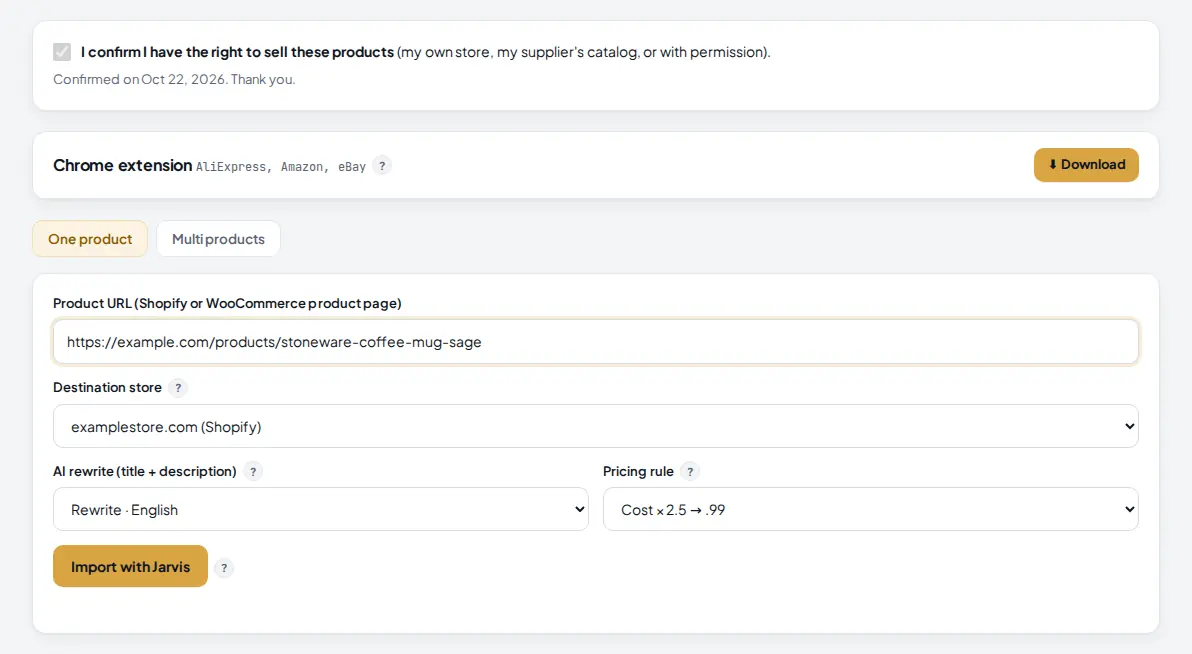
Open the product page in your browser, copy the address from the address bar and paste it into Product URL. A Shopify link looks like https://example.com/products/stoneware-coffee-mug-sage. A WooCommerce link looks like https://example.com/product/stoneware-coffee-mug/. Then choose the Destination store, the store the product should be created in.
 1
2
3
4
5
1
2
3
4
5
- The rights box now shows the date you confirmed. You will not be asked again.
- Product URL: the full link of one product page, not a collection or the home page.
- Destination store: every connected store is listed by its address and platform.
- AI rewrite: No AI rewrite keeps the original text. Pick a language to get a new title and description in that language.
- Pricing rule: how your selling price is worked out from the source price. See the table in the next step.
4 Choose a pricing rule and an AI rewrite
The price in the link is treated as your cost. The pricing rule turns it into your selling price for every variant. Your choice is remembered for next time, and the Multi products tab uses the same setting.
| Pricing rule | What it does | Example with a $18.00 source price |
|---|---|---|
| My store rule (Dropshipping Suite > Settings) | Uses the rule you saved for that store in the Dropshipping Suite. If you never saved one, the source price is kept. | Depends on your saved rule |
| Keep source price | Copies the price exactly. | $18.00 |
| Cost × 1.5 → .99 | Multiplies by 1.5, then ends the price in .99. | $26.99 |
| Cost × 2 → .99 | Multiplies by 2, then ends in .99. | $35.99 |
| Cost × 2.5 → .99 | Multiplies by 2.5, then ends in .99. | $44.99 |
| Cost × 3 → .99 | Multiplies by 3, then ends in .99. | $53.99 |
| Cost × 3 → .95 | Multiplies by 3, then ends in .95. | $53.95 |
The .99 and .95 endings round up to the next whole dollar first, so $45.00 becomes $44.99, not $45.99. A compare at price (the crossed out price) on the source gets the same rule.
The AI rewrite list has English, Spanish, German, French, Italian, Portuguese, Dutch, Arabic and Urdu. The AI writes a new title and a new description from the original, so your listing does not repeat the source word for word. It uses your own AI key from Settings, or the platform key if the admin has set one. Images, variants and prices are not touched by the rewrite.
5 Click Import with Jarvis
Click Import with Jarvis. AM Jarvis reads the full product on its own server: images, variants, SKUs and prices. It applies your pricing rule, runs the AI rewrite, then creates the product in your store. This usually takes a few seconds, a little longer with the rewrite.
 1
2
1
2
- Import with Jarvis shows Importing while it works. Stay on the page until the message appears.
- The result. Green means the product was created, followed by the title it got in your store and AI rewritten when the rewrite ran. If the rewrite was skipped, the reason is shown here instead.
The link box empties so you can paste the next product. The product is created as Active, which means it is visible in your store right away. Open it in your Shopify or WooCommerce admin if you want to change the collection, the photos order or anything else before customers see it.
Tip: the original cost is remembered with the product, so the Dropshipping Suite can later watch the supplier price and stock for it.
6 Check your imports on Home
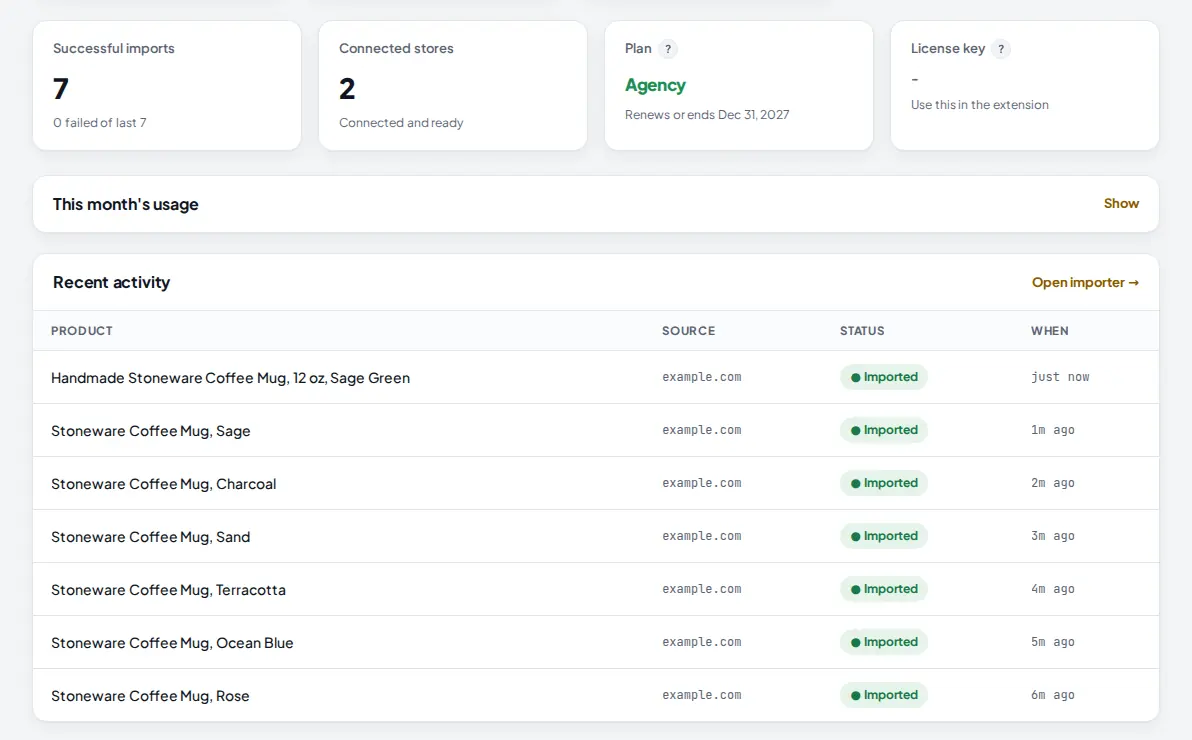
Open Home. The Successful imports card counts your recent imports, and Recent activity lists each one with the store it came from, its status and when it happened. A failed import shows the reason in red under the product name.
 1
2
1
2
- Successful imports, with how many of the last imports failed.
- Imported means the product was created. Failed rows show what the store or source answered, for example a missing write permission.
Your monthly allowance is under This month's usage on the same page.
Tips
- Set your pricing rule once in Dropshipping Suite > Settings and leave the importer on My store rule. Then the importer, the extension and supplier sync all price the same way.
- Use the AI rewrite when you sell the same product as other stores. A unique title and description help your product page stand out in search.
- Importing a lot from one store? The Multi products tab loads a whole collection and lets you tick the products you want.
- The source store must be public. A store behind a password page cannot be read.
Common mistakes
- Pasting a collection or home page link. One product needs a single product page. Use Multi products for collections.
- Pasting an AliExpress, Amazon or eBay link. This tab reads Shopify and WooCommerce pages only. Use the Chrome extension for those sites.
- Skipping the rights box. The import stops with "First tick the box above". Tick it once and import again.
- A WooCommerce key with Read only access. Create a new key with Read/Write and add the store again; it updates the existing connection.
- Expecting the rewrite without an AI key. The product imports with the original text. Add your key in Settings first.
What to do next
Bring in a whole collection at once with Import many products at once, then change prices, titles and tags across the store with Bulk Edit. See everything the importer can do on the Product Importer page.
Frequently asked questions
Which links can I import from?
The One product tab takes a product page from any Shopify store (a link with /products/ in it) or any WooCommerce store (a link with /product/ in it). For AliExpress, Amazon and eBay pages, use the AM Jarvis Chrome extension, which imports from the page you have open.
Does the product go live straight away?
Yes. A product imported from the One product tab is created as Active in your store. If you want to check it first, open it in your Shopify or WooCommerce admin right after the import and set it to Draft, or use the Chrome extension's Edit Product button, which lets you edit the product and publish it as Draft.
How many products can I import?
The Free plan includes 10 imports a month, Starter includes 1,000 a month, and Pro and Agency have no monthly cap. Every product counts as one import, whether it comes from this page, the Multi products tab or the Chrome extension.
Why did the AI rewrite not happen?
The rewrite needs an AI key. If none is set in Settings and the admin has not set a platform key, the product is still imported with its original text and the message says the rewrite was skipped. Add your key in Settings and import again, or rewrite later with Bulk Edit.
Can I import from a store that is not mine?
Only when you have the right to sell the product, for example your own second store, your supplier's catalog, or a store that gave you permission. Copying another merchant's products, photos or descriptions without permission is not allowed, which is why the importer asks you to confirm this once.

Founder of AM Jarvis. More than a decade running e-commerce stores, Google Shopping campaigns and niche sites. About the author
The app changes often. If a screen here no longer matches what you see, let us know and we will update the guide.