Quick answer
In the Multi products tab you paste a store, collection or category link and click Load products. AM Jarvis shows every product with its photo, price and number of variants, you tick the ones you want, choose the store, AI rewrite and pricing rule, and import them in one run with a result for each product.
Use this when you want more than a handful of products from the same place, for example your supplier's whole "Mugs" collection or a category of your own older WooCommerce store. You need an AM Jarvis account, a connected Shopify or WooCommerce store (see Import one product for how to connect one), and a link to a public Shopify or WooCommerce store you have the right to sell from.
Every product you import counts toward your monthly imports: 10 on Free, 1,000 on Starter, no cap on Pro and Agency.
1 Open the Multi products tab and paste a link
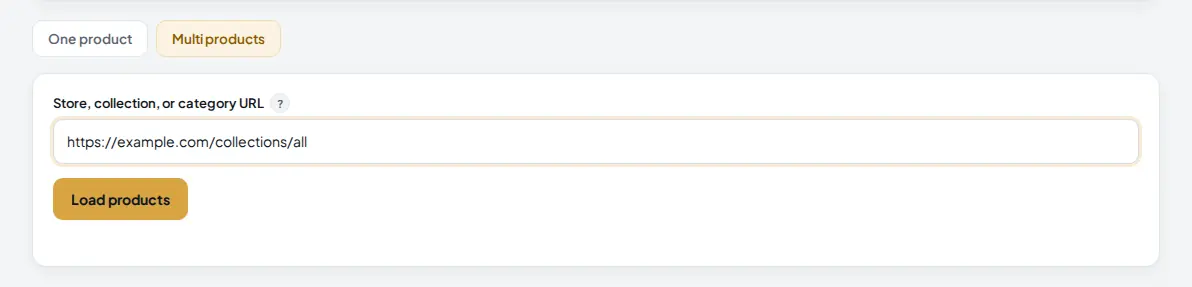
Open Product Importer in the Build menu and make sure the rights box at the top is ticked. It only needs to be ticked once per account. Click the Multi products tab, then paste a link into Store, collection, or category URL.
 1
2
3
1
2
3
- The Multi products tab.
- The link. All of these work: a Shopify store home page (
https://example.com), a Shopify collection (https://example.com/collections/allor/collections/mugs) or a WooCommerce category (https://example.com/product-category/mugs/). - Load products reads the list. Nothing is imported yet.
AM Jarvis works out by itself whether the link is a Shopify or a WooCommerce store. A Shopify link loads up to 250 products, a WooCommerce link up to 100.
2 Review the products and tick the ones you want
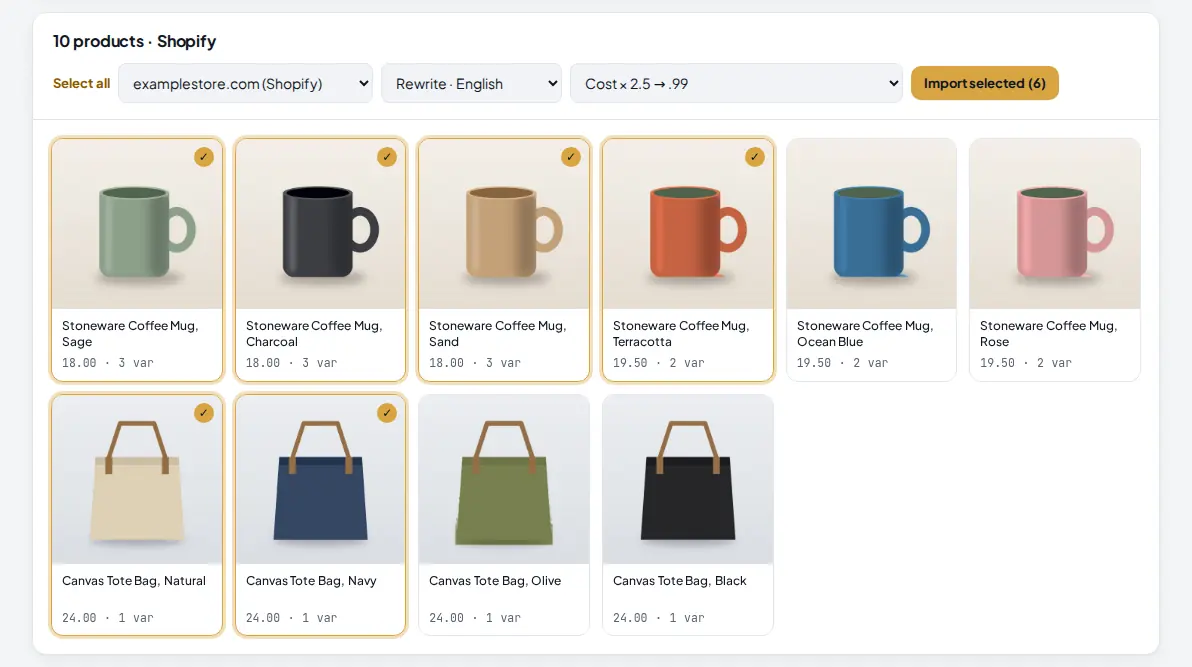
After a few seconds a grid shows every product it found, with its photo, title, source price and how many variants it has. This is your review step: nothing reaches your store until you click Import, and only the products you tick are imported.
 1
2
3
4
5
1
2
3
4
5
- How many products were found and on which platform.
- Select all ticks every product in the grid. Click it again to clear them all.
- Click a product card to tick it. A ticked card gets a gold border and a check mark. Click again to untick.
- The pricing rule. Next to it, on the left, are the destination store and the AI rewrite language. They work exactly like on the One product tab.
- Import selected shows how many products are ticked.
Look at each card before you tick it. Check the photo is the product you mean, the price makes sense against your pricing rule, and the variant count is what you expect. A product with dozens of variants creates dozens of variants in your store too.
Tip: the store, AI rewrite and pricing rule you pick here are shared with the One product tab and remembered for next time.
3 Choose your price and AI rewrite for the batch
The settings in the bar apply to every ticked product.
| Setting | What to pick |
|---|---|
| Store | The connected store the products are created in. |
| AI rewrite | No AI rewrite keeps the source title and description. A language (English, Spanish, German, French, Italian, Portuguese, Dutch, Arabic or Urdu) gives every product a new title and description. It uses your AI key from Settings, or the platform key if the admin set one. |
| Pricing rule | My store rule uses the rule saved in Dropshipping Suite > Settings. Keep source price copies the price. The Cost × rules multiply the source price by 1.5, 2, 2.5 or 3 and end it in .99 or .95, so a $18.00 product at Cost × 2.5 → .99 sells for $44.99. |
The AI rewrite adds time to each product, so a large batch with the rewrite on takes longer. The prices and images are not changed by the rewrite.
4 Import and read the results
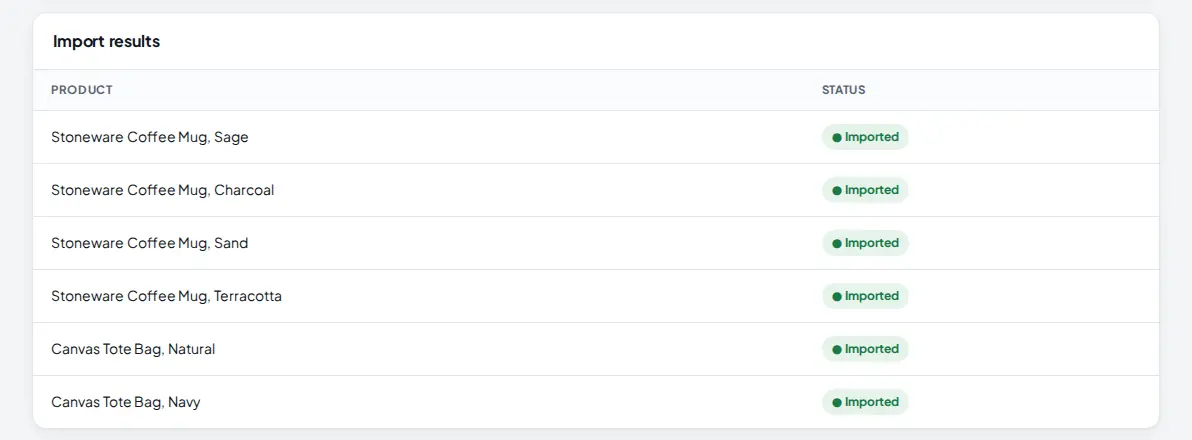
Click Import selected. An Import results table appears under the grid and fills in as the products are created. Products are sent in batches of 10, with a short pause between them so your store's API limits are respected. Keep the tab open until the table stops showing "done…".
 1
1
- Imported means the product was created in your store with the title shown on the left (the new AI title when the rewrite ran). A red badge shows the reason when one product fails, and the others carry on.
Each product is created as Active. If you want to hold some back, open them in your store admin and set them to Draft, or select them in Bulk Edit and change the Status for all of them at once.
If your monthly limit runs out during the run, the products past the limit get a red "Monthly import limit reached" line and are not created.
5 Check the log on Home
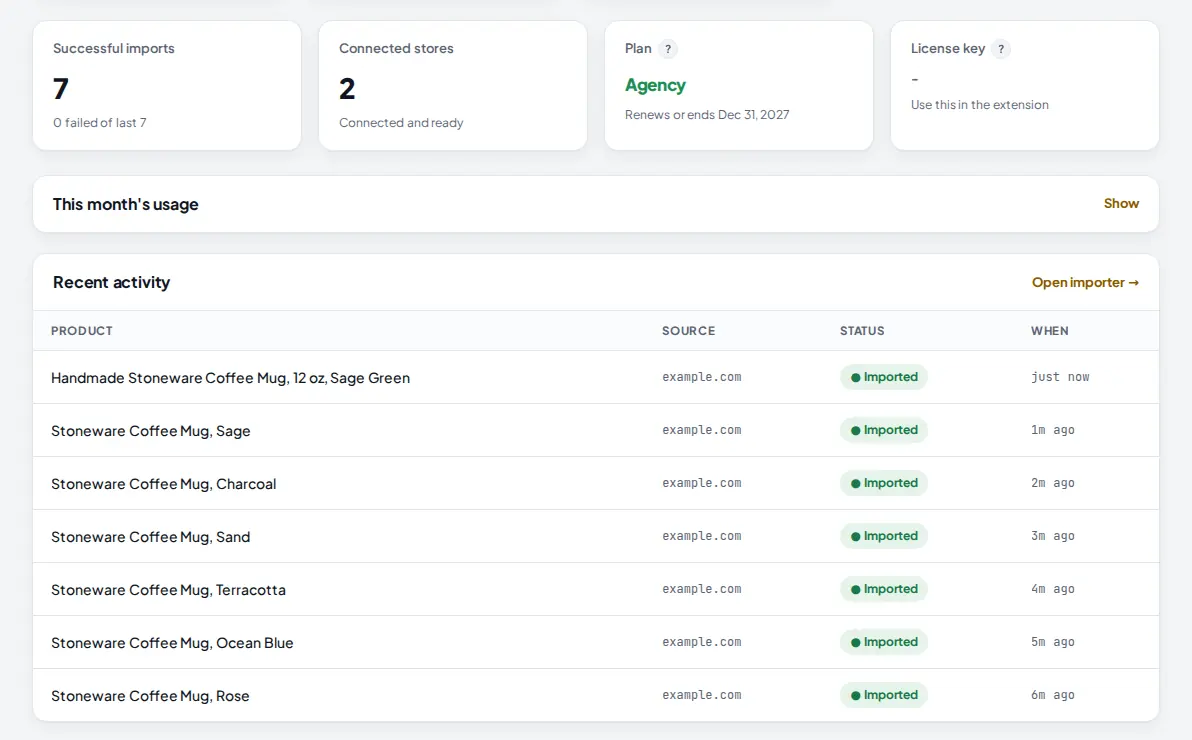
Every product of the batch is logged on Home under Recent activity, with the store it came from, its status and how long ago it ran. The Successful imports card counts them.
 1
2
1
2
- Successful imports and how many of the last imports failed.
- The status of each product. A failed row has the reason in red under the product name.
Tips
- Start with a small batch of 5 to 10 products. Check them in your store, then import the rest with the same settings.
- Load a single collection instead of the whole store to keep the grid short and the products on one theme.
- Set a store pricing rule once in the Dropshipping Suite so every batch is priced the same way.
- After the import, use Bulk Edit to add tags, set a vendor or put the batch in a collection in one go.
Common mistakes
- Clicking Import with nothing ticked. The button says Import selected (0) and does nothing. Tick at least one card.
- Closing the tab during a long run. The batches are sent from your browser. Keep the page open until the results table is complete.
- Using a password protected or private store link. The product list cannot be read. Use a public store.
- Forgetting the variant count. Products with many sizes and colors create all of those variants. Untick the ones you do not want in full.
What to do next
Need just one product? Follow Import one product. To change prices, titles or tags on everything you imported, use Bulk Edit. More about the importer on the Product Importer page.
Frequently asked questions
How many products can one load show?
A Shopify store or collection link loads up to 250 products, and a WooCommerce link loads up to 100. For bigger catalogs, load one collection or category at a time.
Can I review products before they are published?
You review them in the grid before you import: only the products you tick are imported. Each imported product is created as Active, so it is visible in your store straight away. To keep one hidden, set it to Draft in your store admin, or set a batch to Draft afterwards with Bulk Edit (Status).
What happens if my monthly import limit runs out halfway?
Products up to your limit are imported. The rest show a red line saying the monthly import limit was reached, and nothing else is created. Upgrade, or wait for the next month, then import the remaining products.
Do I need to keep the tab open?
Yes. The products are sent in batches of 10 from your browser so long runs survive, and the results table updates after each batch. If you close the tab, the batch that is running finishes but the next ones are not sent.

Founder of AM Jarvis. More than a decade running e-commerce stores, Google Shopping campaigns and niche sites. About the author
The app changes often. If a screen here no longer matches what you see, let us know and we will update the guide.