Quick answer
Pick your store and click Scan store. AM Jarvis reads your products, policies and pages the way a Merchant Center reviewer would, gives you a readiness score with 8 category scores, and lists every finding by risk. Fixable findings have a preview with the before and after; you apply them in one click and can undo them from Fix history.
This guide is for store owners who want to get approved in Google Merchant Center, or fix a store that was suspended or had products disapproved. The GMC Fixer scans your store the way a Merchant Center reviewer does and fixes what it can, always showing you the change first. You need a connected Shopify or WooCommerce store. Scanning works on every plan; applying fixes needs Pro or Agency.
It does not log in to Merchant Center. It checks your store, which is what Google's reviewers look at.
1 Pick your store and start the scan
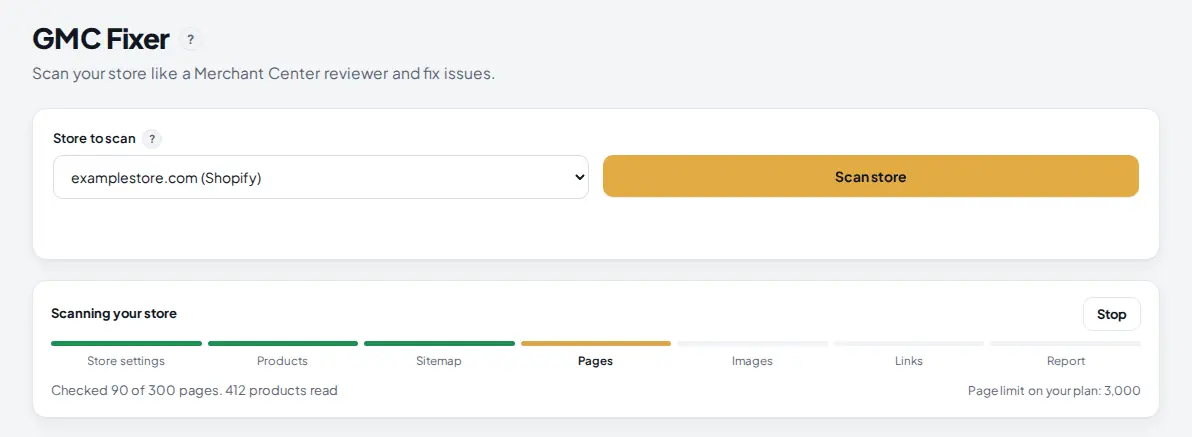
Open GMC Fixer in the Track menu, choose the store and click Scan store. The scan runs in steps: store settings, products, sitemap, pages, images, links and the report. You can leave the page while it runs.
 1
2
3
4
1
2
3
4
- Store to scan: every connected store.
- Scan store starts a new scan. The last finished scan stays on screen until the new one is done.
- The steps. The current one pulses; finished ones turn green. The line below says how many pages were checked and products read.
- Stop pauses the scan. A stopped scan can be resumed later.
How many pages one scan opens depends on your plan: 50 on Free, 100 on Starter, 300 on Pro and 3,000 on Agency. On a big catalog the product pages are sampled across the whole store. Products are always read in full through the store connection.
2 Read your readiness score
When the scan finishes, the top card shows a readiness score from 0 to 100 and a score for each of 8 categories. A category with a red bar is where reviewers are most likely to find a problem.
 1
2
3
4
5
6
1
2
3
4
5
6
- The store being scanned.
- The readiness score and what was checked: products, pages, images and links, and when.
- Counts by risk: Suspension risk (can get the whole account suspended), Disapproval risk (can get products rejected) and Warning.
- Fix all fixable previews every finding that AM Jarvis can fix at once.
- Business details holds the facts used to write your policies and pages. Export CSV and Printable report are next to it, for your records or for a client.
- The 8 categories: store access, business and contact details, policies and required pages, site content and links, product pages and structured data, product data, images and risky claims. Click one to filter the list.
3 Go through the findings
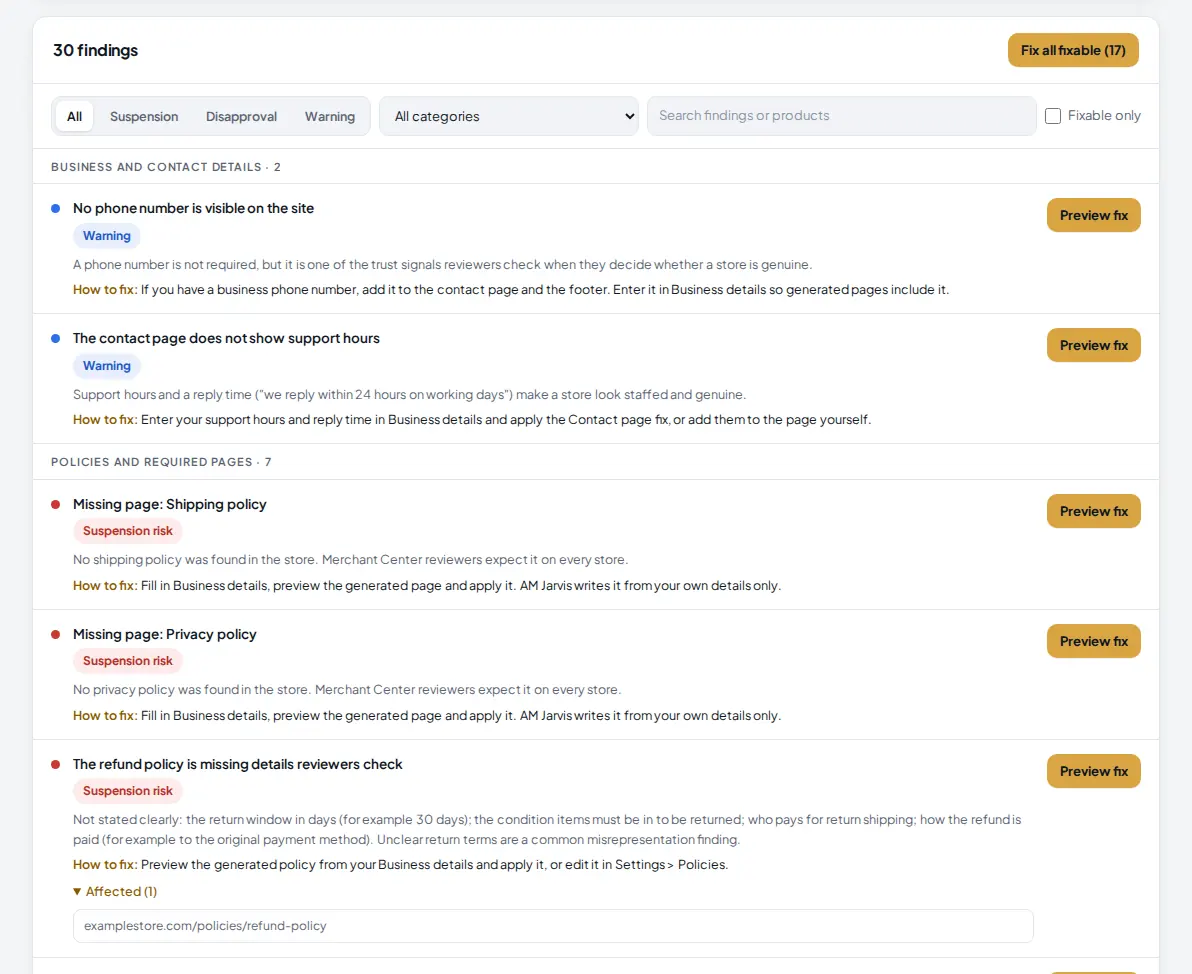
Below the score, every finding is listed by category. Each one says what is wrong, why reviewers care and how to fix it. Start with the red Suspension risk findings.
 1
2
3
4
5
6
1
2
3
4
5
6
- Show All, or only Suspension, Disapproval or Warning.
- Filter by category.
- Fixable only hides the findings you have to fix by hand. The search box next to it finds a finding or a product.
- The risk level of the finding.
- Preview fix shows exactly what would change. Findings marked Manual explain what to do yourself.
- Affected opens the list of products or addresses with this problem.
4 Preview a fix before applying it
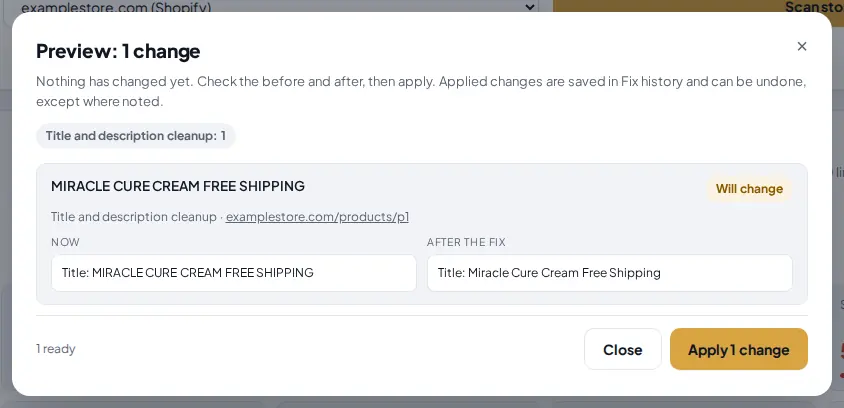
Click Preview fix. A window shows every change, the current value next to the value after the fix. Nothing has changed yet.
 1
2
3
4
1
2
3
4
- The kind of fix and how many items it changes.
- Now: the current value in your store.
- After the fix: what it will be.
- Apply saves the changes to your store (Pro and Agency). On Free and Starter this button is Upgrade.
Applied changes are saved in Fix history and can be undone, except where the preview says otherwise.
5 Fill in Business details for policies and pages
Missing or weak policies (refund, shipping, privacy, terms) and contact pages are among the most common reasons for a suspension. AM Jarvis writes them, but only from facts you give it. When a preview needs your details, it says so.
 1
1
- Fill in Business details opens the form. The fields still missing are listed in red under the preview, and the generated text shows "Not set" where they go.
 1
2
3
1
2
3
- Fill empty fields from my store settings copies what your store already knows: name, email, phone and address.
- Use the store name exactly as shown on your site.
- Contact details. Each field shows the value it found in your store settings below it.
 1
2
3
4
1
2
3
4
- Return window in days, for example 30.
- The condition items must be in to be returned.
- Who pays return shipping, and below it how refunds are paid and how fast.
- Save details. The preview is written again with your facts.
Use exactly the same details you entered in your Merchant Center business information. Shipping times, costs and payment methods are further down the same form.
 1
2
1
2
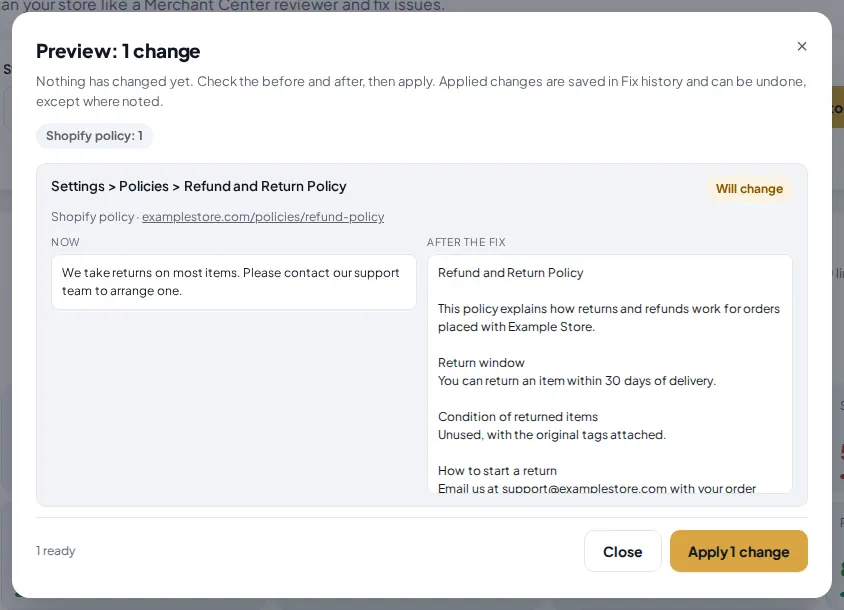
- The policy now uses your details: Example Store, a 30 day window, the item condition and how to start a return.
- Apply saves it to your store, here in Settings > Policies on Shopify.
6 Check Fix history and undo if needed
Every fix job is listed in Fix history under the findings, with how many items changed, failed or are still to do.
 1
2
3
1
2
3
- What the job did: changed, to do, and failed items.
- Undo all puts back the old values of that job.
- Details shows each item and, for a failed one, the reason, for example a missing write permission on the store connection. Resume continues a stopped job.
When you have worked through the list, click Scan store again to see the new score, then request a review in Merchant Center.
Tips
- Fix Suspension risk findings first, then Disapproval risk, then Warnings.
- Fill in Business details before Fix all fixable, so policies and pages are written in one go.
- Use Printable report to show a client what was found and what you fixed.
- If a fix fails with a permission message, add the scope it names to your store app and reconnect the store, then Resume the job.
Common mistakes
- Different details in the store and in Merchant Center. Reviewers compare them. Use the same name, address, phone and email in both.
- Leaving gaps in policies. A policy with "Not set" waits for you. Fill the missing fields instead of editing the text by hand.
- Applying a fix without reading the preview. Check the after column, especially for titles and descriptions.
- Requesting a review before scanning again. Scan once more to confirm the score went up and no new problems appeared.
What to do next
Clean up many product titles and tags at once with Bulk Edit. More on the GMC Fixer page.
Frequently asked questions
Does the GMC Fixer connect to my Merchant Center account?
No. It checks your store, the thing Google's reviewers look at: your products, policies, contact details, pages, images and links. It uses your store connection and opens your public pages. It does not read or change your Merchant Center account.
Which plans can apply fixes?
Every plan can scan and preview. Applying fixes is part of Pro and Agency; on Free and Starter the preview shows an Upgrade button instead of Apply. Plans also set how many pages one scan opens: 50 on Free, 100 on Starter, 300 on Pro and 3,000 on Agency.
Can I undo a fix?
Yes. Every applied fix job is saved in Fix history with Undo all, and Details shows each change with its result. A few changes cannot be undone automatically; the preview says so before you apply.
Will AM Jarvis make up my policies?
No. Policies and pages are written only from what you enter in Business details. An empty field shows as a gap in the preview, and that page waits until you fill it in. Use exactly the details you have in your Merchant Center business information.
Does it guarantee Merchant Center approval?
No tool can. The scan checks the issues reviewers most often flag, such as missing policies, unclear return terms, risky claims and broken pages. Fixing them makes approval much more likely, but Google makes the final decision.

Founder of AM Jarvis. More than a decade running e-commerce stores, Google Shopping campaigns and niche sites. About the author
The app changes often. If a screen here no longer matches what you see, let us know and we will update the guide.