Quick answer
An autopilot rule posts the next product from your store to one account on the days and time you choose, writing the post with your AI. A Content Pack is a zip with your finished images and a posts list (content-pack.json) that schedules a whole week in one click. Results shows every post that went out with the numbers each platform reports.
This guide is for when you already post with Social Autopilot and want it to run on its own: a product a day from your store, a week of finished posts imported in one go, and a clear view of what worked. You need connected accounts grouped by website (see Turn a product link into scheduled posts), a connected Shopify or WooCommerce store for rules, and an AI account for the captions the rules write.
Every post that goes out counts toward your plan: 10 a month on Free, 150 on Starter, 1,000 on Pro and no cap on Agency.
1 Create an autopilot rule
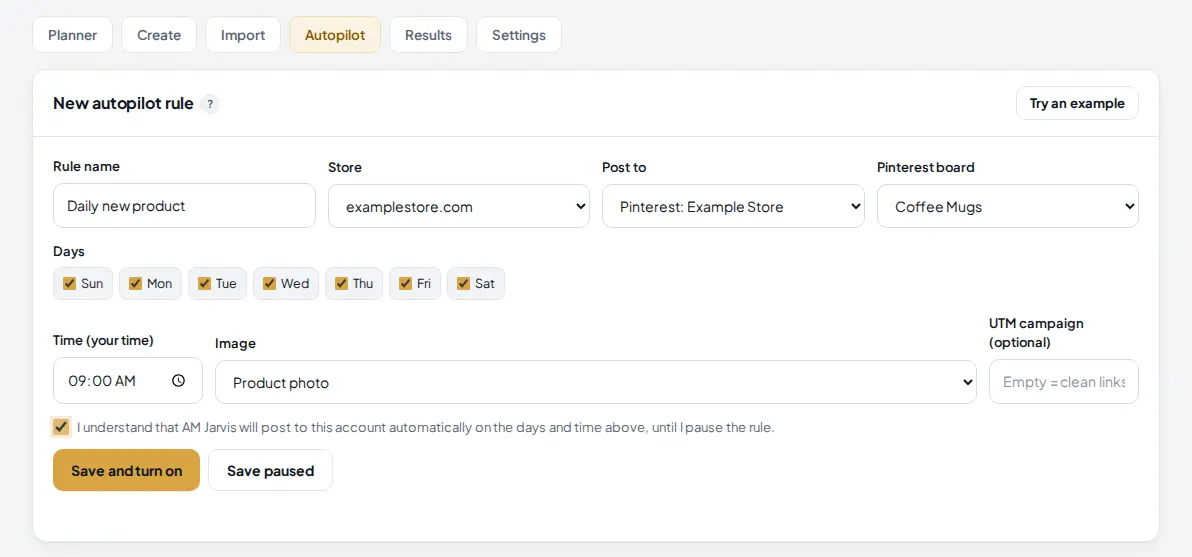
Open Social Autopilot and click Autopilot. A rule takes the next product you have not posted yet from a store, writes the post with your AI, adds the product photo and schedules it for one account at the time you set.
 1
2
3
4
5
6
7
8
9
1
2
3
4
5
6
7
8
9
- The Autopilot tab. Try an example fills the form for you.
- Store: the connected store the products come from.
- Post to: one connected account.
- Pinterest board: appears for Pinterest accounts.
- Days: tick the days the rule posts.
- Image: the product photo, or an AI image variant from your AI provider. AI variants are inspired by the product and may not show it exactly; use the product photo when accuracy matters.
- UTM campaign: leave empty for clean links, or type a campaign name to tag them.
- Tick that you understand AM Jarvis will post to this account automatically until you pause the rule.
- Save and turn on, or Save paused to turn it on later.
The time is in your own time zone. A rule saved after today's time has passed starts tomorrow, so there is no surprise post right away.
2 Watch and control your rules
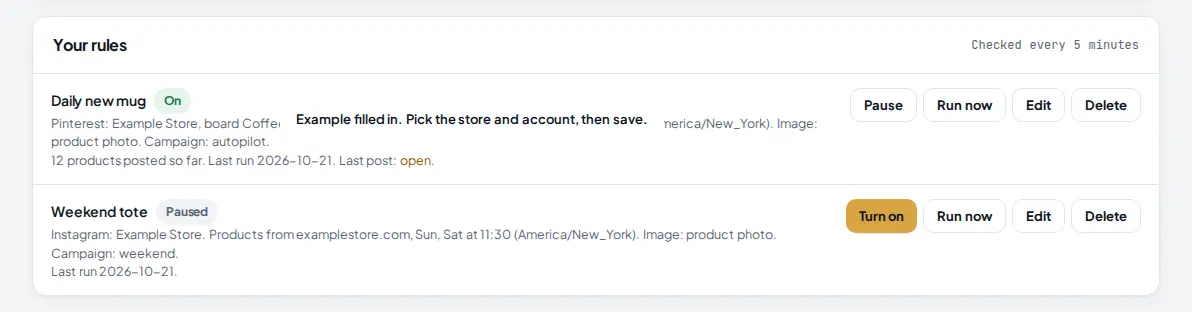
Under the form, Your rules lists every rule with what it does and how it is going. Rules are checked every 5 minutes.
 1
2
3
4
5
1
2
3
4
5
- On or Paused.
- How many products it posted so far, when it last ran and a link to its last post. A problem, such as a disconnected account, shows here in red.
- Run now queues the next post 15 minutes from now, so you can check or cancel it in Planner first.
- Pause stops the rule. Posts already in the queue stay there. Edit and Delete are next to it.
- A paused rule has Turn on.
A rule picks active products with a photo, newest first, and never posts the same product twice until every product has been posted. Then it starts again from the newest.
3 Prepare a Content Pack
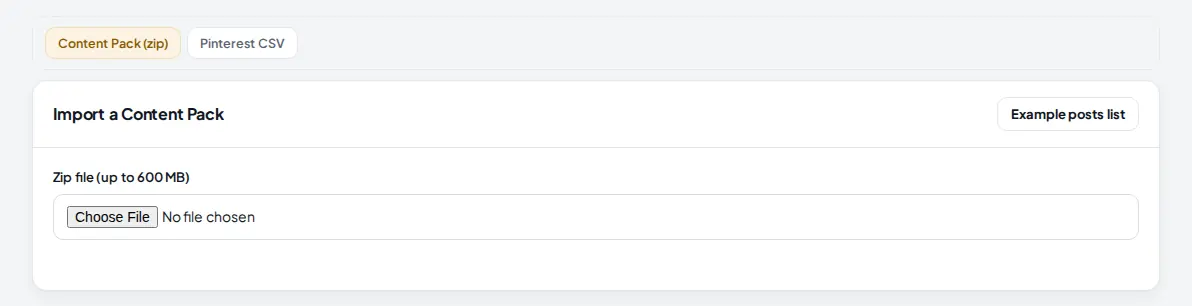
A Content Pack is for finished posts you made yourself or with another tool: one zip file with your images, reels and pins plus a posts list. Click Import, then Content Pack (zip).
 1
2
3
1
2
3
- Content Pack (zip). Pinterest CSV next to it schedules up to 200 Pins from a spreadsheet.
- Example posts list downloads a complete content-pack.json to copy from.
- Choose the zip file, up to 600 MB.
Put the posts list (content-pack.json, posts.json or posts.csv) at the top of the zip and the media in one folder per website, for example example-store/example-store-pin-1.jpg. JPG or PNG is best. A pack holds up to 500 posts. The fields you will use most:
| Field | What it does |
|---|---|
key | A unique id for the post. Uploading the same pack again never doubles a post with the same key. Always set it. |
brand | The website the post belongs to: its name, web address or id. Websites listed under brands are created if they are new. |
platforms | facebook, instagram, pinterest, youtube, tiktok. Default: Facebook, Instagram and Pinterest. YouTube and TikTok only when named. |
type | image, link (Facebook only), carousel (2 to 10 files), reel, video or story. |
when | now or a date and time like 2026-10-26 20:00 in the website's time zone. Up to 366 days ahead; times more than 5 minutes in the past are skipped. |
title, text, hashtags, alt_text | The Pin or YouTube title, the post text, Instagram hashtags and the image description. |
link, board, files | The destination link, the Pinterest board name (created if it does not exist) and up to 10 media files. |
4 Upload the pack and check the matching
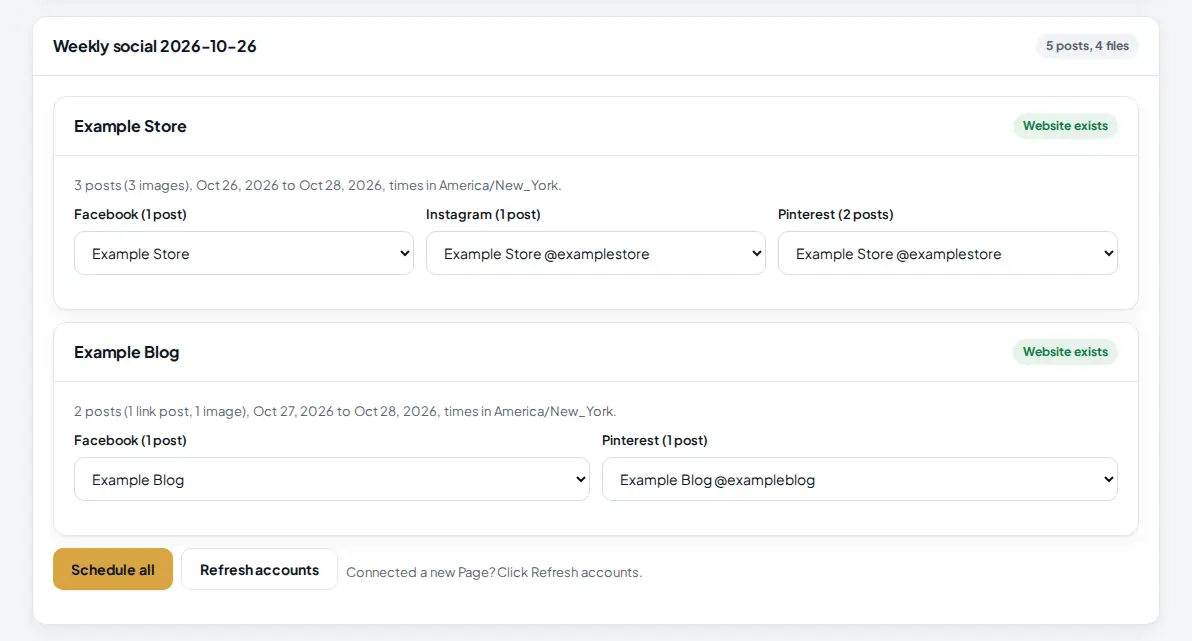
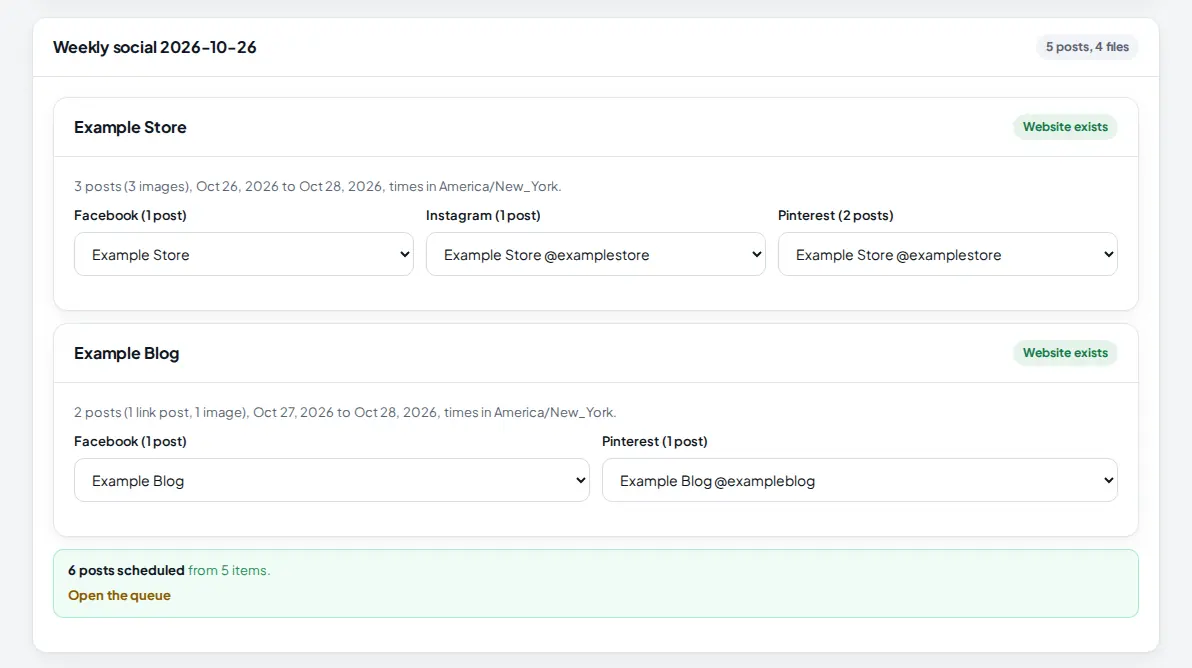
Choose the zip. It uploads in parts, then Jarvis unpacks it and reads the posts list. Before anything is scheduled you see every website in the pack, its posts and which account each platform goes to.
 1
2
3
4
5
1
2
3
4
5
- The pack name, number of posts and files.
- Website exists, or New website: will be created for a brand that is not set up yet.
- How many posts of which type, the dates they cover and the time zone used.
- The account each platform goes to. Pick another account, or Skip to leave that platform out.
- Schedule all. Problems in the posts list are listed above the websites before you click it.
Tip: connected a new Page after uploading? Click Refresh accounts instead of uploading again.
5 Schedule the whole pack
Click Schedule all. Each post becomes one queued post per platform, missing Pinterest boards are created, and the posts go out at their times. Each file is deleted from the server after it is posted.
 1
2
1
2
- How many posts were scheduled from how many items. An item for Instagram and Facebook makes two posts. Items that could not be scheduled are listed with the reason.
- Open the queue to see them in Planner, where you can change a time or cancel any of them.
6 Read your results
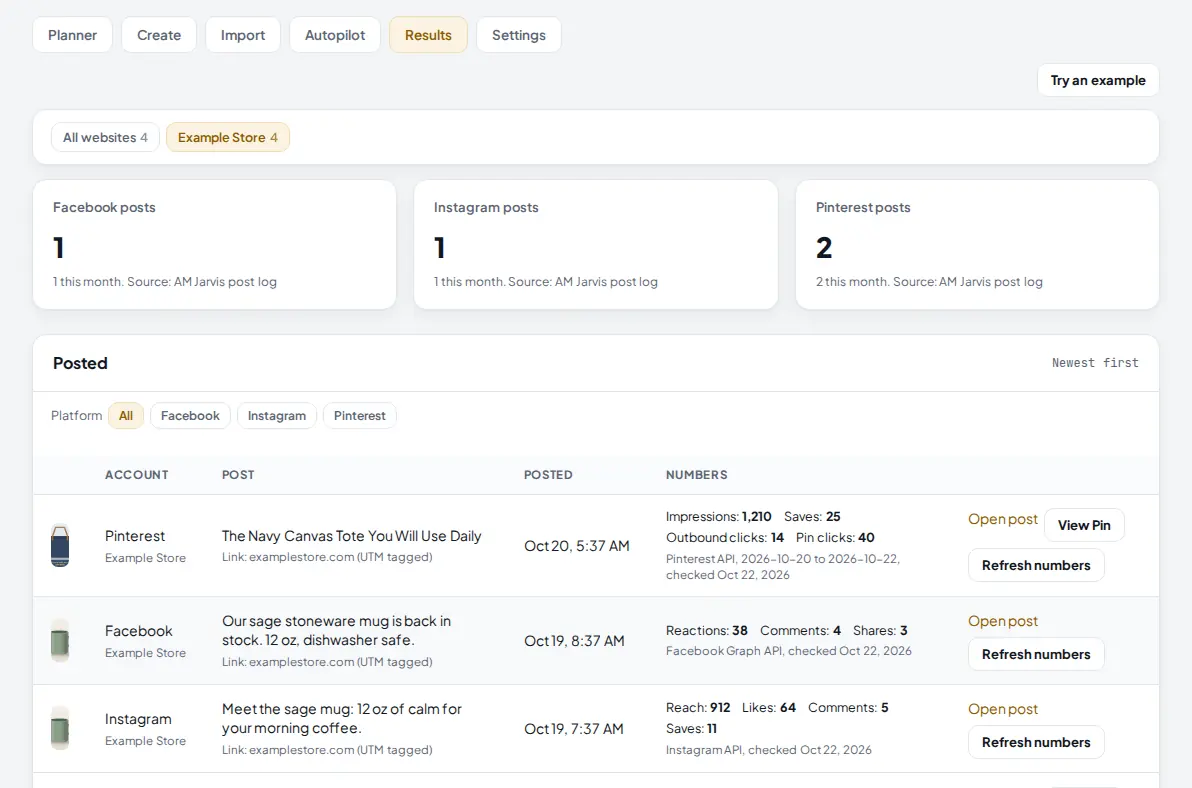
Click Results. Every post that went out is listed per website, newest first, with a link to the live post and the numbers the platform shares.
 1
2
3
4
5
1
2
3
4
5
- The Results tab, with one tab per website above the list.
- Posts per platform in total and this month, from the AM Jarvis post log.
- Filter the list by platform.
- The numbers: Pinterest impressions, saves, outbound clicks and Pin clicks; Facebook reactions, comments and shares; Instagram reach, likes, comments and saves. Under them, the source API and the date they were checked.
- Refresh numbers reads them again (at most once an hour). Open post and View Pin open the live post.
Numbers are read once a day after posting. Test Pins made while the Pinterest app is in Trial access say "only you can see it, so there are no numbers", and TikTok does not share post numbers with apps yet.
7 Handle failed posts, including blocked Pinterest links
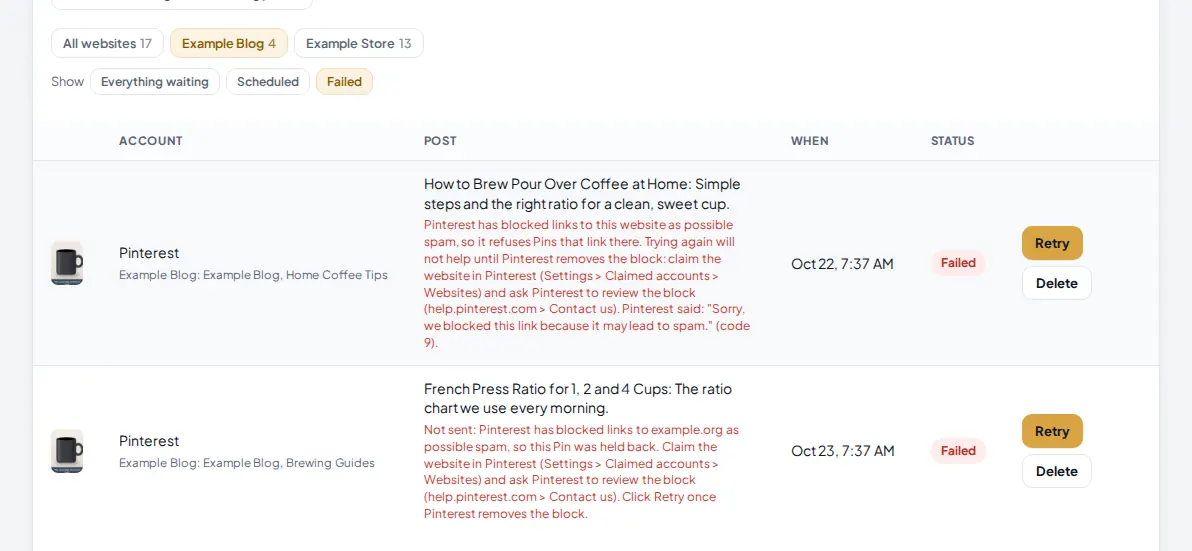
In Planner, pick a website and click Failed under Show. Each failed post has the reason in red and a Retry button. Temporary problems are retried for you (after 5, 15 and 60 minutes, and after 1, 3 and 8 hours when Pinterest limits the account), so a post only lands here when it needs you.
 1
2
3
4
1
2
3
4
- Show Failed lists only the posts that need you.
- Pinterest refused this Pin because it blocked links to the website as possible spam (code 9). Jarvis shows Pinterest's own words and does not keep retrying, because Pinterest will refuse it until the block is removed.
- Every other waiting Pin to the same website is held back with "Not sent", so Pinterest is not asked again and again.
- Retry sends it again. For a blocked website, first claim the website in Pinterest (Settings > Claimed accounts > Websites) and ask Pinterest to review the block (help.pinterest.com > Contact us). Once the block is gone, click Retry on each held Pin.
Other reasons you may see: an account that needs to be reconnected (reconnect it in Settings, then Retry), or a board made while the app was in Trial access. That one fixes itself: Jarvis moves the Pin, and the other posts and rules on that board, to a real board with the same name.
Tips
- Use Run now once after creating a rule. It queues the next post 15 minutes ahead so you can see exactly what the rule will publish.
- Split big Content Packs by week. Up to 500 posts can wait in the queue, and a pack of 200 posts for 3 platforms already uses 600 slots.
- Keep a Pinterest account below 50 Pins a day; Jarvis spreads anything above that to later.
- Check Results once a week and repeat the formats with the most saves and clicks.
Common mistakes
- A store with no product photos. The rule reports "The store has no active products with a photo to post". Add photos or pick another store.
- Forgetting the key field in a pack. Without keys, a second upload cannot tell which posts already exist. Always set key.
- Times in the past. Pack posts more than 5 minutes in the past are skipped. Check the dates and the website's time zone.
- Retrying blocked Pins before the block is lifted. They fail again. Get the website reviewed by Pinterest first.
What to do next
New to Social Autopilot? Start with Turn a product link into scheduled posts. Want more products to post? Bring them in with Import many products at once. More on the Social Autopilot page.
Frequently asked questions
Which products does an autopilot rule post?
The active products of the chosen store that have a photo, newest first, one per run. Each product is posted once. When every product has been posted, the rule starts again from the newest one and says so in its status.
Does the rule add UTM tags?
Only when you fill in UTM campaign. Left empty, links are posted clean. With a campaign name, links get utm_source (the platform), utm_medium=social and your campaign.
Can a Content Pack double my posts if I upload it twice?
No. Every post has a key, and uploading the same pack again never schedules a post with the same key twice. After you cancel posts, importing the pack again schedules them again.
Where do the numbers in Results come from?
From each platform's own API, read once a day after posting: Pinterest impressions, saves and clicks, Instagram reach, likes, comments and saves, Facebook reactions, comments and shares. Each number shows its source and the date it was checked. AM Jarvis never estimates them. TikTok does not share post numbers with apps yet, and test Pins in Pinterest Trial access have no numbers.
How many rules can I have?
Up to 10 autopilot rules per account. Each rule posts to one account; make one rule per account if you want the same product on several platforms.

Founder of AM Jarvis. More than a decade running e-commerce stores, Google Shopping campaigns and niche sites. About the author
The app changes often. If a screen here no longer matches what you see, let us know and we will update the guide.