Quick answer
Open Site Audit, enter the website and click Start audit. AM Jarvis crawls the site in the background, then shows a score out of 100, every problem with the pages it affects and how to fix it, a 90 day action plan and Word, PDF, Excel and share link reports.
The Site Audit visits the pages of a website the way Google does, then lists every technical SEO problem it finds, with the pages it affects and how to fix it. You get a score out of 100, a plain summary, a 90 day action plan and reports you can download or share with a client. It works on any public website, yours or a client's, built on any platform.
All you need is the website address. Your plan sets how many audits you can run each month and how many pages each one checks: 2 audits of up to 50 pages on Free, 10 of 200 on Starter, 30 of 500 on Pro and 200 of 2,000 on Agency. Agency also puts your own brand on the reports (white label). Audits do not use credits.
1 Start a new audit
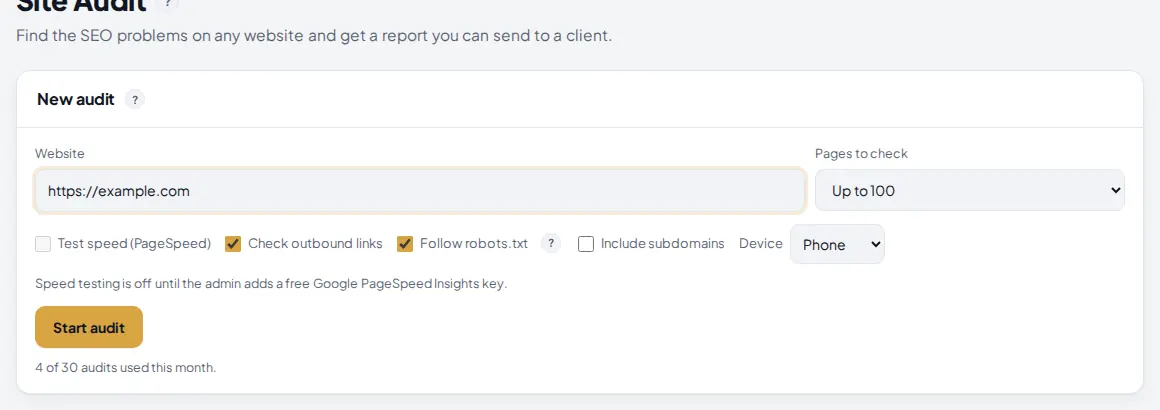
Click Site Audit under Track in the left menu. Fill in the New audit card at the top.
 1
2
3
4
1
2
3
4
- Website. The address to start from, usually the home page. The audit follows internal links from there and also reads robots.txt and every sitemap it finds.
- Pages to check. The most pages this audit will visit, up to your plan's limit per audit. Pick a smaller number for a quick check of a big site.
- Follow robots.txt. Leave it on for other people's sites. Turn it off only on your own site, to also check pages robots.txt blocks.
- Start audit. Starts the crawl. The line under it shows how many audits you used this month.
The other options: Check outbound links also tests links to other websites, Include subdomains crawls shop. or blog. as part of the site, and Device chooses phone or desktop. Test speed (PageSpeed) adds Google's speed test and Core Web Vitals; it can only be ticked when the admin has added a free Google PageSpeed Insights key.
2 Wait for the crawl, then open the report
The audit runs in the background, so you can leave the page and come back. It is polite to the website: a few requests at a time and about three a second at most. A site of 100 pages usually takes a few minutes. When it is done, it appears under Your audits.
 1
2
3
1
2
3
- Score. The overall technical SEO health from 0 to 100, with the date, the pages checked and how many urgent problems were found.
- Open. Opens the full report.
- Delete. Removes the audit and its report.
3 Read the score and the report header
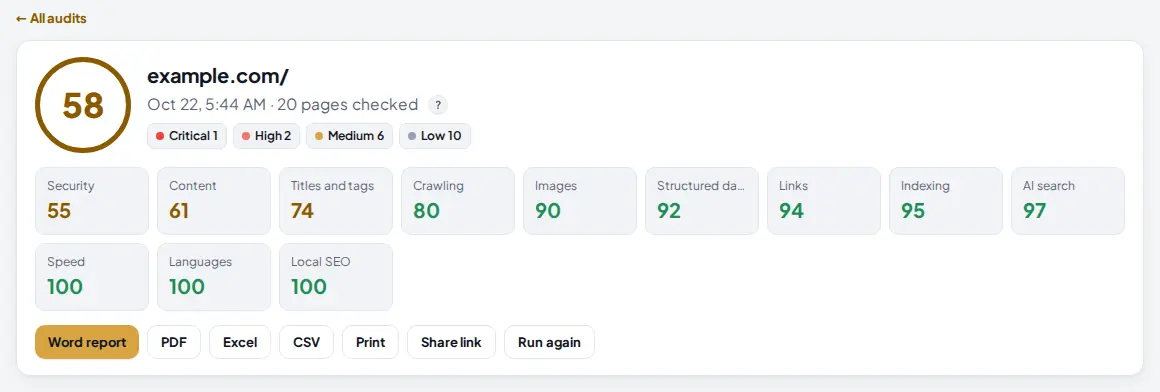
The top of the report sums up the whole site.
 1
2
3
4
1
2
3
4
- Score. 58 out of 100 here. The color moves from red to green as the score goes up.
- Severity counts. How many problem types are Critical, High, Medium and Low. Fix them in that order.
- Area scores. A score for each area: Security, Content, Titles and tags, Crawling, Images, Structured data, Links, Indexing, AI search, Speed, Languages and Local SEO. The lowest ones are where the work is.
- Word report. Downloads the report as a Word file you can edit. PDF, Excel, CSV and Print sit next to it.
Share link creates a private link that anyone can open without logging in, for example to send to a client or a developer. Click it again to turn sharing off. Run again starts a fresh audit of the same site with the same options, and the new report then shows what was fixed and what is new since the last one.
4 Start with the summary and the top priorities
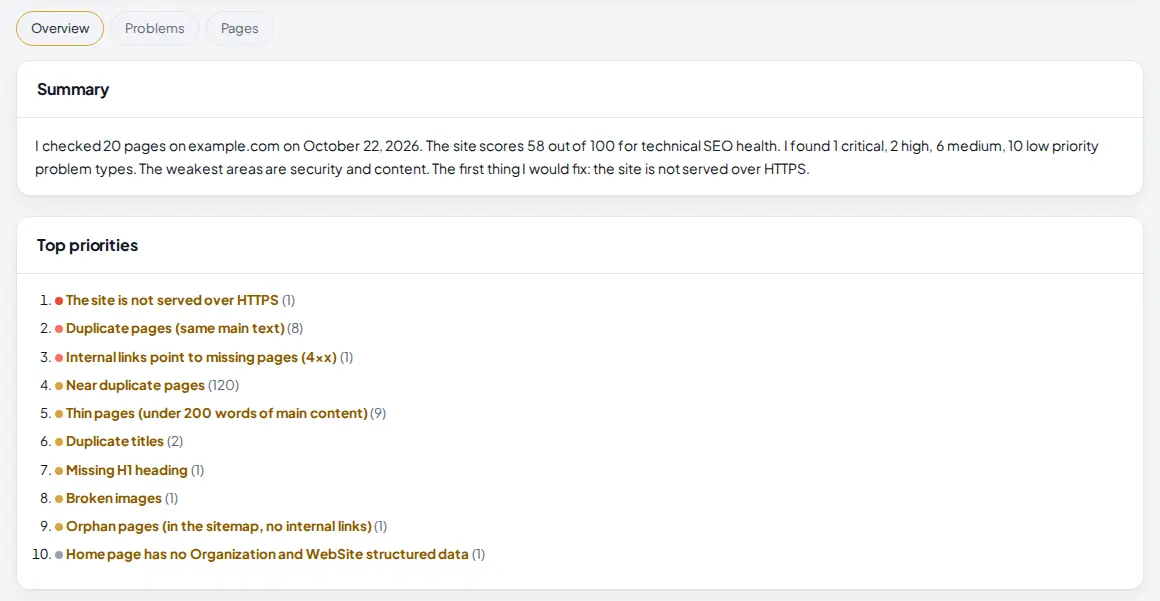
The Overview tab opens first. It is written so that someone who is not an SEO can follow it.
 1
2
3
1
2
3
- Problems tab. The full list of problems, covered in step 5.
- Summary. What was checked, the score, the weakest areas and the first thing to fix. With an AI key in Settings you can have it rewritten with AI.
- Top priorities. The ten problems that matter most, in order, with the number of pages each one affects. Click one to jump to it.
Further down, the Action plan splits the work into days 1 to 30, 31 to 60 and 61 to 90, so you can plan it or quote it to a client.
5 Work through the problems
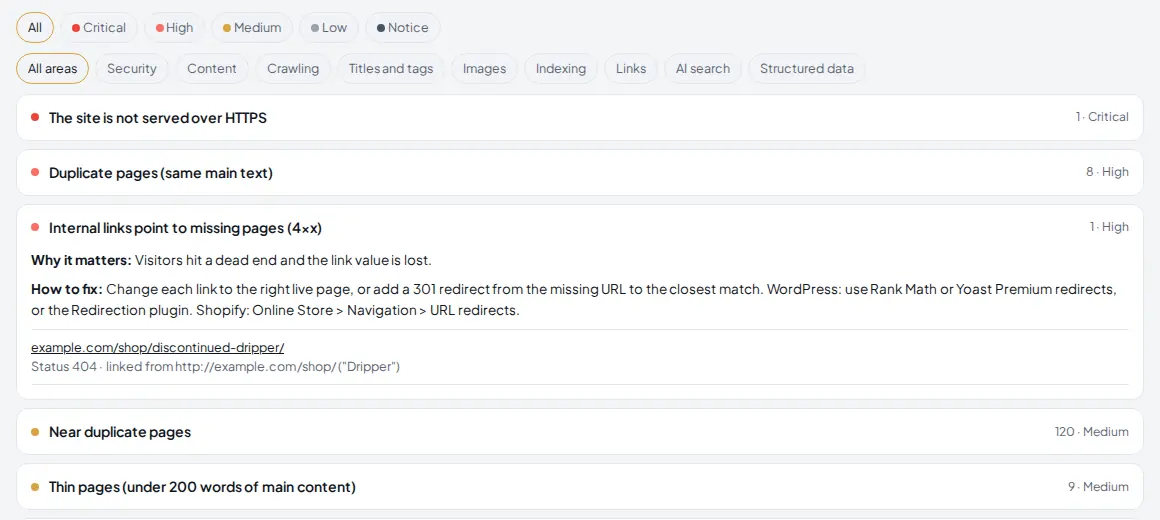
Click Problems. Every problem type is one row with its severity and the number of pages affected. Click a row to open it.
 1
2
3
4
1
2
3
4
- Severity filter. Show only Critical, High, Medium, Low or Notice problems.
- Area filter. Show only one area, such as Security, Content or Links.
- Why it matters and How to fix. A plain explanation, with the exact place to fix it in WordPress or Shopify when it applies.
- Affected pages. Each page with the details, here the missing page, its 404 status and the page that links to it.
6 Look at the pages one by one
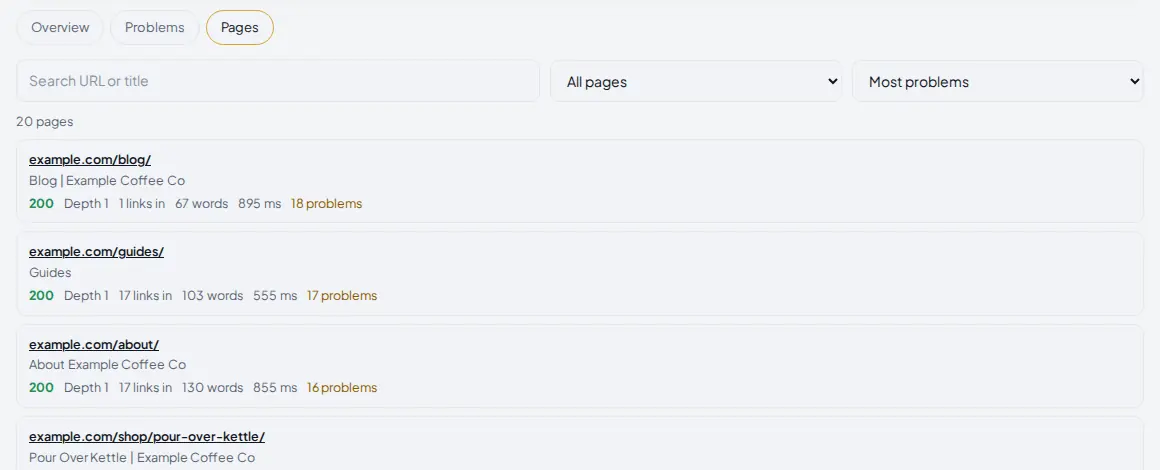
The Pages tab lists every page the audit visited.
 1
2
3
4
1
2
3
4
- Pages tab.
- Status filter. All pages, OK (200), redirects or errors.
- Sort. Most problems, click depth, slowest and more.
- Each page. Its status code, click depth from the home page ("Not linked" means it is only in the sitemap), internal links pointing to it, word count, load time and number of problems.
7 Schedule audits and brand your reports
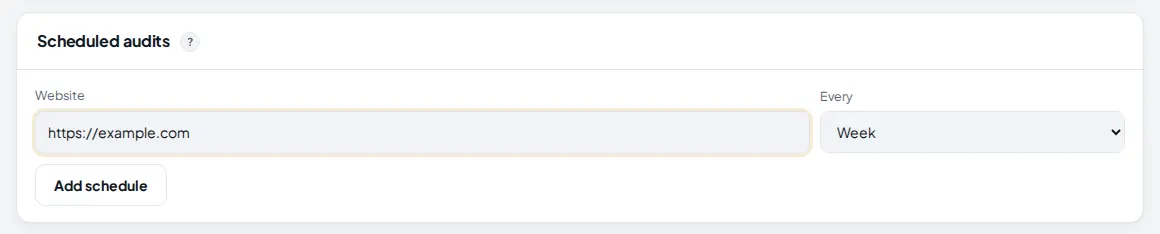
Back on the main Site Audit page, two more cards help you keep a site healthy over time.
 1
2
3
1
2
3
- Website. The site to audit again on a schedule.
- Every. Week or month.
- Add schedule. Saves it. Each run emails you the new score and what changed.
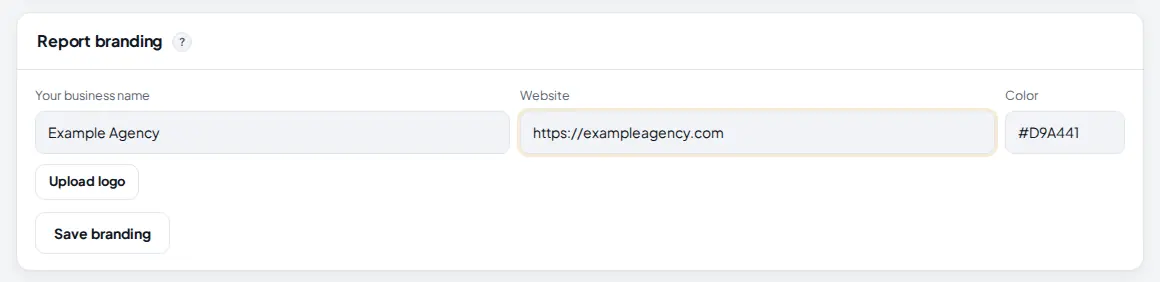
On the Agency plan, Report branding replaces AM Jarvis with your own name, website, logo and color on Word, PDF and shared reports. On other plans the card shows that reports carry AM Jarvis branding.
 1
2
3
4
1
2
3
4
- Your business name. Shown on every report instead of AM Jarvis.
- Website. Your agency's website, shown on the report.
- Upload logo. A PNG or JPG logo for the report header.
- Save branding. Applies it to all reports you download or share from now on.
Tips
- Fix Critical and High problems first, then run the audit again. The new report shows exactly what was fixed.
- Audit a client's site before a sales call and send the share link. The summary and action plan make the case for you.
- Duplicate and thin pages often come from tag, filter or archive pages. Set them to noindex instead of writing new text for each.
- Put your main site on a monthly schedule so a broken link or a noindex mistake never goes unnoticed for long.
Common mistakes
- Auditing with robots.txt off on someone else's site. Leave it on unless the site is yours.
- Checking too few pages. Problems on deep pages are only found if the audit reaches them. Raise Pages to check for a full picture.
- Reading the score alone. A site can score well and still have one critical problem, such as no HTTPS. Read the top priorities.
- Private or local addresses. The audit only opens public websites; addresses on a private network are refused.
What to do next
Follow how your fixes move your positions with Track your Google positions and the map pack, or publish new articles to fill content gaps with Publish articles to WordPress.
Frequently asked questions
Does a site audit use credits?
No. Audits count toward your monthly audits instead: 2 on Free, 10 on Starter, 30 on Pro and 200 on Agency.
Can I audit a client's website?
Yes, any public website. Leave Follow robots.txt on for sites you do not own.
Why is the speed test greyed out?
Speed testing uses Google PageSpeed Insights and is switched on when the admin adds a PageSpeed key. The rest of the audit works without it.
Can I put my own logo on the report?
Yes, on the Agency plan. Report branding sets your name, website, logo and color on Word, PDF and shared reports.
How do I see what changed since the last audit?
Click Run again on the report, or schedule weekly or monthly audits. The new report lists what was fixed and what is new.

Founder of AM Jarvis. More than a decade running e-commerce stores, Google Shopping campaigns and niche sites. About the author
The app changes often. If a screen here no longer matches what you see, let us know and we will update the guide.