Quick answer
Open Rank Tracker, click New project, enter your website, country and city, add up to 3 competitors and paste your keywords. AM Jarvis checks each keyword automatically every day (weekly on Free), shows your Google and map pack positions with history, and alerts you when a keyword drops.
The Rank Tracker shows where your website appears on Google for the searches that matter to you, both in the normal results and in the map pack (the box with a map and three businesses above the results). It checks on a schedule, keeps the history, compares you with up to three competitors and tells you when a keyword drops. This guide sets up a project for a local coffee shop at example.com, adds keywords and reads the results.
You need your website address and a list of searches you want to be found for. Checks run through a Google search key that the admin adds to the platform. How many keywords you can track, and how often they are checked, depends on your plan: 5 checked weekly on Free, 30 daily on Starter, 200 daily on Pro and 1,000 daily on Agency.
1 Open the Rank Tracker
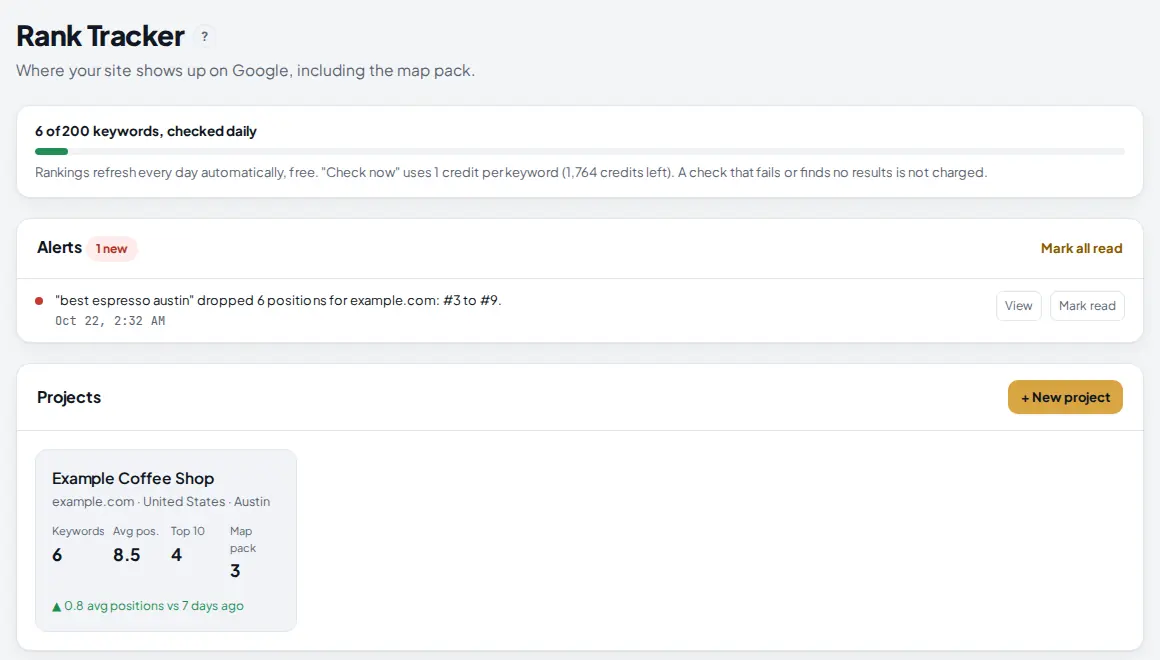
Click Rank Tracker under Track in the left menu. The page shows your allowance, any alerts and your projects.
 1
2
3
4
1
2
3
4
- Allowance. How many keywords you track out of your plan's total, and whether they are checked daily or weekly. It also reminds you what "Check now" costs and how many credits you have left.
- Alerts. A keyword that dropped. Click View to open its project, or Mark read.
- Project card. Each project shows its keywords, average position, how many are in the top 10 and in the map pack, and the change in average position over 7 days. Click it to open the project.
- + New project. Starts a new project.
2 Create a project for your website
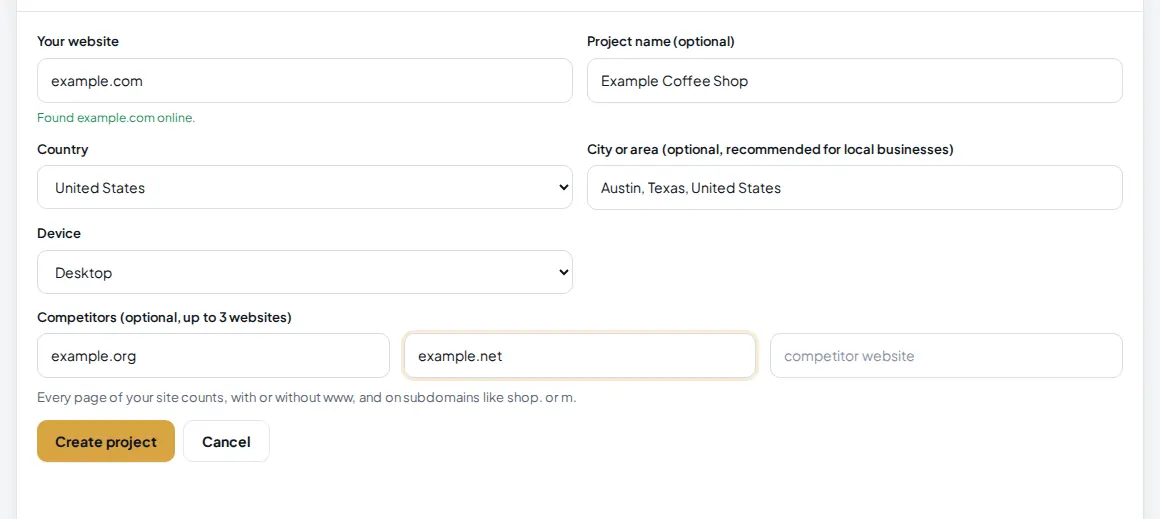
Click + New project and fill in the form. A project is one website checked in one country (and optionally one city).
 1
2
3
4
1
2
3
4
- Your website. Your domain, such as example.com. Every page of your site counts, with or without www and on subdomains such as shop. The form checks that the domain exists as you type and warns you about typos.
- City or area. Optional, but important for a local business: Google shows different results, and a different map pack, in each city. Use the form City, Region, Country, for example Austin, Texas, United States.
- Device. Desktop. Mobile checks are not available yet.
- Competitors. Up to 3 websites you want to compare with. Their positions are saved with every check, at no extra cost.
Pick the Country of the Google you want to check and click Create project. You can have up to 50 projects. To track the same site in another city, create a second project with that city.
3 Add your keywords
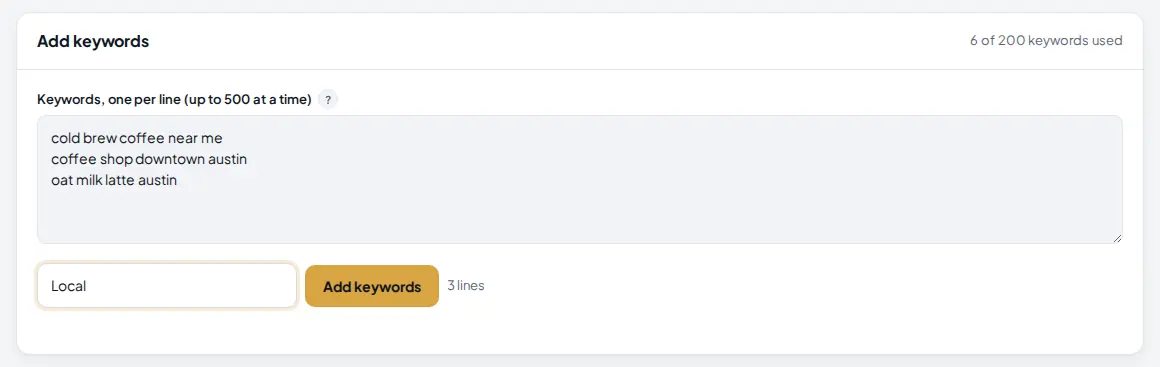
Open the project. Under Add keywords, type or paste your searches, one per line.
 1
2
3
4
1
2
3
4
- Keywords, one per line. Up to 500 at a time. Use the words your customers type, such as "coffee shop austin" or "cold brew coffee near me".
- Group name. Optional. Groups (for example Local, Products, Blog) let you filter the table later.
- Add keywords. Saves them and starts their first check right away, at no cost.
- Line count. How many lines you are about to add. The total you use out of your plan is shown at the top right of the card.
Keywords you already track are skipped, so you can paste a full list again without making duplicates.
4 Read the project summary
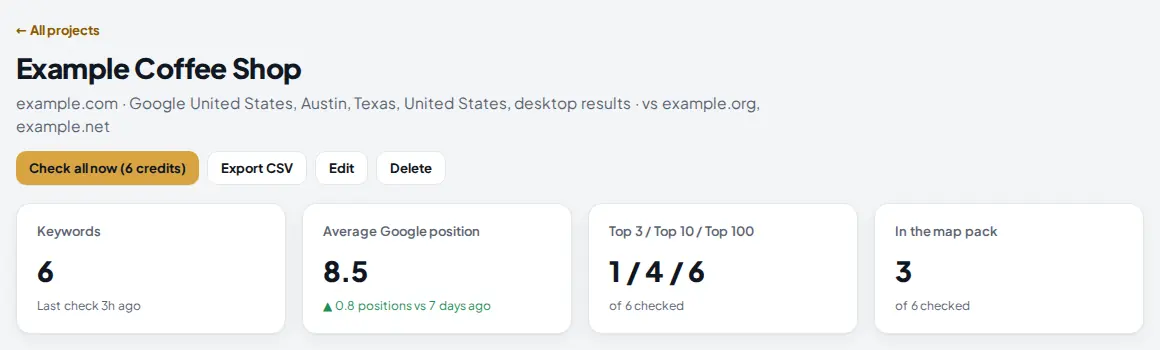
The top of the project shows where it checks and how the whole project is doing.
 1
2
3
4
1
2
3
4
- Check all now. Checks every keyword right away. The button shows the cost: 1 credit per keyword. You do not need it for normal tracking.
- Export CSV. Downloads all keywords with positions, map pack, URLs and competitors for a spreadsheet or a client report.
- Average Google position. The average of your ranking keywords, with the change against 7 days ago. Green means you moved up.
- In the map pack. How many of your checked keywords show your business in the map pack.
The line under the project name shows exactly which Google is checked: country, city, desktop results and the competitors. Edit changes the domain, country, city or competitors. When you fix a domain typo or change competitors, AM Jarvis re-reads the last results for free instead of searching again.
5 Read your keyword table
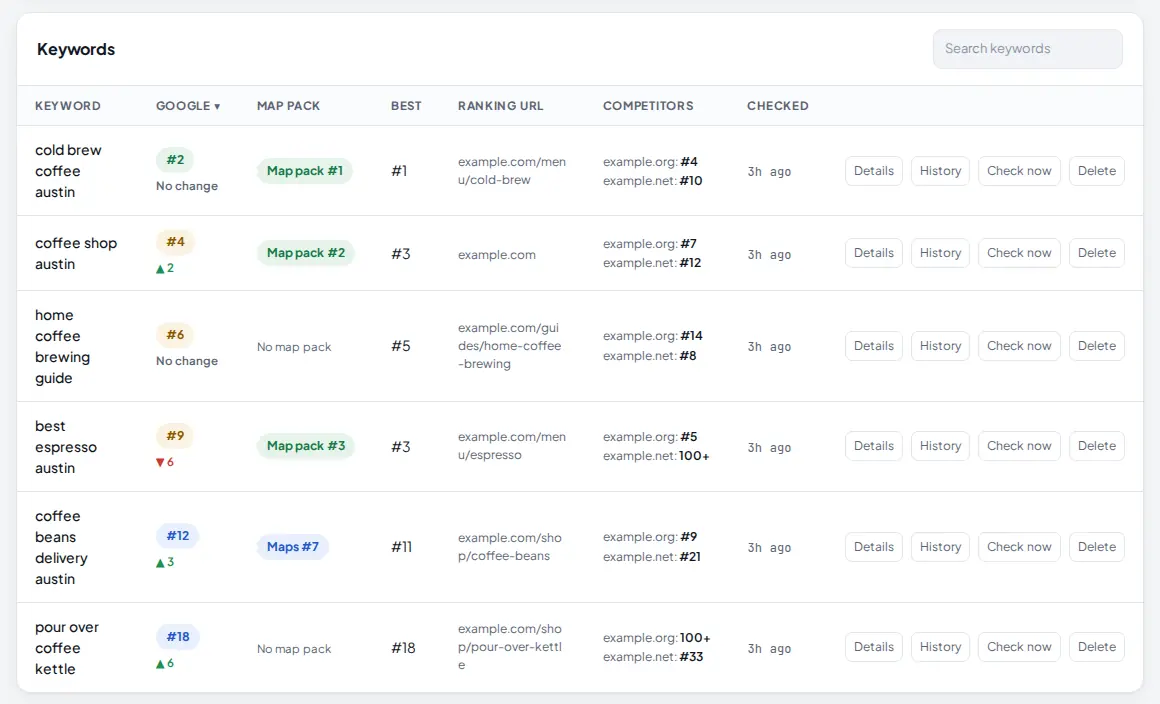
Scroll down to Keywords. Each row is one search.
 1
2
3
4
1
2
3
4
- Google. Your position in the normal results (checked up to 100 deep) and the change since the last check: a green arrow is up, a red arrow is down. Here "best espresso austin" fell 6 places to #9.
- Map pack. "Map pack #1" means you are first in the map box. "Maps #7" means you are not in the box but are 7th on Google Maps. "No map pack" means Google did not show one for that search.
- Competitors. Where each competitor ranks for the same search. 100+ means outside the top 100.
- Check now. Checks this one keyword right away for 1 credit. Nothing is charged if the check fails or Google returns nothing.
Best is the best position the keyword ever reached. Ranking URL is the page of your site that Google shows; if it is not the page you want, that page needs work. Details shows the top 3 results, the map pack listing and what else Google showed for the search. Click a column title to sort, and use Search keywords to filter.
Map pack positions are counted separately from normal results. Your business is matched by the website in your Google Business Profile, or by its name. If you never appear in the pack, link your website in your Google Business Profile.
6 Look at the history
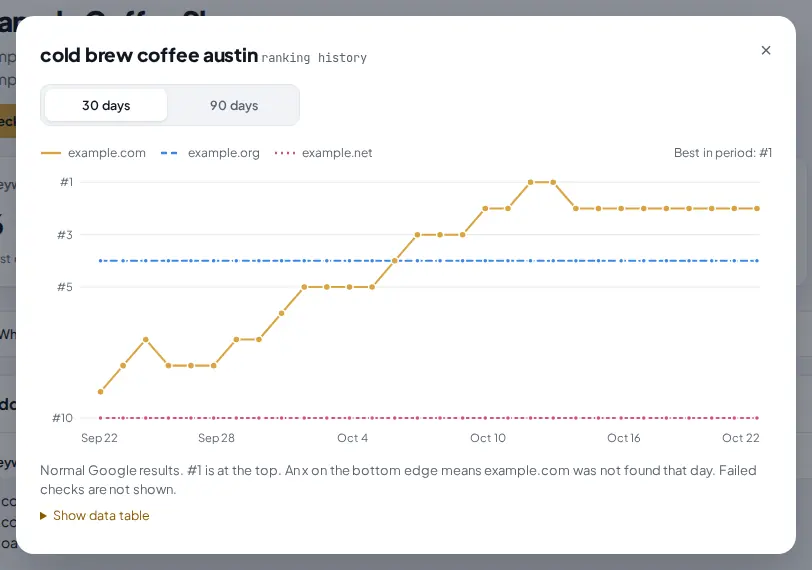
Click History on a keyword to see how it moved.
 1
2
3
1
2
3
- 30 days or 90 days. The time range of the chart.
- Legend. Your site and each competitor have their own line. #1 is at the top of the chart.
- Show data table. The same history as numbers, with the map pack position and the ranking URL for each check.
Failed checks are left out of the chart, and an x on the bottom edge means your site was not found that day.
7 Let the daily checks and alerts do the work
You do not need to come back every day. On Starter, Pro and Agency every keyword is checked automatically once a day; on Free once a week. These checks are free. When a check fails, the old result stays, the row says why, and the check is retried later on its own.
An alert is created when a keyword drops 5 or more positions, leaves the top 10, or falls out of the top 100. Alerts appear at the top of the Rank Tracker and come to your inbox as one email a day at most.
Tips
- Track a mix: a few money searches ("coffee shop austin"), product searches ("pour over coffee kettle") and guide searches ("home coffee brewing guide").
- Your own Google search is personal: it depends on where you are and what you searched before. The tracker searches like a new customer in the city you set, so trust its numbers over a quick look in your browser.
- Use Check now right after you publish or change a page, then let the daily checks continue.
- Pick competitors that show up in your map pack or top 10, not big national brands.
Common mistakes
- No city for a local business. Without a city, Google shows country wide results and the map pack will not match what your customers see.
- Wrong domain. If the table says your site was not found but a similar domain ranks, the project suggests it. Click Edit and fix the domain; the last results are re-read for free.
- Using Check all now every day. It costs 1 credit per keyword, and the daily check is free.
- Expecting mobile results. Only desktop results are available for now.
What to do next
Find the problems that hold your pages back with Run an SEO site audit, and learn how credits work in Credits, research runs and limits. More on the Rank Tracker feature page.
Frequently asked questions
How often are my keywords checked?
Every day on Starter, Pro and Agency, and once a week on Free. These automatic checks are free. Check now gives you an extra check for 1 credit per keyword.
What is the map pack?
The box with a map and three businesses that Google shows above the normal results for local searches. The tracker reports your place in it separately from your normal Google position.
Why does my own Google search show a different position?
Google personalizes results by location, history and device. The tracker searches like a new customer in the country and city you set, which is closer to what most customers see.
Can I track mobile results?
Not yet. Projects check desktop results.
When do I get an alert?
When a keyword drops 5 or more positions, leaves the top 10 or falls out of the top 100. Alerts show in the Rank Tracker and come by email, at most once a day.

Founder of AM Jarvis. More than a decade running e-commerce stores, Google Shopping campaigns and niche sites. About the author
The app changes often. If a screen here no longer matches what you see, let us know and we will update the guide.