Quick answer
Open Dropshipping Suite, Profit. AM Jarvis adds up the orders in your orders desk with their supplier cost, shipping, payment fee estimate and the ad spend you enter, and shows profit and margin per day, week or month, plus your most profitable products.
Revenue is easy to see in your store admin. Profit is not, because it depends on what you paid the supplier, shipping, payment fees and ads. The Profit tab in the Dropshipping Suite puts all of these side by side for every day, week or month, so you can see which days and products actually make money. This guide shows how to feed it the right numbers and how to read it.
You need a connected Shopify or WooCommerce store. For Shopify, the store connection must include the order scopes (read_orders and the fulfillment order scopes; see Connect a Shopify or WooCommerce store). Products, orders and profit are included on every plan.
1 Load your orders into the orders desk
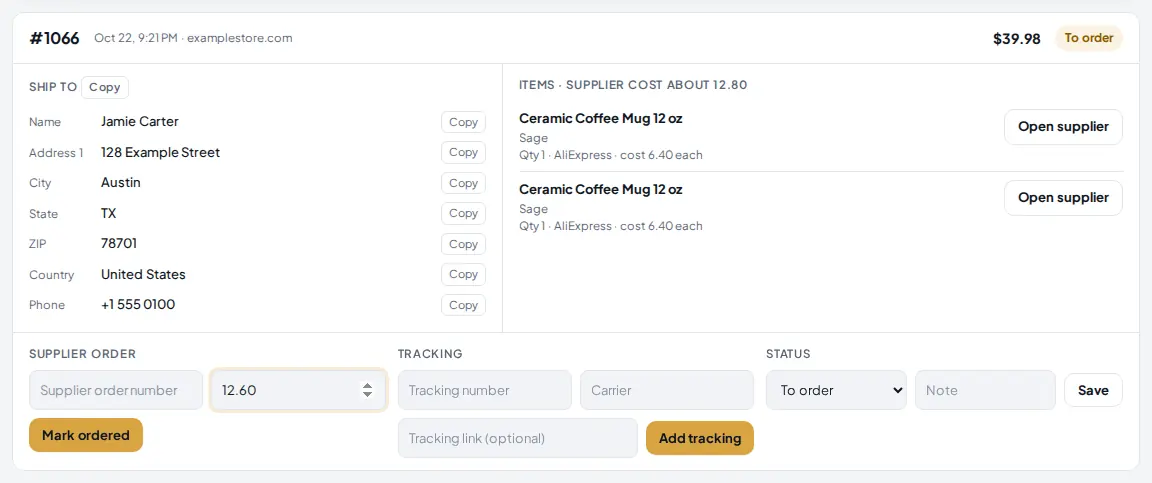
Open Dropshipping Suite in the left menu and click Orders under Run my store. AM Jarvis loads the unshipped orders of the last 30 days from your stores when you open the tab. Click Load new orders to fetch new ones at any time.
 1
2
3
4
1
2
3
4
- Supplier cost about. What the order should cost you, worked out from the supplier cost saved on each product and the quantity.
- Cost paid. After you place the order with your supplier, type what you really paid (product and shipping together). Profit then uses this exact number instead of the estimate.
- Mark ordered. Moves the order to Ordered. Add the supplier order number first so you can find it later.
- Status. To order, Ordered, Shipped or Problem. Tracking you add is sent to your store, which emails the customer.
Profit counts every order in the desk except cancelled ones. Orders that were already fulfilled before AM Jarvis loaded them are not in the desk, so they are not in the profit numbers either.
2 Check the supplier cost and shipping of each product
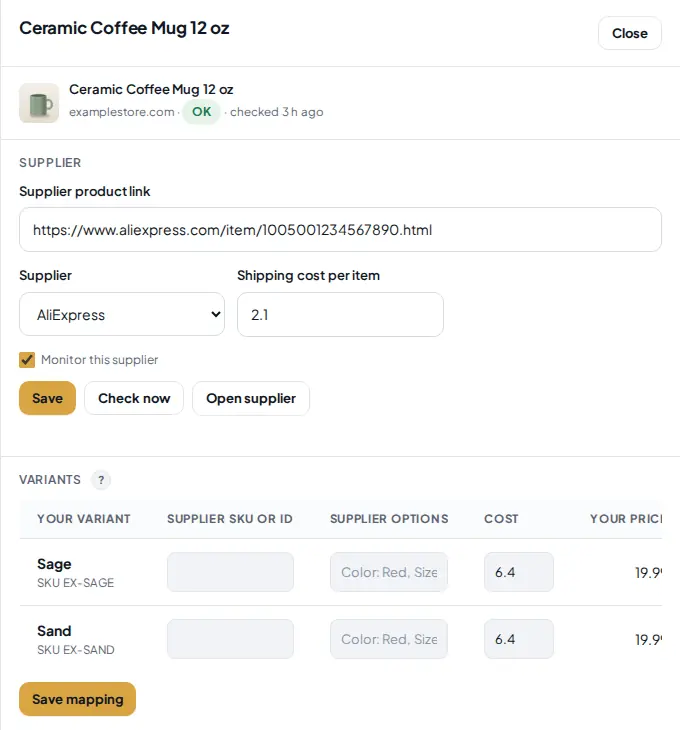
Profit is only as good as the costs behind it. Click Products, then Details on a product. Products you imported with AM Jarvis already have their supplier and cost; products you link by hand need them typed in once.
 1
2
3
1
2
3
- Shipping cost per item. What the supplier charges you to ship one item. It is added for every unit sold.
- Cost. What you pay the supplier for one item of this variant. Supplier sync keeps it up to date when the supplier price changes.
- Save mapping. Saves the costs and the supplier SKU or options of each variant.
Click Save under the supplier fields after you change the shipping cost.
3 Set your payment fees
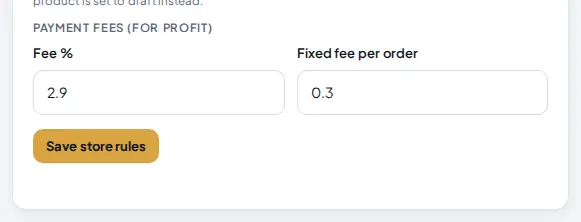
Click Settings and pick the store in Store rules. At the bottom of the card, enter what your payment provider charges.
 1
2
3
1
2
3
- Fee %. The percentage your payment provider takes from each order, for example 2.9.
- Fixed fee per order. The fixed amount per order, for example 0.30.
- Save store rules. Saves the fees with the other rules for this store.
The defaults are 2.9 percent plus 0.30, a common card rate. Check your own provider's rate and change them if they differ.
4 Open the Profit tab
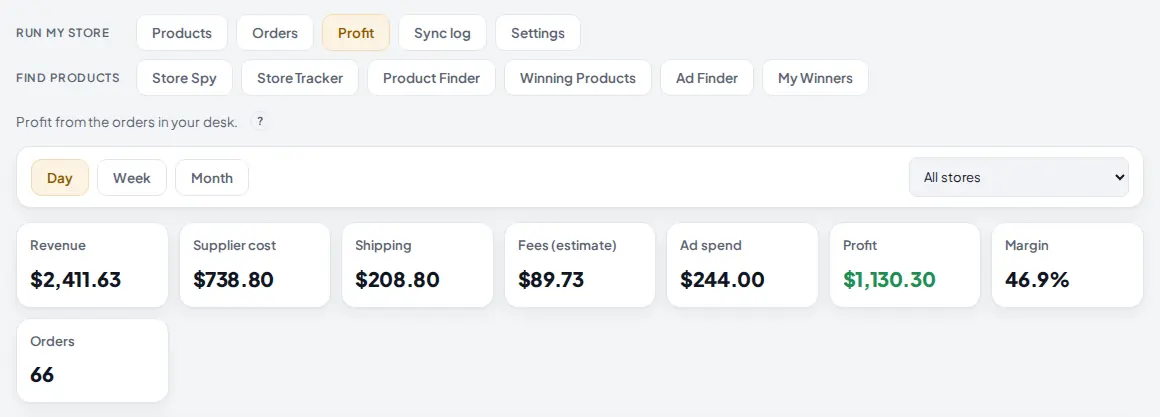
Click Profit. The tiles at the top add up the whole period.
 1
2
3
4
1
2
3
4
- Profit tab, under Run my store.
- Day, Week or Month. Day covers the last 30 days, Week the last 12 weeks and Month the last 12 months.
- All stores or one store. Pick a store to see it on its own.
- Profit. Revenue minus supplier cost, shipping, fees and ad spend. Green when positive, red when negative.
| Number | Where it comes from |
|---|---|
| Revenue | The order total, including any shipping the customer paid. |
| Supplier cost | Cost paid on the order when you entered it, otherwise the saved supplier cost times the quantity. |
| Shipping | The shipping cost per item set on the product, times the quantity. When you enter Cost paid, it already includes shipping. |
| Fees (estimate) | Your Fee % of the revenue plus the fixed fee, for each order. |
| Ad spend | The amounts you add in the Ad spend box (step 6). |
| Margin | Profit as a percentage of revenue. |
5 Read the day by day table
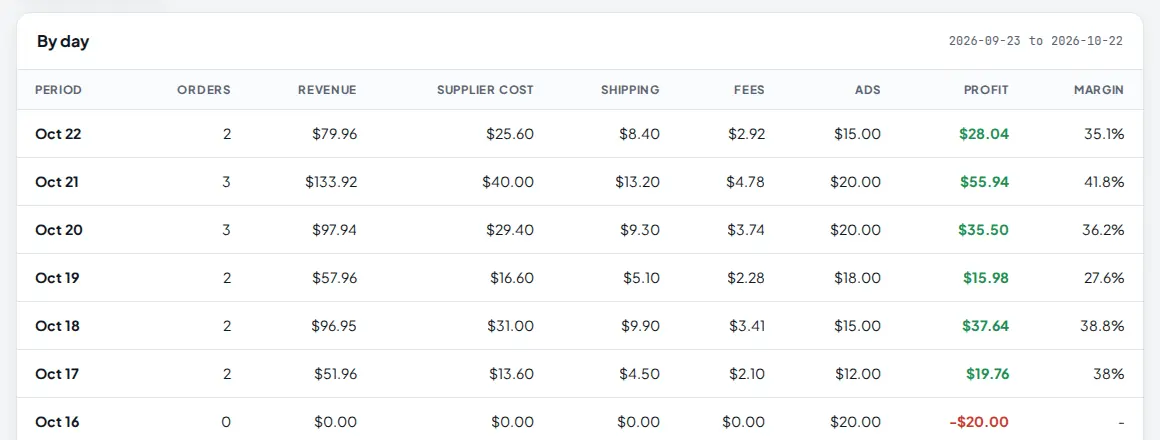
Under the tiles, By day lists every day with orders or ad spend, newest first.
 1
2
3
4
1
2
3
4
- Revenue for the day.
- Fees for the day's orders.
- Profit. On Oct 16 there were no orders but 20.00 in ads, so the day shows a loss of 20.00.
- Ads for the day, from your ad spend entries.
The dates at the top right show the exact period. If some orders have items without a supplier cost, a yellow note above the table says how many: their profit is too high until you add the cost on the Products tab or Cost paid on the order. Another note appears when your orders use more than one currency, because totals are added as they are.
6 Add your ad spend and check your best products
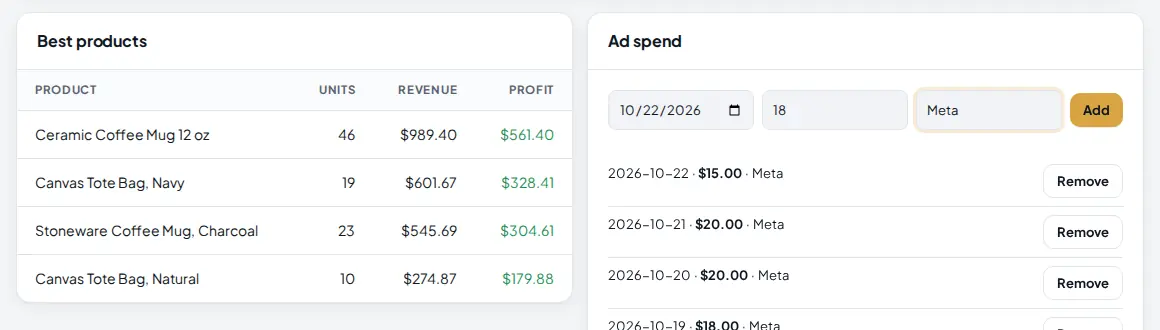
AM Jarvis does not read your ad accounts, so you add ad spend by hand, one amount per day. At the bottom of the Profit tab you find two cards.
 1
2
3
4
1
2
3
4
- Best products. Your products sorted by profit, with units sold and revenue. The top ten are shown.
- Day. The day the money was spent.
- Amount and note. What you spent and where, for example 18 and Meta.
- Add. Saves the entry. If you picked one store at the top, the spend is saved for that store; with All stores it counts for all of them. Remove deletes an entry.
Tip: copy the daily spend from your ads manager once a week. It takes a minute and makes the profit numbers honest.
7 Switch to weeks or months to see trends
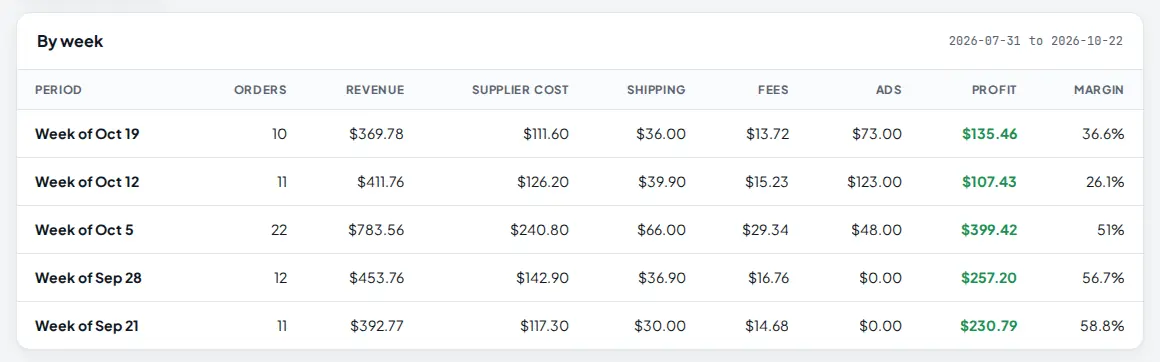
Click Week or Month at the top. The same columns are added up per week or per month, which makes trends easier to spot than daily ups and downs.
 1
2
1
2
- Period. The dates covered: the last 12 weeks for Week, the last 12 months for Month.
- Margin. Watch this column when you start or raise ad spend: if margin falls week after week, the ads cost more than they bring in.
Tips
- Enter Cost paid on every order you place. It is the only number that matches your supplier invoice exactly.
- Use the store list to compare stores. A store with high revenue and a thin margin may need higher prices, not more ads.
- Set a minimum profit in your pricing rule (Settings, Store rules) so new products cannot be priced below a profit you accept.
- Check Best products before you scale ads: put the budget behind the products that already make the most profit.
Common mistakes
- Products with no cost. Profit looks too good. Add the cost in Details, or Cost paid on the order.
- Forgetting ad spend. Without it, profit is really gross margin.
- Shopify orders not loading. The store connection needs read_orders. Add the scope to your Shopify app, release and approve it, then reconnect the store.
- Expecting refunds and chargebacks. They are not read from the store. Cancelled orders are left out.
What to do next
Keep your costs right automatically with Keep supplier prices and stock up to date. See everything else the suite does on the Dropshipping Suite page.
Frequently asked questions
Which orders are counted?
The orders in the Dropshipping Suite orders desk, loaded from your stores, except cancelled ones. Orders that were already fulfilled before AM Jarvis loaded them are not included.
Does AM Jarvis read my Facebook or Google ad spend?
No. Add your daily spend by hand in the Ad spend box on the Profit tab. It takes a minute a week.
Why are the fees called an estimate?
They are worked out from the fee percentage and fixed fee you set for each store, not read from your payment provider.
Can I see profit for one store only?
Yes. Pick the store in the list at the top right of the Profit tab. All stores adds them together.
Which plan do I need?
Products, orders and profit work on every plan. Automatic supplier monitoring is on Pro and Agency.

Founder of AM Jarvis. More than a decade running e-commerce stores, Google Shopping campaigns and niche sites. About the author
The app changes often. If a screen here no longer matches what you see, let us know and we will update the guide.