Quick answer
Open Stores in AM Jarvis and click Add store. For Shopify, create a small app at dev.shopify.com, install it and paste its Client ID and Secret. For WooCommerce, generate Read/Write REST API keys in WooCommerce settings and paste them with your site address.
Connect your store once and every AM Jarvis tool that writes to a store can use it: the Product Importer and the Chrome extension, Bulk Edit, the GMC Fixer and the Dropshipping Suite. This guide covers both platforms AM Jarvis supports: Shopify (with a Client ID and Secret from a small app you create in Shopify) and WooCommerce (with REST API keys from your WordPress admin).
Before you start, make sure you can log in to your store as the owner or an administrator. Shopify takes about 3 minutes and WooCommerce about 2. Your plan decides how many store domains you can connect: 1 on Free and Starter, 3 on Pro and 10 on Agency.
1 Open the Stores page
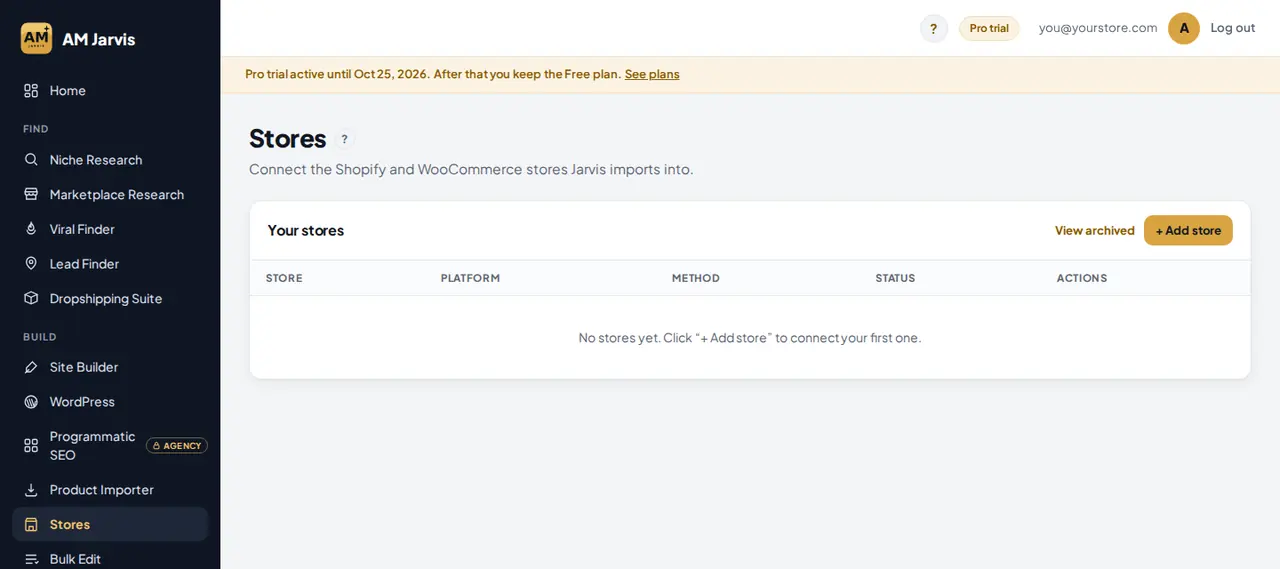
In the left menu, under Build, click Stores. The first time you open it, the table is empty.
 1
2
3
1
2
3
- Stores in the menu. You can also reach it from the "Connect a store" button in the Getting started card on the home screen.
- + Add store. Opens the connect window with a Shopify tab and a WooCommerce tab.
- Your stores. Every connected store appears here with its platform, connection method and status.
2 Shopify: create the app that gives AM Jarvis access
Shopify no longer lets you copy an access token from the store admin. Instead you create a small private app for your store in the Shopify developer dashboard, and AM Jarvis uses its Client ID and Secret to get a token on its own. Click How to get these keys in the Shopify tab to see the same steps inside the app:
- Go to dev.shopify.com, log in with the same email as your Shopify store and open the Dashboard.
- Click Create app and name it, for example AM Jarvis.
- On the app configuration screen, fill only these fields: App URL
https://app.jarvisbyam.com, Embed app in Shopify admin off, and Use legacy install flow unchecked. Leave everything else as it is. - In Scopes, paste exactly:
read_products,write_products,read_content,write_content,read_legal_policies,write_legal_policies - If you will use the Dropshipping Suite for orders and stock, also add
read_orders,read_merchant_managed_fulfillment_orders,write_merchant_managed_fulfillment_orders,read_inventory,write_inventoryand allow customer name, address and phone under protected customer data. - Click Save and release, then install the app on your store and approve it. The app must be installed, or connecting fails.
- Open the app's Settings, then Credentials, and copy the Client ID and the Secret.
| Scope | What AM Jarvis does with it |
|---|---|
| read_products, write_products | Creates the products you import and edits them in Bulk Edit and the GMC Fixer. |
| read_content, write_content | Reads and writes store pages and blog content. |
| read_legal_policies, write_legal_policies | Reads and fixes the policy pages Google Merchant Center checks. |
| read_orders and the fulfillment order scopes | Lists orders to place with your supplier and sends tracking numbers back (Dropshipping Suite). |
| read_inventory, write_inventory | Sets stock to 0 when a supplier runs out, and back when it returns. |
3 Shopify: paste the keys and connect
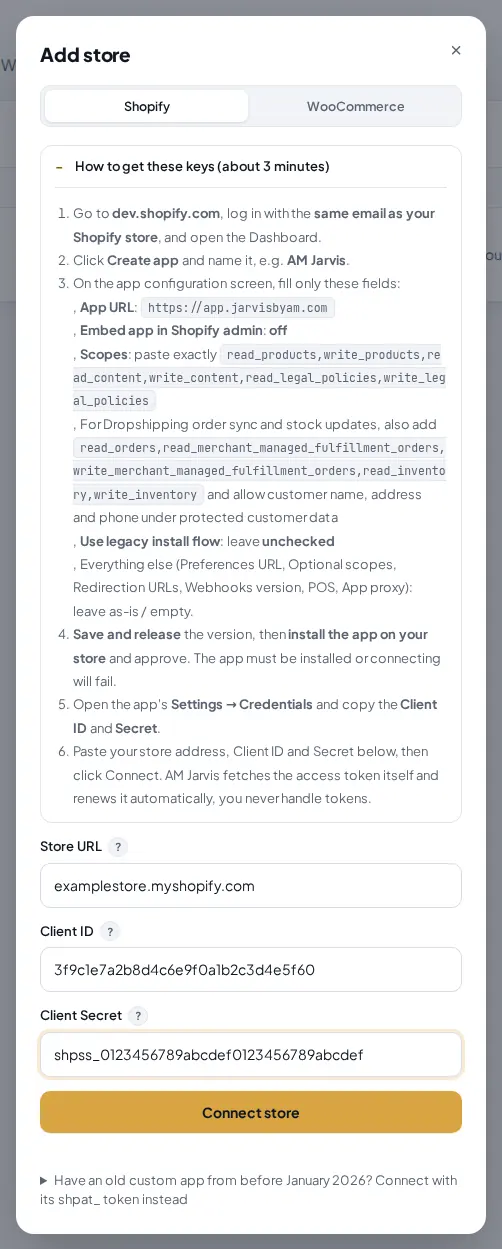
Back in AM Jarvis, click + Add store. The Shopify tab is open by default.
 1
2
3
4
1
2
3
4
- Shopify tab. Use this for any Shopify store.
- How to get these keys. Opens the steps from step 2, so you can follow them without leaving the window.
- Store URL. Your store's myshopify address, for example examplestore.myshopify.com. Your custom domain is picked up on its own after connecting.
- Connect store. AM Jarvis exchanges the Client ID and Secret for an access token, checks the store and saves it. The token is renewed automatically, so you never handle tokens yourself.
If you get an error, the most common reason is that the app was not installed on the store after Save and release. Install it and click Connect store again. Under the button, a small link handles old custom apps made before January 2026: those can still connect with their shpat_ Admin API token.
4 WooCommerce: create REST API keys and connect
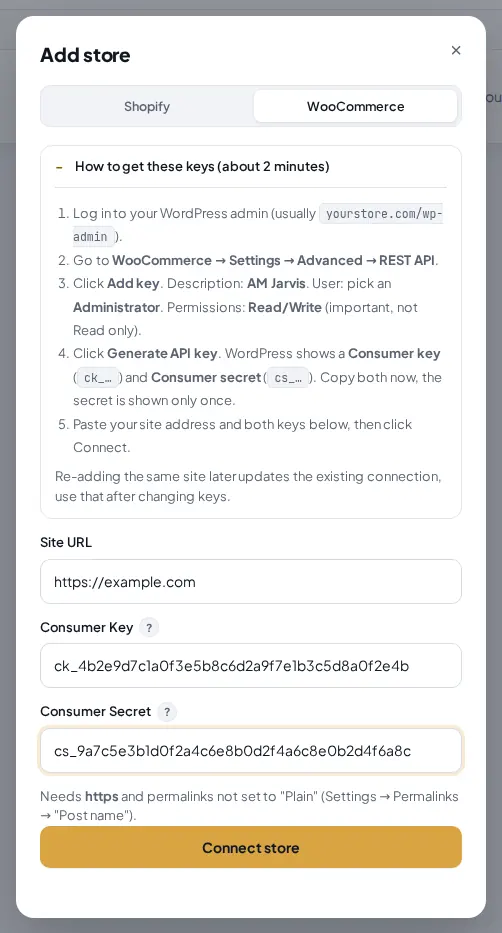
For a WooCommerce store, click + Add store and switch to the WooCommerce tab. In your WordPress admin (usually yourstore.com/wp-admin), go to WooCommerce, Settings, Advanced, REST API and click Add key. Use AM Jarvis as the description, pick an Administrator as the user and set Permissions to Read/Write. Click Generate API key and copy both keys right away: WordPress shows the secret only once.
 1
2
3
4
1
2
3
4
- WooCommerce tab. For stores built on WordPress with WooCommerce.
- Site URL. The full address of your store with https, for example https://example.com.
- Consumer Key and Consumer Secret. The
ck_andcs_keys you just generated. Read only keys are not enough: AM Jarvis needs Read/Write to create products. - Connect store. Checks the keys against your store and saves the connection.
The site must use https, and its permalinks must not be set to "Plain". In WordPress, open Settings, Permalinks and choose "Post name" if they are. If you change your keys later, add the same site again with the new keys: it updates the existing connection.
5 Check the connection in your store list
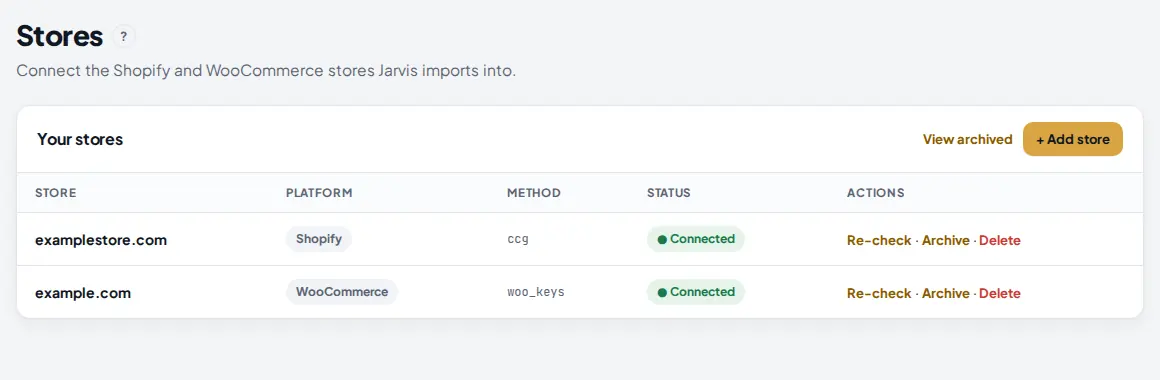
When the connection works, the window closes and your store appears in the table.
 1
2
3
4
1
2
3
4
- Platform. Shopify or WooCommerce.
- Status. Connected means AM Jarvis can write to the store. "Invalid token" means the keys stopped working (an app was uninstalled or keys were deleted). Pending means the check has not finished.
- Re-check. Tests the connection again and updates the status. Use it after you change something in Shopify or WordPress.
- View archived. Shows stores you archived. Archive hides a store from the importer and the other tools without deleting it, and Restore brings it back.
The Method column shows how the store is connected: ccg is a Shopify Client ID and Secret, token is an old Shopify access token and woo_keys is a WooCommerce key pair. Delete removes the store and its import history. You can add the same store again later.
6 Use the store in the importer and other tools
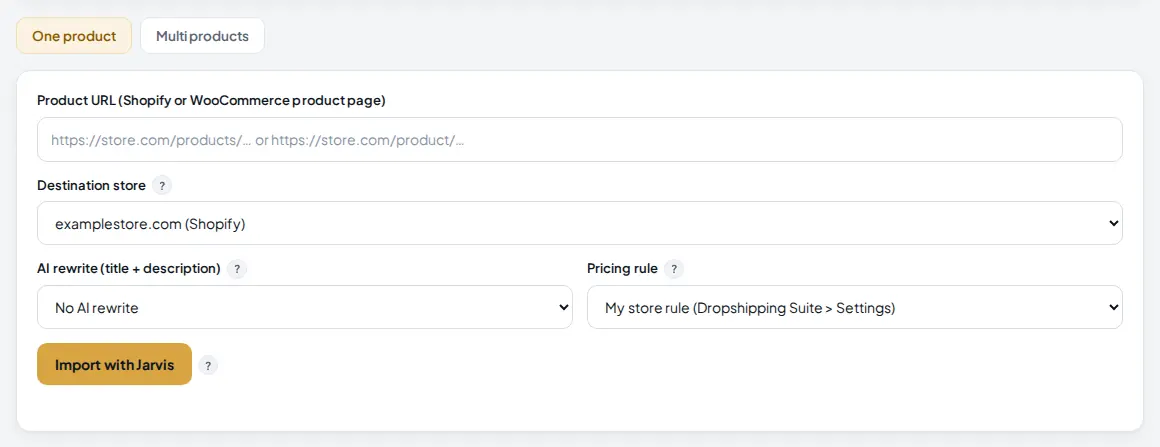
Connected stores show up in every store list in the app. Open Product Importer to see it: the Destination store list now holds your store.
 1
1
- Destination store. Pick the store a product goes to. Each store shows its platform in brackets. Bulk Edit, the GMC Fixer, the Dropshipping Suite and the Chrome extension use the same list.
Tips
- Add the Dropshipping Suite scopes on Shopify right away if you sell from suppliers. Adding them later means editing the app, releasing a new version and approving it again.
- Use a dedicated WooCommerce key for AM Jarvis. If you ever stop using AM Jarvis, revoke just that key in WooCommerce.
- Connecting the same domain again never uses an extra slot. Reconnect any time with new keys.
Common mistakes
- Skipping the install step in Shopify. Creating and releasing the app is not enough. Install it on your store and approve, then connect.
- Pasting the custom domain in Store URL. Use the myshopify address. AM Jarvis finds your custom domain by itself.
- WooCommerce keys set to Read. Generate a new key with Read/Write.
- Testing with stores you do not own. Every domain you connect stays counted on your plan, even after you remove it, and a store already registered to another account cannot be added on a Free or trial account.
- Plain permalinks on WordPress. The WooCommerce REST API needs pretty permalinks. Switch to "Post name".
What to do next
Install the browser importer with Install the Chrome extension and import your first product, or set your pricing and stock rules in Keep supplier prices and stock up to date. More about importing on the Product Importer page.
Frequently asked questions
Why does Shopify need a Client ID and Secret instead of a token?
Shopify stopped giving out access tokens from the store admin for new custom apps in January 2026. AM Jarvis uses the Client ID and Secret of the app you create to get a short lived token and renews it on its own.
Can I connect more than one store?
Yes, up to your plan's store limit: 1 on Free and Starter, 3 on Pro and 10 on Agency. Shopify and WooCommerce stores count the same way.
My store shows Invalid token. What do I do?
The app was uninstalled, the secret changed or the WooCommerce key was revoked. Fix it in Shopify or WordPress, add the store again with the current keys, then click Re-check.
Does deleting a store free up a slot on my plan?
No. A domain stays counted on your account after you remove it. Reconnecting the same domain later never uses an extra slot.
Does AM Jarvis work with other platforms?
Stores you write to must be Shopify or WooCommerce. The Chrome extension can read products from many more sites, such as AliExpress, Amazon and eBay, and import them into your Shopify or WooCommerce store.

Founder of AM Jarvis. More than a decade running e-commerce stores, Google Shopping campaigns and niche sites. About the author
The app changes often. If a screen here no longer matches what you see, let us know and we will update the guide.