Quick answer
Create a free account at app.jarvisbyam.com, click the link in the verification email and log in. You start on the Free plan with a short trial of every Pro tool, and you can pick Starter, Pro or Agency any time in Plan and Billing, paid by PayPal, card or local transfer in Pakistan.
This guide is for anyone opening AM Jarvis for the first time. You will create your account, confirm your email, see what your free Pro trial includes and choose the plan that fits your store or agency. All you need is an email address you can open right now. You do not need a card to start: every account begins on the Free plan, which never expires, plus a short trial of every Pro tool.
The numbers below (prices, limits and credits) are the ones shown in Plan and Billing today. The app always shows the current numbers for your account, so check there if anything looks different.
1 Fill in the signup form
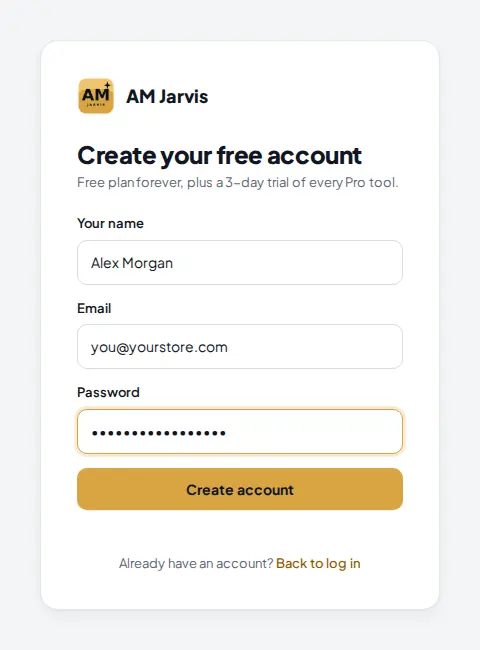
Open app.jarvisbyam.com and click Create a free account under the login box. The form changes to "Create your free account" and tells you how long your Pro trial is.
 1
2
3
4
1
2
3
4
- Your name. Use your real first name. Jarvis greets you with it on the home screen. Links or website addresses are refused in this field.
- Email. The inbox where the verification link goes. One inbox gives one account, and Gmail dots or +tags count as the same inbox.
- Password. At least 8 characters. It cannot be your email address or a common password such as 12345678.
- Create account. Sends the form. Your account starts on the Free plan, with the Pro trial added on top.
Tip: turn off any VPN or proxy before you sign up. Signups through a VPN, proxy or hosting network are refused, and only one account per person (and per device) is allowed.
2 Confirm your email
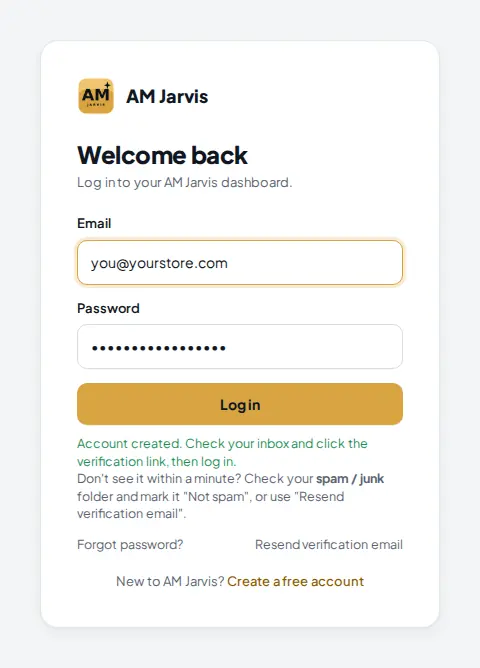
After you click Create account, the box switches back to the login form and shows a green message: your account is created and a verification link is on its way. Open your inbox and click the link in the email from AM Jarvis. A page opens that says "Email verified" and that your Pro trial has started.
 1
2
1
2
- The confirmation message. It reminds you to check the spam or junk folder if the email does not arrive within a minute. Mark it "Not spam" so later emails (payment confirmations, rank alerts, audit reports) reach your inbox.
- Resend verification email. Click it, type the email you signed up with and press Resend email. A new link replaces the old one.
The link works for 48 hours. Your trial clock starts when you click the link, not when you fill in the form, so you do not lose trial days while you wait for the email.
3 Log in and look around the home screen
Go back to app.jarvisbyam.com and log in with your email and password. The first time you log in on a computer, you may be asked for a 6-digit code that AM Jarvis emails to you. This approves the device. Each account can be used on a limited number of devices, and logging in on a new browser signs out the old one, so keep your login to yourself.
 1
2
3
1
2
3
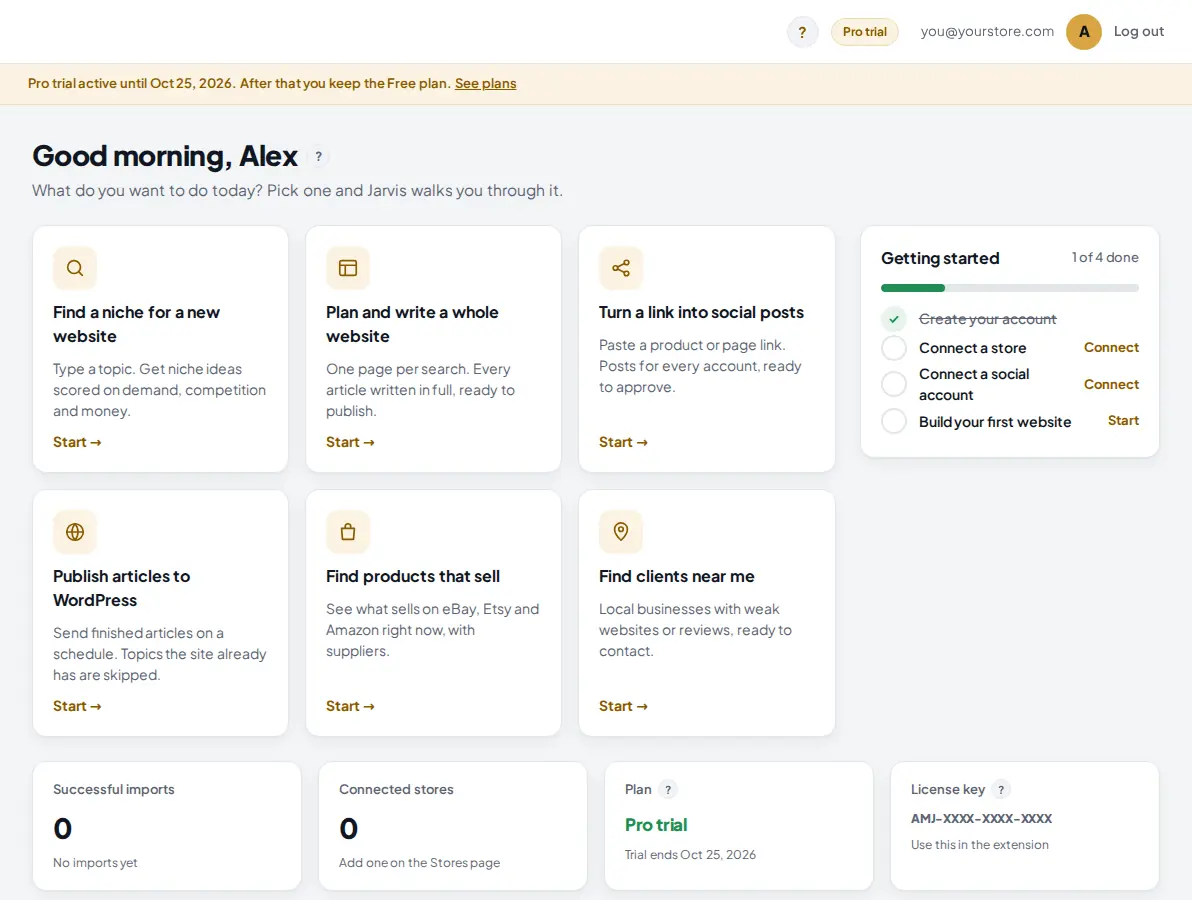
- Plan pill. Shows your current plan at all times. During the trial it says "Pro trial". On the Free plan it says "Free · Upgrade" and opens Plan and Billing.
- Trial banner. The date your Pro trial ends. After that date you keep the Free plan, and nothing is deleted. You also get a reminder email one day before the trial ends. The "See plans" link opens Plan and Billing.
- Getting started. A short checklist: connect a store, connect a social account and build your first website. Each item has a button that opens the right screen. The card hides itself when all four are done.
The task cards in the middle ("Find a niche for a new website", "Find products that sell" and so on) are shortcuts. Each one opens the tool and walks you through it. The tiles at the bottom show your imports, connected stores, plan and the license key of your account.
4 Open Plan and Billing
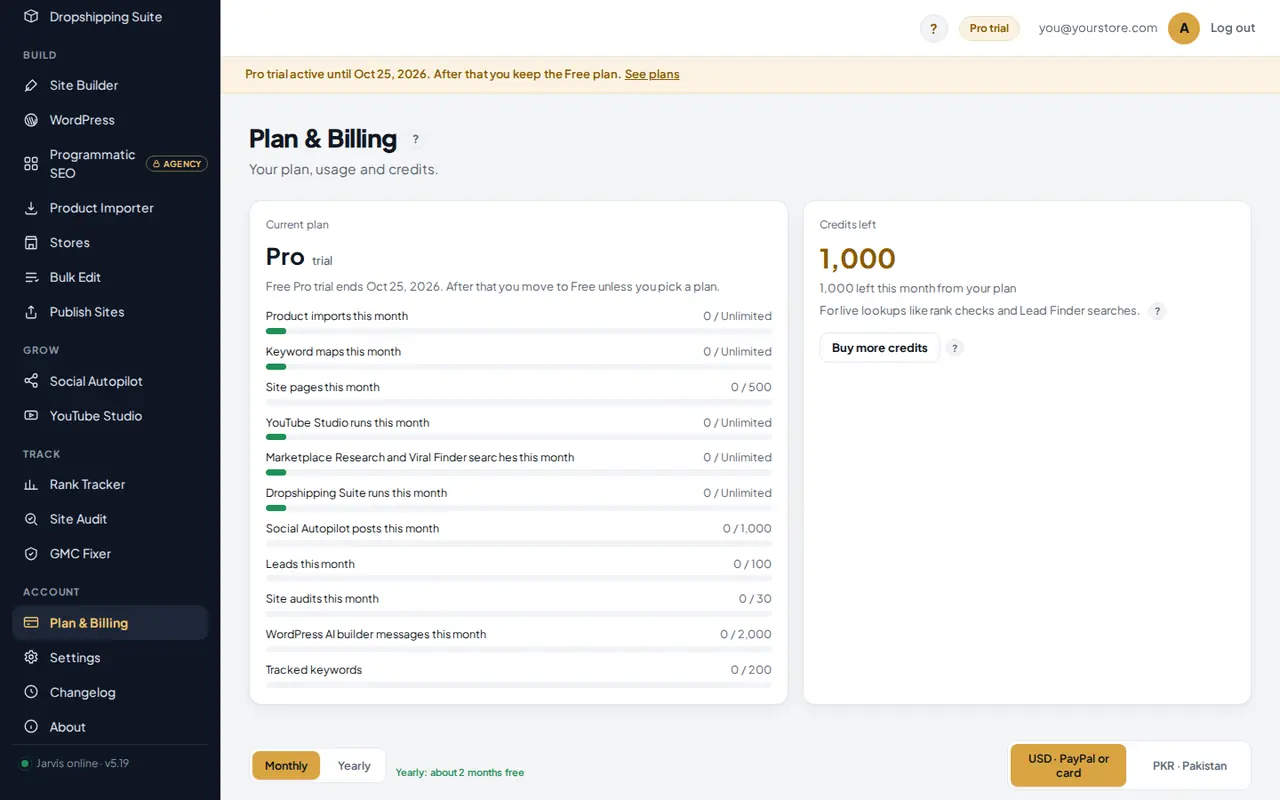
In the left menu, scroll to Account and click Plan & Billing. This page shows your plan, what you have used this month and your credits.
 1
2
3
4
1
2
3
4
- Plan & Billing in the Account section of the menu. Settings, right under it, holds your AI key, password and devices.
- Current plan. Your plan name and when it ends or renews. During a trial it says the date you move to Free unless you pick a plan.
- Usage bars. One bar per monthly limit: imports, site pages, Marketplace Research searches, Dropshipping Suite runs, Social Autopilot posts, leads, site audits, WordPress AI messages and tracked keywords. A bar turns gold at 80 percent of the limit and red when it is full.
- Credits left. Credits pay for live Google lookups such as "Check now" in the Rank Tracker. The credits guide explains them in full.
Monthly limits count by calendar month (UTC). On the first day of a new month every monthly bar starts again from zero, and your plan's credits are refilled.
5 Compare the plans
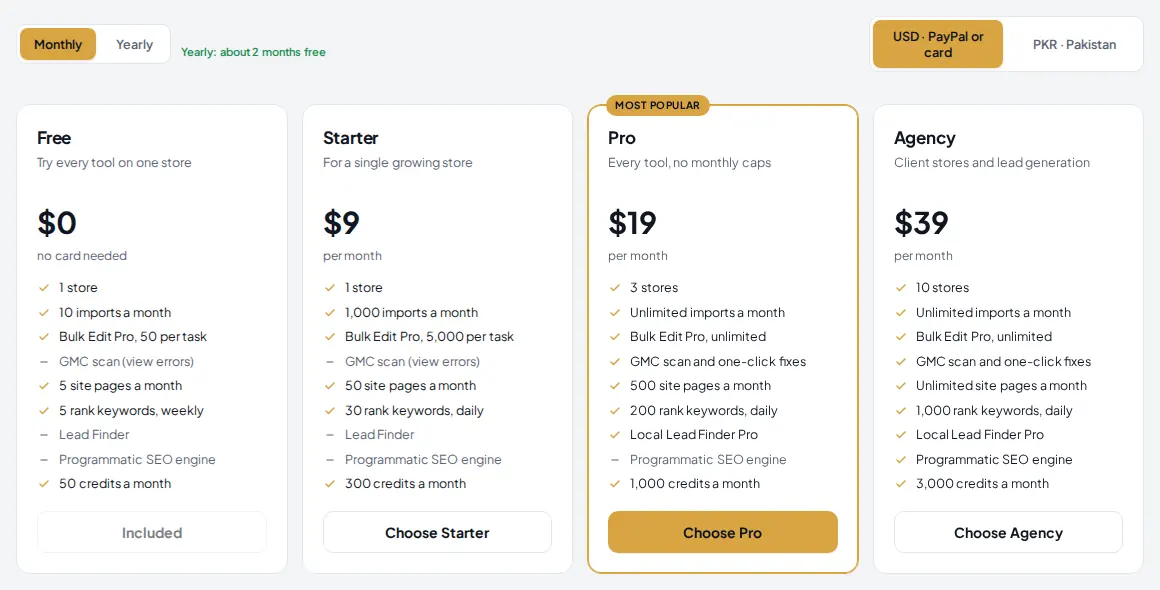
Scroll down to the plan cards. Two switches sit above them: Monthly or Yearly, and the currency. Yearly prices are about two months free compared with paying monthly.
 1
2
3
4
1
2
3
4
- Yearly. Switches every card to the yearly price.
- USD or PKR. USD is paid through PayPal (PayPal balance or any debit or credit card). PKR is for customers in Pakistan who pay by local transfer.
- Price. The price for the cycle you picked, with the main limits listed under it. A dash means the tool is not part of that plan.
- Choose Starter (or Pro, or Agency). Opens the checkout box under the cards.
| Plan | Monthly | Yearly | Best for |
|---|---|---|---|
| Free | $0 | $0 | Trying every tool on one store: 10 imports a month, 5 rank keywords checked weekly, 50 credits a month. |
| Starter | $9 | $90 | One growing store: 1,000 imports a month, 30 keywords checked daily, 300 credits a month. |
| Pro | $19 | $190 | Up to 3 stores with no monthly caps on imports and research, GMC one-click fixes, Local Lead Finder Pro, supplier sync, 1,000 credits a month. |
| Agency | $39 | $390 | Up to 10 client stores, Programmatic SEO, Winning Products, white label audit reports, 3,000 credits a month. |
In PKR the plans are Rs 1,499, Rs 2,999 and Rs 5,999 a month (Rs 14,990, Rs 29,990 and Rs 59,990 a year). The full "Compare plans" table at the bottom of the page lists every tool and limit side by side.
6 Pay for your plan
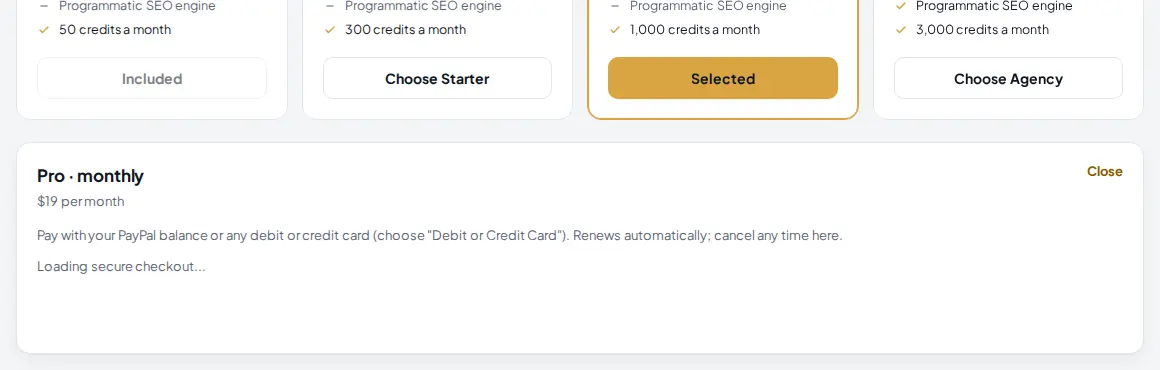
Click the button on the plan you want. The card changes to Selected and a checkout box opens below the cards.
 1
2
3
1
2
3
- Selected. The plan you are about to buy. Click another plan to change your choice.
- Plan and cycle. For example "Pro · monthly, $19 per month". Close the box with Close on the right if you change your mind.
- PayPal buttons. Pay with your PayPal balance, or choose "Debit or Credit Card" to pay by card without a PayPal account. The subscription renews automatically until you cancel it.
Your plan switches on as soon as PayPal confirms the payment, and you get a welcome email. If the box says that card and PayPal checkout is being switched on, email support@jarvisbyam.com and the team sets up your plan by invoice.
Paying in Pakistan (PKR): switch the currency to PKR before you choose a plan. The box then lists the payment methods (JazzCash, SadaPay, NayaPay, Raast and bank transfer when it is offered) with the account to send to. Send exactly the amount shown, copy the transaction ID (TID) from your receipt, take a screenshot of the confirmation, then fill in the transaction ID, attach the screenshot and click Submit payment for approval. Payments are usually approved within a few hours on working days, and you get an email when your plan is active. You can have at most 3 payments waiting at a time.
7 Add your AI key in Settings
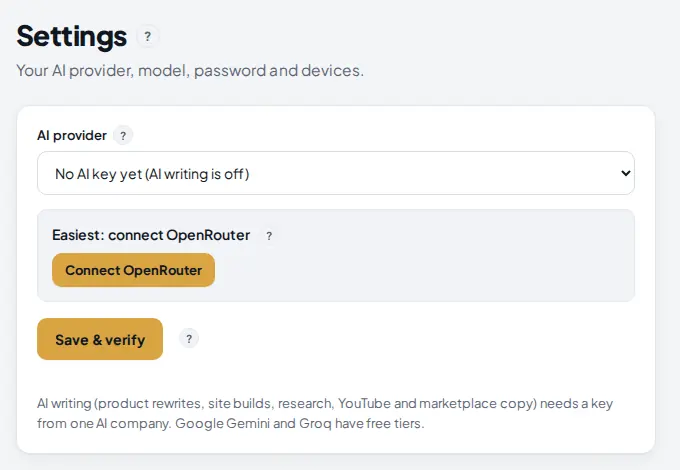
Most writing tools (product rewrites, site builds, research, YouTube and marketplace copy) need an AI key. AM Jarvis does not resell AI: you use your own key, so you pay your AI company directly at their price, with no markup. Click Settings in the menu.
 1
2
3
1
2
3
- AI provider. Pick the company your key is from: Anthropic Claude, OpenAI, Google Gemini, DeepSeek, OpenRouter or Groq. Gemini and Groq have free tiers.
- Connect OpenRouter. The quickest option: one click, no key to copy. You use your own OpenRouter credits and can switch between many models.
- Save & verify. After you paste a key, this checks that it works and saves it. You can then pick a model, or leave it on Recommended.
8 Change or cancel your plan later
Everything about your plan stays on the Plan and Billing page:
- Cancel: when you pay through PayPal, a "Cancel PayPal subscription" link appears in the Current plan card. After you cancel, you keep your plan until the end of the period you paid for, then move to Free. Nothing is deleted. You can also cancel from your PayPal account.
- Change plan: to move to a different plan, cancel the current PayPal subscription first, then choose the new plan. The new plan starts as soon as the payment is confirmed. If you are not sure which way is best for you, email support@jarvisbyam.com before you pay.
- Renew a PKR plan: PKR payments are not automatic. AM Jarvis emails you before the paid period ends so you can pay again for the next month or year.
- Payment history: every payment, its method and its status (pending, approved, completed or rejected, with the reason) is listed on the same page.
Paid by mistake? Tell support within 7 days for a full refund.
Tips
- Use your trial days on the tools you plan to pay for. Run a site audit, track a few keywords daily and import some products, so you know what you need before the trial ends.
- Pick yearly if you already know you will use AM Jarvis for months: it costs about the same as ten monthly payments.
- Store domains are counted for good. A store you remove still counts toward your plan's store limit, so connect only stores you really work on.
- Bookmark app.jarvisbyam.com. The website jarvisbyam.com is the information site; the app lives on the app address.
Common mistakes
- Trying to log in before verifying. The app says "Verify your email first". Click the link in the email, or use Resend verification email.
- Creating a second account for a second store. It is refused, and it is not needed: Pro covers 3 store domains and Agency covers 10.
- Signing up on a VPN. Turn it off and try again.
- Waiting for AI text without an AI key. Add a key in Settings first. Tools that do not write (imports, rank checks, audits) work without one.
- Submitting a PKR payment without a screenshot. The screenshot is required. Use a PNG or JPG of the payment confirmation.
What to do next
Connect your store with Connect a Shopify or WooCommerce store, then read Credits, research runs and limits, explained so you know what each tool uses. You can compare plans any time on the pricing page.
Frequently asked questions
Do I need a credit card to start?
No. Every account starts on the Free plan, which never expires, plus a trial of every Pro tool. You only pay when you choose Starter, Pro or Agency.
What happens when the Pro trial ends?
You move to the Free plan automatically. Your stores, projects and history stay. Tools and limits that are not on Free are paused until you pick a paid plan.
I did not get the verification email. What now?
Check spam or junk first. If it is not there, click Resend verification email on the login screen and type the email you signed up with. Each link works for 48 hours.
Can I pay without a PayPal account?
Yes. In the PayPal box choose Debit or Credit Card and pay by card. In Pakistan you can also switch to PKR and pay by JazzCash, SadaPay, NayaPay or Raast.
How do I cancel?
Open Plan and Billing and click Cancel PayPal subscription in the Current plan card. You keep your plan until the end of the period you paid for, then move to Free.
Can I make a second account for another store?
No, only one account per person is allowed. Pick a plan with more store domains instead: Pro covers 3 stores and Agency covers 10.

Founder of AM Jarvis. More than a decade running e-commerce stores, Google Shopping campaigns and niche sites. About the author
The app changes often. If a screen here no longer matches what you see, let us know and we will update the guide.