Quick answer
Download the extension from Product Importer in AM Jarvis, extract it and load it in chrome://extensions with Developer mode and Load unpacked. Log in with your AM Jarvis account, open a product page, pick your store and click Import Product, or Edit Product to change it first.
The AM Jarvis Chrome extension imports the product you are looking at into your Shopify or WooCommerce store: title, description, photos, variants and prices. It works on AliExpress and Amazon product pages, on Shopify and WooCommerce stores, and on most other product pages through a general page reader. This guide takes you from downloading the extension to your first imported product.
Before you start you need an AM Jarvis account with a verified email and at least one connected store (see Connect a Shopify or WooCommerce store). You also need Google Chrome (version 102 or newer) on a computer. Every import counts toward your plan's monthly imports: 10 on Free, 1,000 on Starter and unlimited on Pro and Agency.
1 Confirm your import rights and download the extension
Open AM Jarvis in Chrome and click Product Importer in the left menu. Two cards sit at the top of the page.
 1
2
1
2
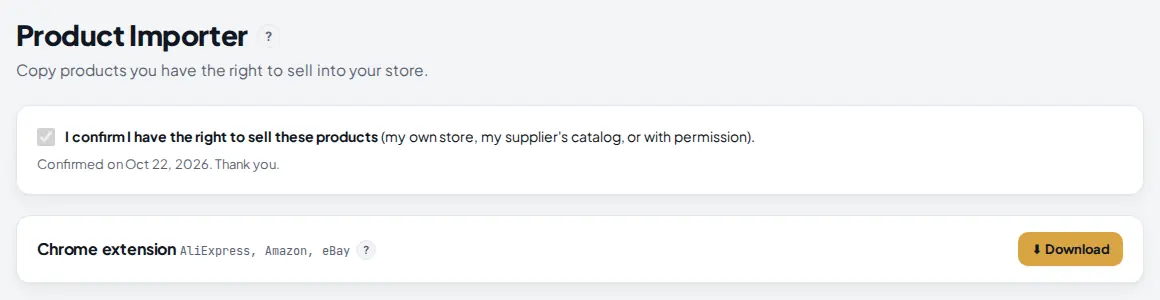
- I confirm I have the right to sell these products. Tick this once, before your first import. It confirms you only import products from your own store, your supplier's catalog, or with permission. Imports from the extension are refused until it is ticked.
- Download. Downloads
am-jarvis-extension.zip, the extension itself.
After you tick the box, the text under it changes to the date you confirmed. You never have to do it again.
 1
1
- Confirmed. The date you confirmed. The extension and the importer can now import for this account.
2 Load the extension into Chrome
The extension is installed from the zip file, not from the Chrome Web Store, so Chrome needs Developer mode for it:
- Extract the zip into a folder you will keep, for example Documents, AM Jarvis extension. Do not delete this folder later: Chrome runs the extension from it.
- In Chrome's address bar, type
chrome://extensionsand press Enter. - Turn on Developer mode with the switch in the top right corner.
- Click Load unpacked and select the folder you extracted (the one that holds
manifest.json). - "AM Jarvis: Product Importer" appears in the list. Click the puzzle piece icon next to the address bar and pin AM Jarvis, so its icon stays in your toolbar.
The extension asks for no access to websites when you install it. It reads a page only when you click its icon on that page, and it only sends product data to your account when you click Import Product or Edit Product.
3 Log in to the extension
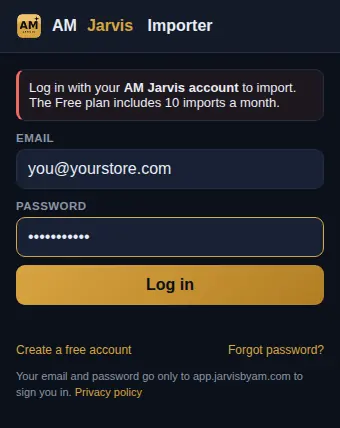
Click the AM Jarvis icon in your toolbar. The first time, it asks you to log in. Use the same email and password as your AM Jarvis account. There is no separate license key to type: the extension uses your account login.
 1
2
3
1
2
3
- Email and Password. Your AM Jarvis login. They go only to app.jarvisbyam.com.
- Log in. Signs the extension in. It stays signed in until you click Log out in the popup.
- Create a free account. Opens the signup page if you do not have an account yet.
For security, the extension only logs in on a computer where you used the AM Jarvis web app in Chrome recently. If it says "First log in at app.jarvisbyam.com in Chrome on this computer", open the web app in this Chrome, log in there, then log in to the extension again. Only one extension session per account is active at a time.
4 Open a product page and check what was found
Go to the product you want to sell, for example a ceramic coffee mug on AliExpress. Open the single product page (not a search result or a category), then click the AM Jarvis icon. The popup reads the page and shows what it found.
 1
2
3
4
1
2
3
4
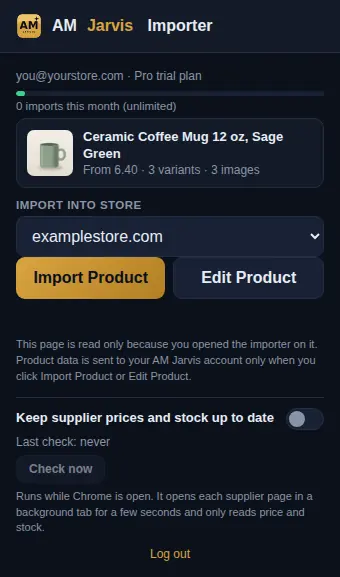
- Detected product. The first photo, the title, the starting price and how many variants and images were found. Check this before you import: if it is wrong, you are probably not on a single product page.
- Import into store. The connected store the product goes to. Only stores with a working connection are listed.
- Import Product. Creates the product in that store right away.
- Edit Product. Opens the product in an editor in your dashboard first, so you can change it before it goes to your store (step 6).
The line at the top shows the account you are logged in with, your plan, and how many imports you used this month. If you see "No product detected on this page", reload the product page and click the icon again.
5 Import the product
Pick the store and click Import Product. After a few seconds the popup confirms it.
 1
1
- Imported. Open in store admin. Opens the new product in your Shopify or WooCommerce admin so you can check it.
Import Product sends the product as it is on the page: the page's title, description, photos, variants and prices, published as an active product. If you want your own markup on the price, a rewritten title or a hidden draft first, use Edit Product instead. The import also appears in Recent activity on your home screen, and the product is linked to its supplier page in the Dropshipping Suite, ready for supplier sync.
6 Use Edit Product to change it before it goes live
Click Edit Product in the popup. A new tab opens with "Edit before import". Change the title, description, vendor, product type and tags, and remove any photos you do not want. Further down you set prices and how the product is sent.
 1
2
3
4
1
2
3
4
- Price, Compare at and SKU for each variant. Type your own prices here if you set them by hand.
- Pricing. "My store rule" applies the pricing rule you saved for that store in the Dropshipping Suite settings. You can also keep the source price or pick a quick rule such as Cost x 2.5 ending in .99.
- Publish as. Active (live) or Draft (hidden). Draft lets you check the product in your store admin before customers see it.
- Push to store. Sends the product to the store you picked. With an AI rewrite (it uses your own AI key from Settings) this can take up to a minute.
Tips
- Set your pricing rule once in Dropshipping Suite, Settings, then use Edit Product with "My store rule" so every product gets the same markup.
- Use Draft for your first few imports. Check the photos and variants in your store admin, then publish.
- When a new version of the extension is offered, download the zip again, replace the files in the same folder and click the reload arrow on the AM Jarvis card in
chrome://extensions. - The extension can also keep supplier prices and stock up to date while Chrome is open. The switch is at the bottom of the popup; see supplier sync.
Common mistakes
- Deleting the extracted folder. Chrome loads the extension from it. If it is gone, the extension stops working; extract the zip again and click Load unpacked.
- Clicking the icon on a search page. Open one product, then click the icon.
- No store in the list. Connect a store first in the dashboard. The popup shows a "Connect a store" button when none is connected.
- Importing before ticking the rights box. The import is refused with a message that sends you to Product Importer. Tick the box once and try again.
- Expecting the price rule on Import Product. Import Product keeps the page price. Use Edit Product to apply your store rule.
What to do next
Keep the products you imported in sync with their suppliers with Keep supplier prices and stock up to date. More about the extension on the Chrome extension page.
Frequently asked questions
Is the extension in the Chrome Web Store?
It is installed from the zip that AM Jarvis offers in Product Importer. Load it with Developer mode and Load unpacked in chrome://extensions.
Do I need my license key in the extension?
No. The extension logs in with your AM Jarvis email and password. The license key shown on the home screen is not needed for it.
Which sites can I import from?
AliExpress and Amazon have their own page readers, and so do Shopify and WooCommerce stores. Other product pages are read with a general reader that uses the product data the page publishes, so results vary by site.
Does Import Product add my markup?
No, it keeps the price from the page. Use Edit Product and pick My store rule, or type your prices, before you push it to your store.
Does the extension read my browsing?
No. It reads a page only when you click its icon there, and sends product data only when you click Import Product or Edit Product.

Founder of AM Jarvis. More than a decade running e-commerce stores, Google Shopping campaigns and niche sites. About the author
The app changes often. If a screen here no longer matches what you see, let us know and we will update the guide.