Quick answer
In Dropshipping Suite, Products, switch Monitor on for your products, then set the check interval and your store rules in Settings. AM Jarvis checks Shopify, WooCommerce, CJ and other suppliers on a schedule, and the Chrome extension checks AliExpress and Amazon while Chrome is open.
When a supplier raises a price or runs out of stock, a dropshipping store that does not notice sells at a loss or takes orders it cannot fill. Supplier sync watches the supplier page of each product for you. When the price changes, your store price follows your pricing rule (or waits for your OK). When the supplier runs out, the product is set to draft or stock 0, and it comes back when the supplier has it again.
Supplier sync is part of the Dropshipping Suite on the Pro plan (up to 500 monitored products) and the Agency plan (unlimited). It works in two places: the AM Jarvis server checks Shopify and WooCommerce supplier stores, CJ Dropshipping (when the admin has added the CJ key) and other sites that publish their price on the page, and the Chrome extension checks AliExpress and Amazon while Chrome is open on your computer. You switch on both below.
1 See your products and their suppliers
Open Dropshipping Suite and click Products under Run my store. Every product you imported with AM Jarvis is already here with its supplier link. For a product that was already in your store, click Link a product, search your store for it and paste its supplier link.
 1
2
3
4
1
2
3
4
- Monitored. How many products are watched, out of your plan's allowance (500 on Pro). Click a count to filter the table, for example Out of stock or Price reviews.
- Out, set to draft. The supplier ran out, so AM Jarvis set the product to draft in your store.
- Price review. The supplier price changed and the new store price is waiting for your OK in the Sync log.
- Monitor. Switch watching on or off for one product. Tick several rows to switch them in one go.
The Status column also shows when each product was last checked. "Not checked yet" means monitoring is off or the first check has not run.
2 Set how often suppliers are checked
Click Settings. The Supplier checks card holds the settings for your whole account.
 1
2
3
1
2
3
- Check each supplier every 6, 12, 24 or 48 hours. Shorter means changes are caught sooner.
- Browser sync with the Chrome extension. Lets the extension check AliExpress and Amazon (step 5). Leave it ticked if you sell from those sites.
- Save. Saves both settings.
3 Decide what happens when a supplier changes
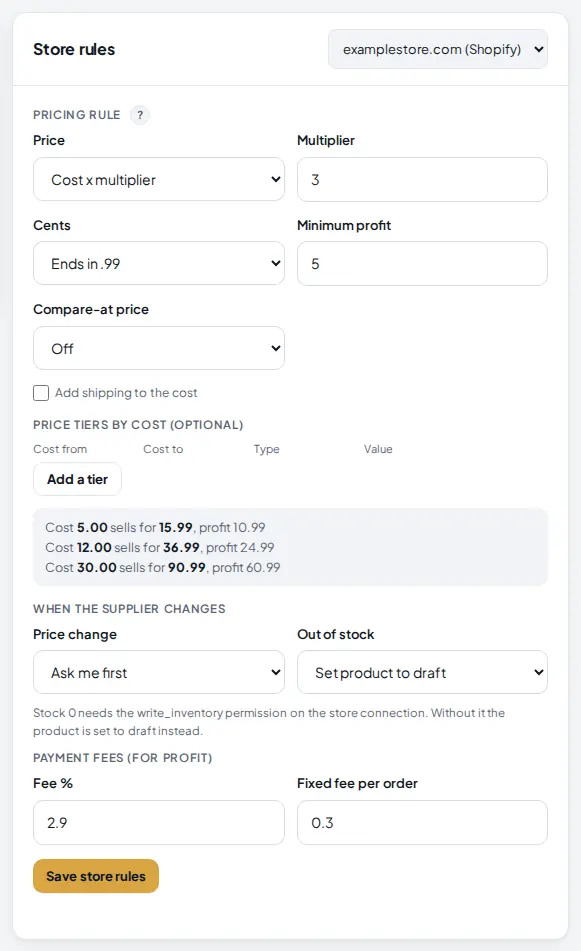
In the Store rules card on the same page, pick a store at the top right. The rules are saved per store.
 1
2
3
4
1
2
3
4
- Pricing rule. How a new store price is worked out from the supplier cost: cost times a multiplier or cost plus a fixed markup, the cents (.99, .95 or whole numbers), a minimum profit, an optional compare-at price, shipping added to the cost and price tiers for cost ranges.
- Preview. What three example costs would sell for with your rule, so you can check it before saving.
- Price change. Update my price changes the store price right away. Ask me first keeps your store as it is and puts the new price in the Sync log for you to approve. Do nothing only records the change.
- Out of stock. Set product to draft hides it, Set stock to 0 keeps it visible but unsellable, or Do nothing. When the supplier has stock again, AM Jarvis undoes it.
Without a pricing rule ("Keep supplier price"), a supplier price change moves your price by the same percent. On Shopify, "Set stock to 0" needs the write_inventory permission on the store connection; without it the product is set to draft instead. Click Save store rules when you are done.
4 Check one product's supplier details
Back on Products, click Details on a product. The panel shows the supplier link, the supplier type and the shipping cost, and how each of your variants is matched to the supplier.
 1
2
3
4
1
2
3
4
- Monitor this supplier. The same switch as in the table. Click Save after changing it.
- Check now. Checks this supplier right away instead of waiting for the schedule.
- Update from what I see. If AM Jarvis cannot read the supplier page, open it yourself and type the price and stock you see. Your store is updated the same way as by an automatic check.
- Update. Sends the numbers you typed.
Variants are matched by the supplier SKU or ID first, then by their options (for example Color: Red, Size: M). If a product has variants, fill in the supplier SKU or options so each variant follows its own supplier price.
5 Switch on supplier sync in the Chrome extension
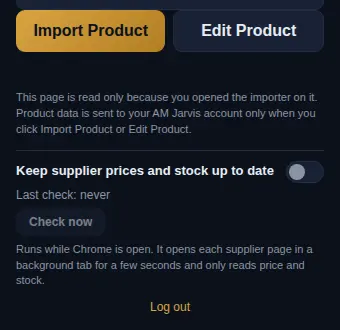
AliExpress and Amazon do not let servers read their pages reliably, so for those suppliers the AM Jarvis Chrome extension does the checking from your browser. Install it first if you have not (see Install the Chrome extension). Then click the AM Jarvis icon in Chrome on any page and scroll to the bottom of the popup.
 1
2
1
2
- Keep supplier prices and stock up to date. Turn the switch on. Chrome asks you to allow access to AliExpress and Amazon pages: click Allow. Without it, sync cannot run.
- How it works. Sync runs while Chrome is open. It opens each supplier page in a background tab for a few seconds, only reads the price and stock, and closes the tab. It never clicks anything on the supplier site.
 1
2
3
1
2
3
- Switch on. The extension now checks the products that are due, on the schedule you set in step 2.
- Last check. When the last run happened and how many products it checked.
- Check now. Runs a check right away.
The extension leaves a pause of 15 to 30 seconds between supplier pages and checks up to 20 products per run, so a long list is spread over several runs. Turning the switch off gives the site access back to Chrome. If the popup says "Browser sync is turned off in AM Jarvis", tick Browser sync in the Supplier checks card.
6 Approve price changes and read the Sync log
Click Sync log. With "Ask me first", every supplier price change waits at the top until you decide.
 1
2
3
4
1
2
3
4
- New price. The price your rule suggests for the new supplier cost. Type a different price if you prefer.
- Approve new price. Sends the new price to your store.
- Keep my price. Dismisses the change and leaves your store price as it is.
- The log. Every change with the time and who made it: a server check, the Chrome extension or you.
Log entries are colored by type: Price, Stock (out of stock), Unavailable (the supplier removed the product), Back in stock, Check failed and Linked. A product whose supplier page could not be read shows "Check failed" in the table and in the log with the reason; use Update from what I see for it, or check the supplier link.
Tips
- Start with "Ask me first" for a week. Once the suggested prices look right, switch to "Update my price".
- Set a minimum profit in your pricing rule. A supplier price rise then never pushes your profit below it.
- Keep Chrome open for a while each day if you sell from AliExpress or Amazon; the extension only checks while Chrome runs.
- Turn monitoring off for products you no longer sell, so your allowance goes to the ones that matter.
Common mistakes
- AliExpress products never checked. The extension switch is off, Chrome did not get access (turn the switch off and on, then click Allow), or Browser sync is unticked in Settings.
- Stock 0 not applied on Shopify. The connection lacks write_inventory, so the product was set to draft instead. Add the scope and reconnect.
- Every variant gets the same price. Add supplier SKUs or options in the variant mapping.
- Expecting it on Free or Starter. Links, orders and profit work there, but monitoring needs Pro or Agency.
What to do next
See what your products earn with Read your store profit by day. More on the Dropshipping Suite page.
Frequently asked questions
Which suppliers can be monitored?
Shopify and WooCommerce stores, CJ Dropshipping (when the admin has added the CJ key) and other sites that publish their price on the page are checked by the server. AliExpress and Amazon are checked by the Chrome extension while Chrome is open.
Will my prices change without me knowing?
Only if you choose Update my price. With Ask me first, every change waits in the Sync log for your approval, and every change is logged either way.
Does the extension slow down my browser?
It checks up to 20 products per run, one page at a time with a pause of 15 to 30 seconds between pages, in background tabs that close after a few seconds.
What happens when the supplier has stock again?
AM Jarvis restores the product: a product set to draft goes back to active, and stock set to 0 is restored.
Which plan includes supplier sync?
Pro, with up to 500 monitored products, and Agency, with no limit. On Free and Starter you can still link products, run the orders desk and see profit.

Founder of AM Jarvis. More than a decade running e-commerce stores, Google Shopping campaigns and niche sites. About the author
The app changes often. If a screen here no longer matches what you see, let us know and we will update the guide.