Quick answer
Open Social Autopilot, Settings, Accounts and brand voice, and click Connect Facebook, Connect Instagram and Connect Pinterest. Then add a website for each site you run under the Websites tab and tick its own accounts, so posts for one site only go to that site's accounts.
Social Autopilot posts to your own Facebook Pages, Instagram accounts and Pinterest accounts. Before it can post anything, you connect those accounts once and tell AM Jarvis which accounts belong to which website. This guide walks you through both parts: connecting the accounts in Settings, Accounts, and grouping them into websites so posts for one site never land on another site's page.
You need a Facebook Page you manage (personal profiles cannot be posted to by apps), an Instagram Business or Creator account linked to that Page, and a Pinterest account (personal or business). Log in to each of them in the same browser first, because each platform uses the account that is logged in on that browser. Every post counts toward your plan's monthly Social Autopilot posts: 10 on Free, 150 on Starter, 1,000 on Pro and unlimited on Agency.
1 Open Social Autopilot, Settings, Accounts
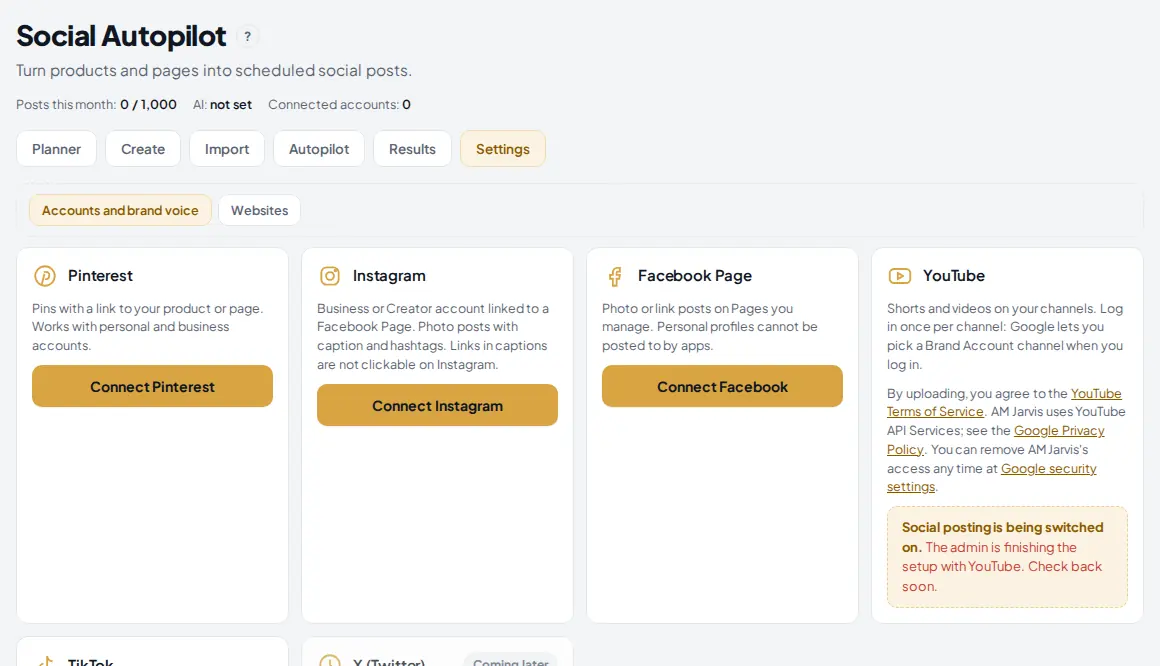
Click Social Autopilot in the left menu under Grow. Click the Settings tab, then Accounts and brand voice. You see one card per platform.
 1
2
3
4
1
2
3
4
- Settings tab. Holds your accounts, your brand voice and your websites.
- Accounts and brand voice. The platform cards and, under them, the Brand voice form that the AI uses when it writes captions.
- Connect Pinterest. Takes you to Pinterest to log in and allow AM Jarvis to create Pins and boards.
- Connect Facebook. Takes you to Facebook to pick the Pages AM Jarvis may post to.
The line above the tabs shows your posts this month against your plan limit, your AI provider and how many accounts are connected. YouTube and TikTok cards are there too; they are covered in their own guides.
2 Connect Facebook and Instagram
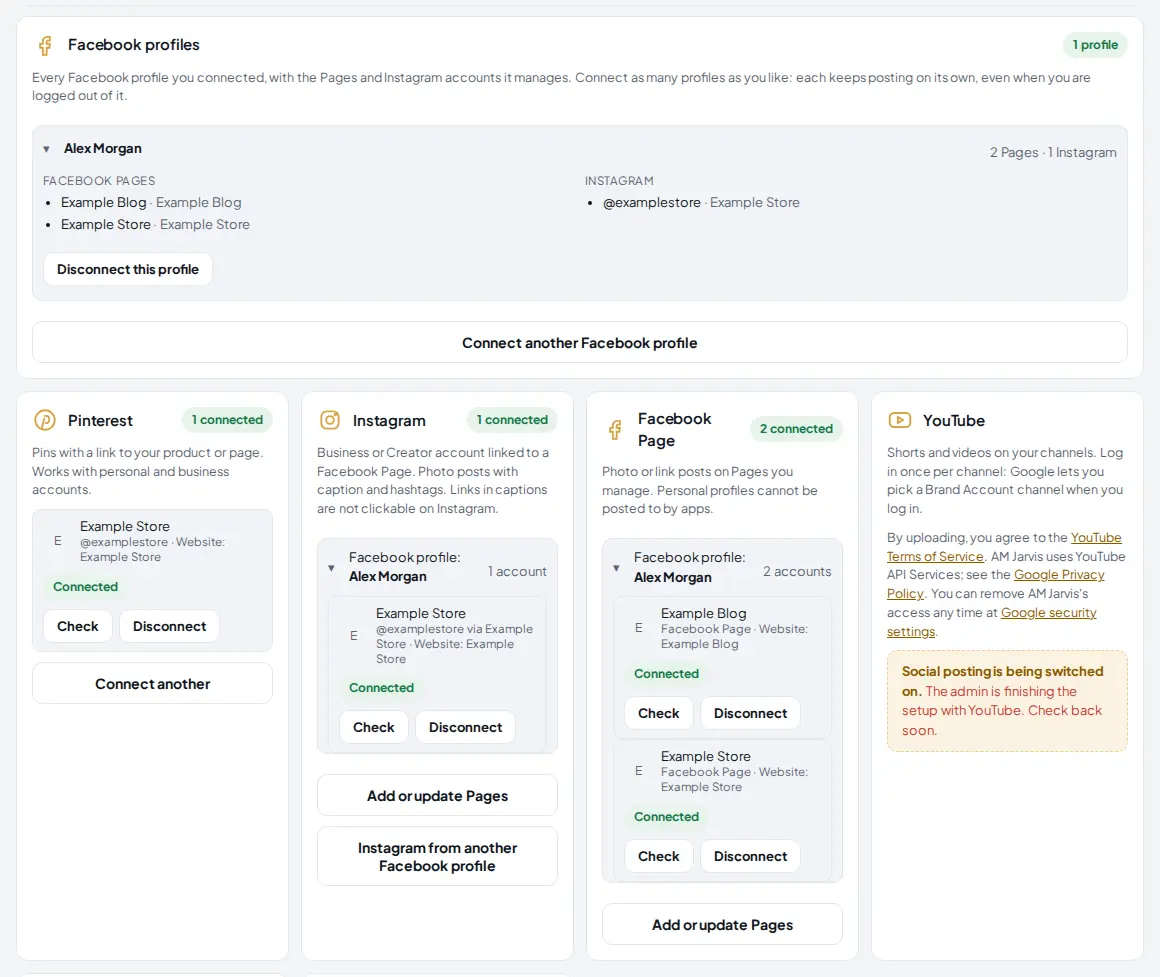
Click Connect Facebook. Facebook asks you to log in (if you are not already), then lists your Pages. Tick every Page you want to post to and allow the permissions. You come back to AM Jarvis with the Pages listed.
Then click Connect Instagram. Instagram accounts connect through the Facebook Page they are linked to, so pick the same Pages again and allow Instagram access. If an Instagram account does not appear, open the Instagram app, switch it to a Business or Creator account and link it to your Facebook Page, then connect again.
 1
2
3
4
1
2
3
4
- Facebook profiles. Every Facebook profile you connected, with the Pages and Instagram accounts it manages. Each profile keeps posting on its own, even when you are logged out of it.
- Pinterest account. Your Pinterest account with a Connected badge. Check tests that the connection still works and Disconnect removes it.
- Instagram account. Shown as @username via the Facebook Page it is linked to.
- Add or update Pages. Run the Facebook connection again, for example after you create a new Page or got admin access to one.
To add Pages that belong to another Facebook profile (a client's, for example), click Connect another Facebook profile. You can create a one time link and open it in a private window or on a phone where that profile is logged in. The link works once, for 60 minutes, and needs no AM Jarvis login.
Tip: if a Page is in Meta Business Suite but does not appear, the profile you connected does not have full control of it. In Meta Business Suite open Settings, Pages, pick the Page, then People, and give that profile full control. Then click Add or update Pages.
3 Connect Pinterest
Click Connect Pinterest, log in to Pinterest and allow access. Your Pinterest account appears in the Pinterest card. To add a second Pinterest account, log in to it on pinterest.com and click Connect another.
Pinterest accounts need one extra thing that Facebook and Instagram do not: a board for every Pin. AM Jarvis reads your boards when you post (step 6), and you can create a new board from AM Jarvis without opening Pinterest.
 1
1
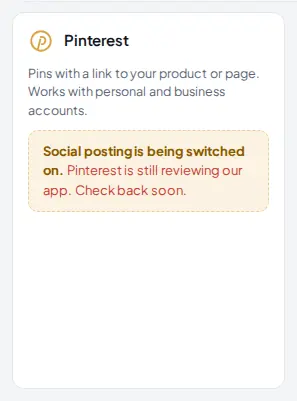
- Being switched on. If you see this message instead of a Connect button, Pinterest has not finished reviewing the AM Jarvis app yet. Come back later; nothing is needed from you.
What Pinterest Trial and Standard mean. Every app that posts to Pinterest starts with Trial access. In Trial, Pins and boards go to the Pinterest sandbox, where only the account owner can see them, and normal users cannot connect Pinterest yet. When Pinterest approves the app for Standard access, Pins are public and every user can connect Pinterest. While Trial is on, the Create screen and the Autopilot rules say so, and posted Pins show a "View test Pin" button instead of "View Pin".
4 Add a website for each brand
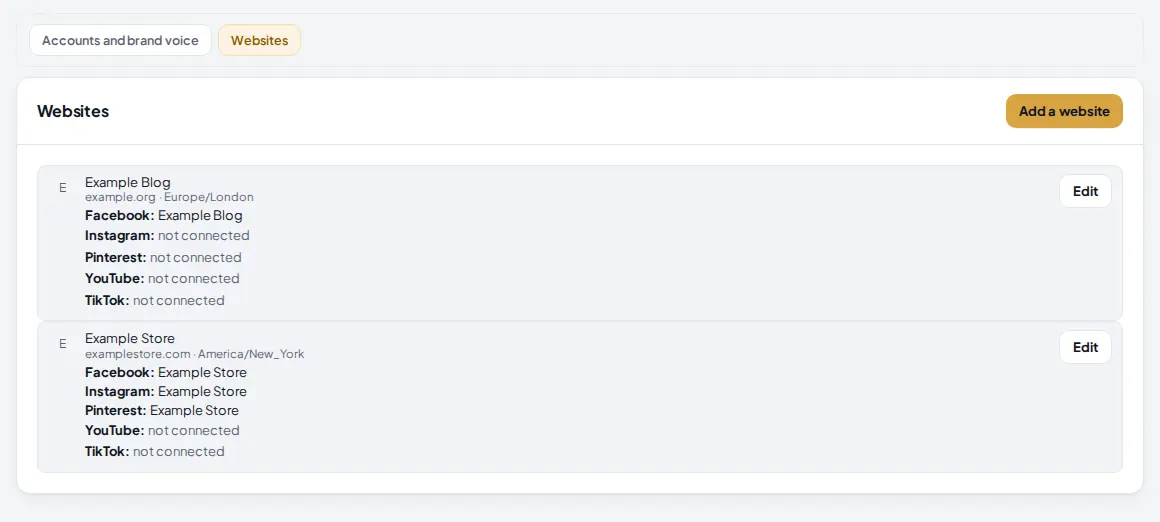
A website (the AM Jarvis connector calls it a brand) is one site or business and the social accounts that belong to it: its own Facebook Page, Instagram account and Pinterest account. The rule is one brand per website. Posts sent to a website only ever go to that website's accounts, and an account can belong to only one website. Click the Websites tab next to Accounts and brand voice.
 1
2
3
4
1
2
3
4
- Websites tab in Settings.
- Add a website. Opens an empty website form.
- A website. Its name, address and time zone, then each platform with the account linked to it, or "not connected".
- Edit. Change the name, address, time zone or accounts.
If you connected accounts that are not in a website yet, a note under the list names them. Importing a Content Pack also creates websites for you and matches your Pages by name.
5 Link the accounts to the website
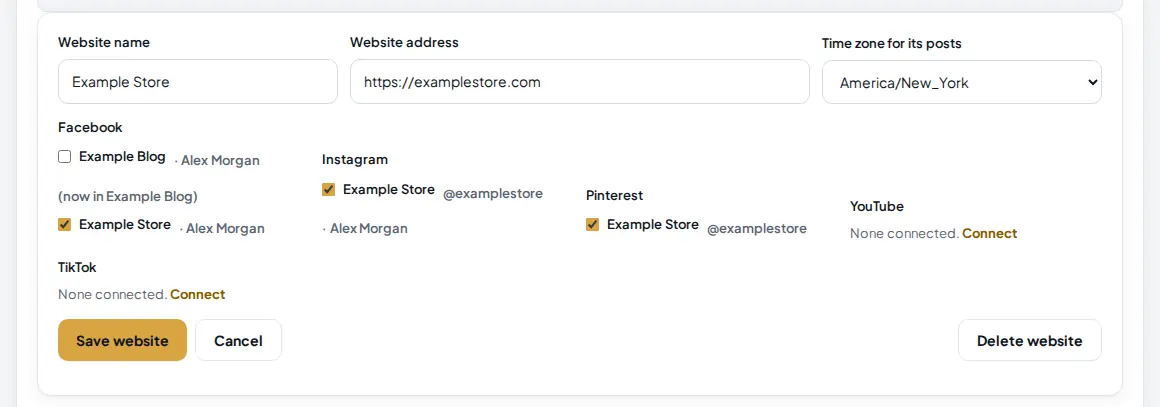
Click Add a website (or Edit on an existing one) and fill in the form. The form lists every connected account under its platform.
 1
2
3
4
1
2
3
4
- Website name. The name you will see when you pick where to post, for example Example Store.
- Website address. The site's home page. AM Jarvis uses it to pick this website's accounts automatically when you post a link from this site.
- Time zone for its posts. Scheduled times for this website are read in this time zone. Pick the time zone of the audience, not your own if they differ.
- Accounts. Tick this website's own accounts. An account that already belongs to another website says "now in" that website: ticking it here moves it.
Click Save website. Repeat for each site you run. Delete website removes only the grouping; the accounts stay connected.
6 Pick a Pinterest board when you post
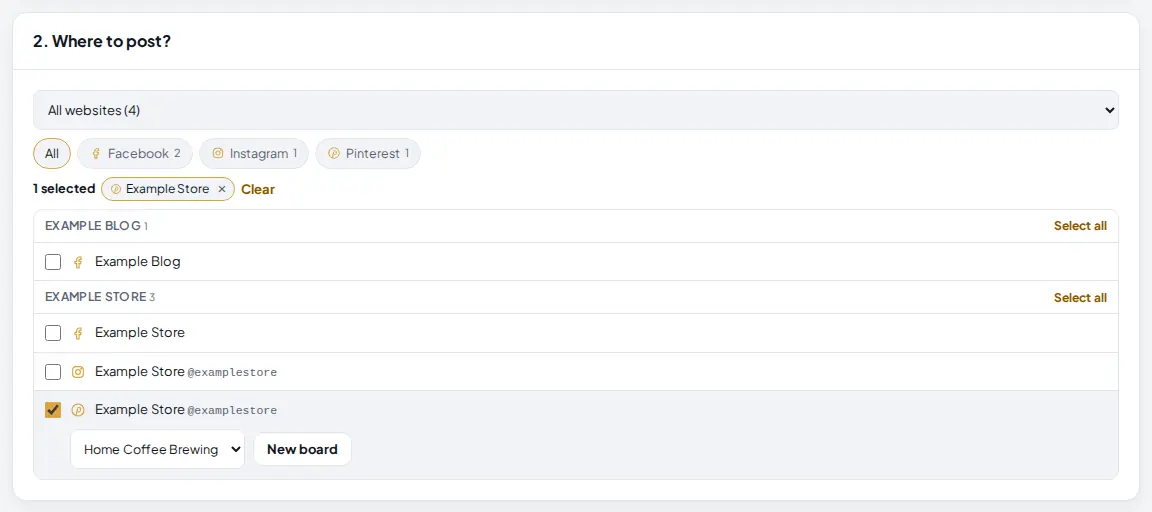
Open the Create tab. In 2. Where to post? your accounts are grouped by website. Tick an account to post to it. When you tick a Pinterest account, a board list appears under it.
 1
2
3
4
1
2
3
4
- Website filter. Show the accounts of one website only, or all of them. The chips under it filter by platform.
- Pinterest account. Ticked, so this post goes to it.
- Board. The Pinterest board for this Pin, read from your Pinterest account.
- New board. Type a name and AM Jarvis creates the board on Pinterest and selects it.
For a Facebook Page you choose between a photo post (with the link in the text) and a link preview post in the same place. "Select all" next to a website ticks all of its accounts at once.
7 Fill in your brand voice
Go back to Settings, Accounts and brand voice and scroll to Brand voice. Fill in your brand name, voice and tone (for example "warm, simple words, no hype"), audience, call to action, hashtags you like, and the two colors used when AM Jarvis draws a headline on an image. Click Save brand voice. The AI uses these whenever it writes your captions. Captions and images are made with your own AI account, so connect one in Settings first (OpenRouter is one click).
Tips
- Keep one website per site you run, even if you only post to Facebook for some of them. It keeps posts from crossing over as you add accounts.
- Use Check on an account when posts start failing. An account whose access expired shows "Needs reconnect" with a Reconnect button.
- Links in Instagram captions are not clickable. For Instagram, put the call to action in the text ("link in bio") and use Pinterest and Facebook for link clicks.
- Create your main Pinterest boards before you schedule a batch of Pins, so each Pin can go to the right board.
Common mistakes
- Trying to post to a personal Facebook profile. Facebook does not allow apps to post there. Use a Page.
- Instagram not showing up. It must be a Business or Creator account linked to a Facebook Page you connected.
- Connecting the wrong Facebook profile. Facebook uses whoever is logged in on the browser. Log out of facebook.com first, or use the one time connect link in a private window.
- Accounts left outside a website. They still work in Create, but they are not picked automatically for a site's links. Add them to a website.
What to do next
Your accounts are ready for the Create tab, the Planner and Autopilot rules. Read more on the Social Autopilot page, and connect the store whose products you will share with Connect a Shopify or WooCommerce store.
Frequently asked questions
Can I post to my personal Facebook profile?
No. Facebook only lets apps post to Pages. Create a Page for your store or blog and connect that.
Why do I need a website for each brand?
A website groups the accounts that belong to one site. Posts sent to it only go to its own accounts, so a post for one store never ends up on another store's Page or Pinterest.
What is Pinterest Trial access?
Every new Pinterest app starts in Trial access. Pins and boards then go to the Pinterest sandbox, visible only to the account owner, and normal users cannot connect yet. With Standard access Pins are public and everyone can connect.
Can I connect accounts from more than one Facebook profile?
Yes. Click Connect another Facebook profile and use the one time link in a private window or on another phone where that profile is logged in.
Do connected accounts count toward my plan?
No, only posts do. Free includes 10 posts a month, Starter 150, Pro 1,000 and Agency unlimited, and each account you post to counts as one post.

Founder of AM Jarvis. More than a decade running e-commerce stores, Google Shopping campaigns and niche sites. About the author
The app changes often. If a screen here no longer matches what you see, let us know and we will update the guide.