Quick answer
Connect your Pinterest, Instagram and Facebook accounts and group them by website. Then, in Create, paste a product link: Jarvis reads the page, ticks that website's accounts, writes a post for each platform and uses the product image. You check every preview, pick the Pinterest board and a time, and the posts wait in the queue until they go out.
This guide is for anyone who wants to promote a product or page on Pinterest, Instagram and Facebook without writing three posts by hand. You paste one link; Jarvis reads the page, writes a post for each platform in your brand voice, crops the image to each size, and schedules everything. You need a Facebook Page, an Instagram Business or Creator account, and/or a Pinterest account, plus an AI account for the captions (your own key, OpenRouter in one click, or the platform key if the admin set one).
Plan allowance: each account you post to counts as one post. Free includes 10 posts a month, Starter 150, Pro 1,000 and Agency has no cap. YouTube and TikTok videos are posted from the Video panel and are not covered here.
1 Connect your accounts
Open Social Autopilot in the Grow menu, click Settings, then Accounts and brand voice. Each platform has its own card. Click Connect, log in on the platform, and allow AM Jarvis to post for you. AM Jarvis only posts what you schedule and what your autopilot rules say.
 1
2
3
4
5
1
2
3
4
5
- Settings holds your accounts, brand voice and websites.
- Accounts and brand voice is the panel shown here; Websites is next to it.
- Facebook profiles lists every Facebook profile you connected with the Pages and Instagram accounts it manages. You can connect several profiles; each keeps posting even when you are logged out of it.
- Each account shows Connected, or Needs reconnect in red when its access expired. Check tests the connection.
- Connect another adds a second Pinterest account. Facebook and Instagram use Add or update Pages.
Instagram must be a Business or Creator account linked to a Facebook Page. Facebook posts go to Pages you manage; apps cannot post to personal profiles.
Pinterest: Standard access and Trial access
Pinterest gives every app one of two access levels, and the admin of AM Jarvis sets which one the app has. It changes what you see:
 1
1
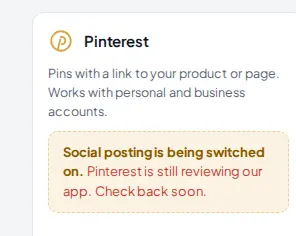
- While the app is in Trial access, normal accounts see this note instead of a Connect button. Check back once Pinterest has approved the app.
| Standard access | Trial access | |
|---|---|---|
| Who can connect Pinterest | Every user | Only the admin, for testing |
| Where Pins go | Your real Pinterest account, public | Pinterest's sandbox: test Pins only the creator can see, not shown on pinterest.com |
| Boards | Your real boards | Test boards, kept apart from real boards; New board makes a test board |
| In the queue and Results | Open post and View Pin | View test Pin reads the Pin back from Pinterest; no numbers |
A board made during Trial access cannot take real Pins later (Pinterest code 15). If a post still points at one, Jarvis finds or makes a real board with the same name, moves that post and any other posts and rules on the old board to it, and posts.
2 Set your brand voice
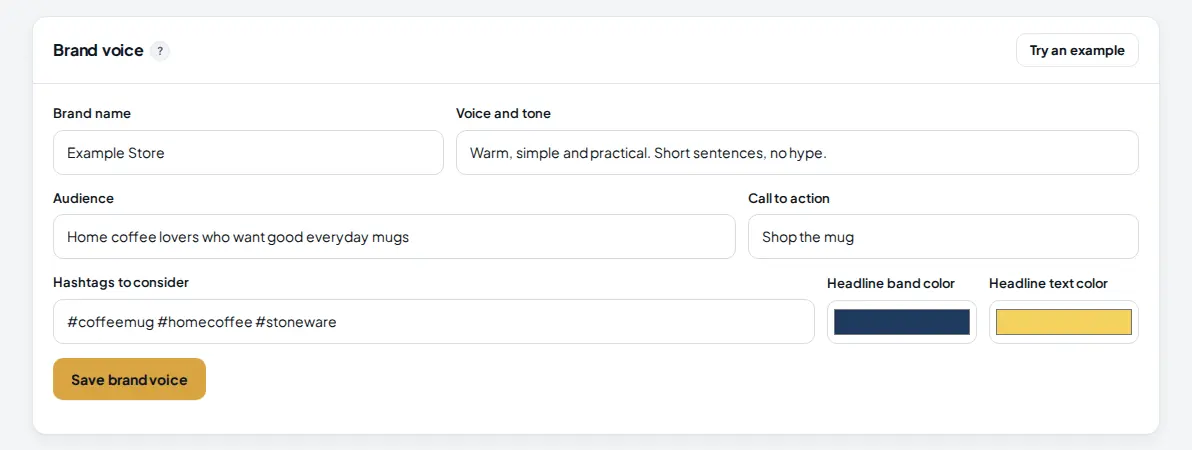
Below the platform cards, the Brand voice card tells the AI how to write. It only uses facts you give it: it never invents prices, discounts or reviews.
 1
2
3
4
1
2
3
4
- Voice and tone: a few words, for example "warm, simple and practical, no hype".
- Call to action used at the end of posts, such as "Shop the mug". Audience and hashtags to consider work the same way.
- The headline band and headline text colors, used when you add a headline on the image.
- Save brand voice. Try an example fills the form so you can see what it expects.
3 Group your accounts by website
Open Settings > Websites. A website (brand) is one of your sites with its own accounts. Posts for a website only go to its own accounts, and when you paste a link from that website in Create, its accounts are ticked for you.
 1
2
3
1
2
3
- The Websites panel.
- Add a website: give it a name, its web address and time zone, then tick its own accounts.
- Edit changes the accounts of a website. A Pinterest account can have a default board, shown in brackets.
4 Paste your product link in Create
Click the Create tab (Photo post). In card 1. What do you want to post?, paste the link of your product or page and click Continue. Jarvis reads the page: its title, description, price and main image.
 1
2
3
1
2
3
- Paste a link, or write a short description instead. For a description, write only facts that are true; the AI uses them as they are.
- Continue reads the link.
- Or pick A product from my store (a connected Shopify or WooCommerce store) or A page from my Site Builder sites.
5 Check where it will post and pick the board
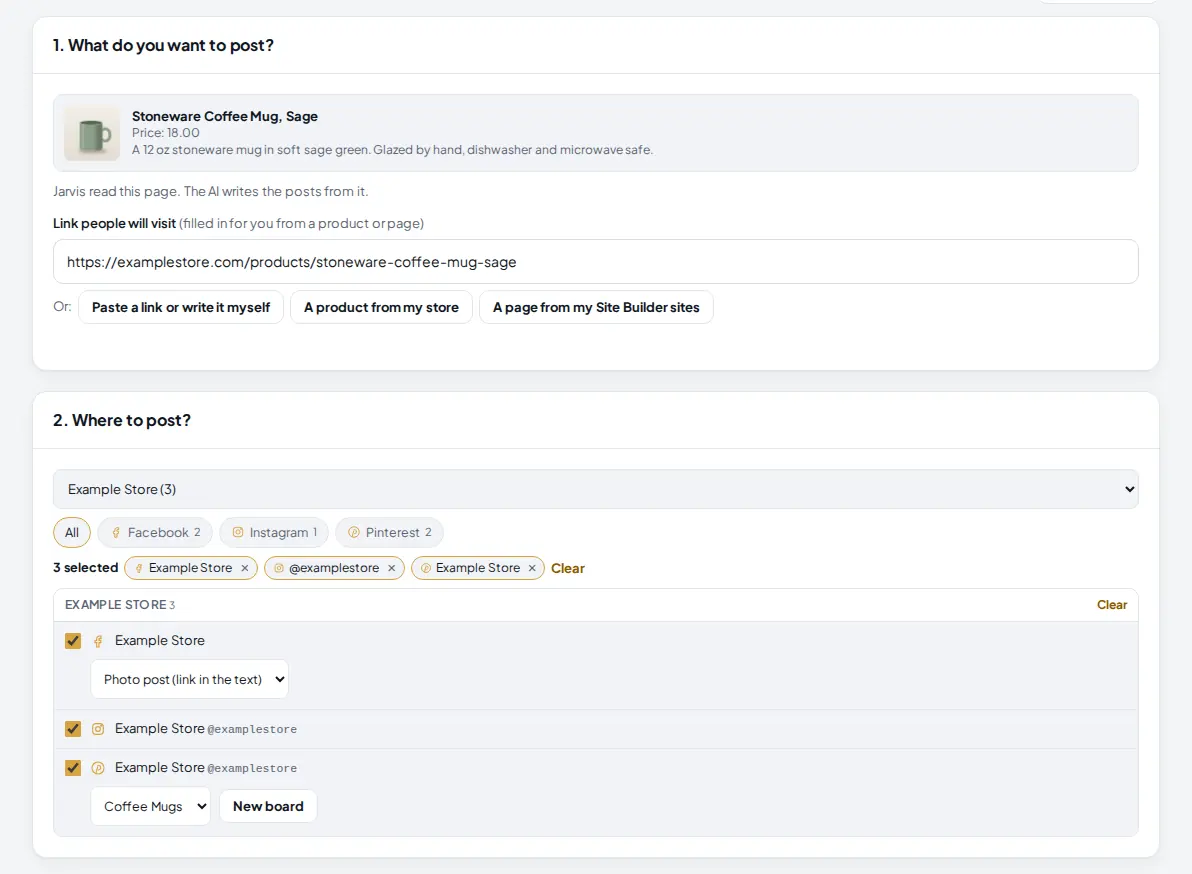
The product appears at the top of card 1, and the link people will visit is filled in. Because the link is on Example Store's website, card 2. Where to post? already has Example Store's three accounts ticked.
 1
2
3
4
5
6
1
2
3
4
5
6
- What Jarvis read from the page. The AI writes the posts from it.
- Link people will visit. Change it if the post should send people somewhere else.
- Filter by website, then by platform with the chips below it. With many accounts, a search box appears too.
- How many accounts are selected. Click × on a chip to untick one.
- For a Facebook Page: Photo post (link in the text) or a link post.
- For Pinterest: the board, plus New board to make one without leaving the page.
6 Let the AI write the posts and choose the image
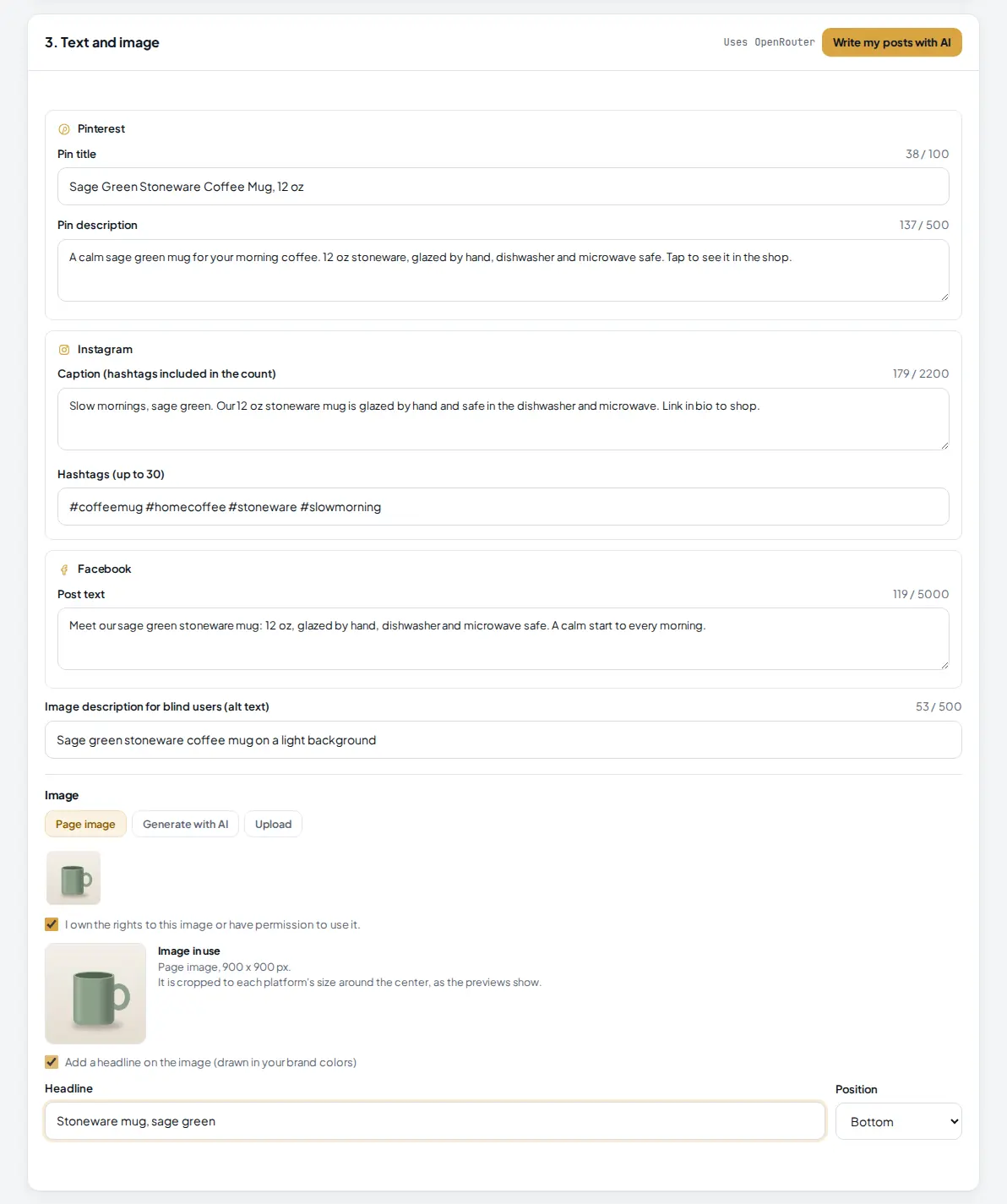
As soon as there is something to write about and somewhere to post, Jarvis writes the posts into card 3. Text and image: a Pin title and description, an Instagram caption with hashtags, a Facebook post and alt text. Every field can be edited and shows its character count against the platform's limit.
 1
2
3
4
5
6
7
1
2
3
4
5
6
7
- Write my posts with AI writes them again. The AI in use is shown next to it.
- Pinterest: title up to 100 characters, description up to 500.
- Instagram: caption and up to 30 hashtags, 2,200 characters in total. Links in Instagram captions are not clickable.
- Facebook: up to 5,000 characters.
- The image source: the Page image (or Product photo), Generate with AI, or Upload. For a page image, tick that you own the rights or have permission, then click it.
- The image in use. It is cropped to each platform's size around the center.
- Tick Add a headline on the image to draw a short headline in your brand colors, at the top or bottom.
7 Check every preview, then schedule
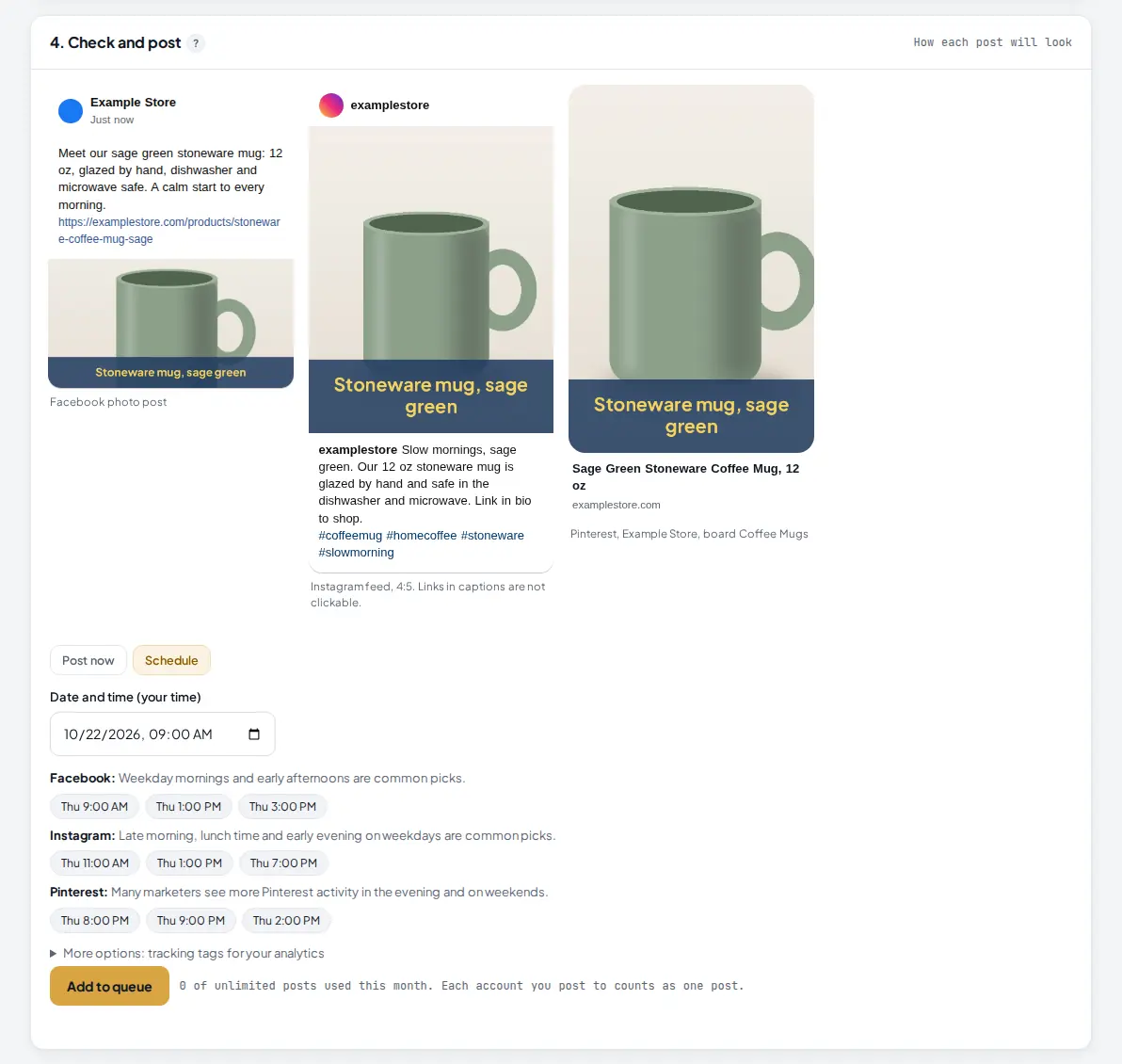
Card 4. Check and post shows each post as it will look on each account. This is your approval step: read every caption and look at every crop. Then choose Post now or Schedule.
 1
2
3
4
5
1
2
3
4
5
- The previews: Facebook photo post, Instagram feed (4:5) and Pinterest (2:3) with the board.
- Schedule instead of Post now.
- Date and time, in your own time zone.
- Suggested times for each platform. Click one to fill in the date and time.
- Add to queue. The line next to it shows your posts used this month.
Under More options you can add UTM tags so the visits show up in your analytics. Links are left clean unless you tick it.
 1
2
1
2
- One line per account with the time it is scheduled for. With Post now, each line says posted, with a link to the live post.
- Open the queue takes you to the Planner.
8 Manage the queue in Planner
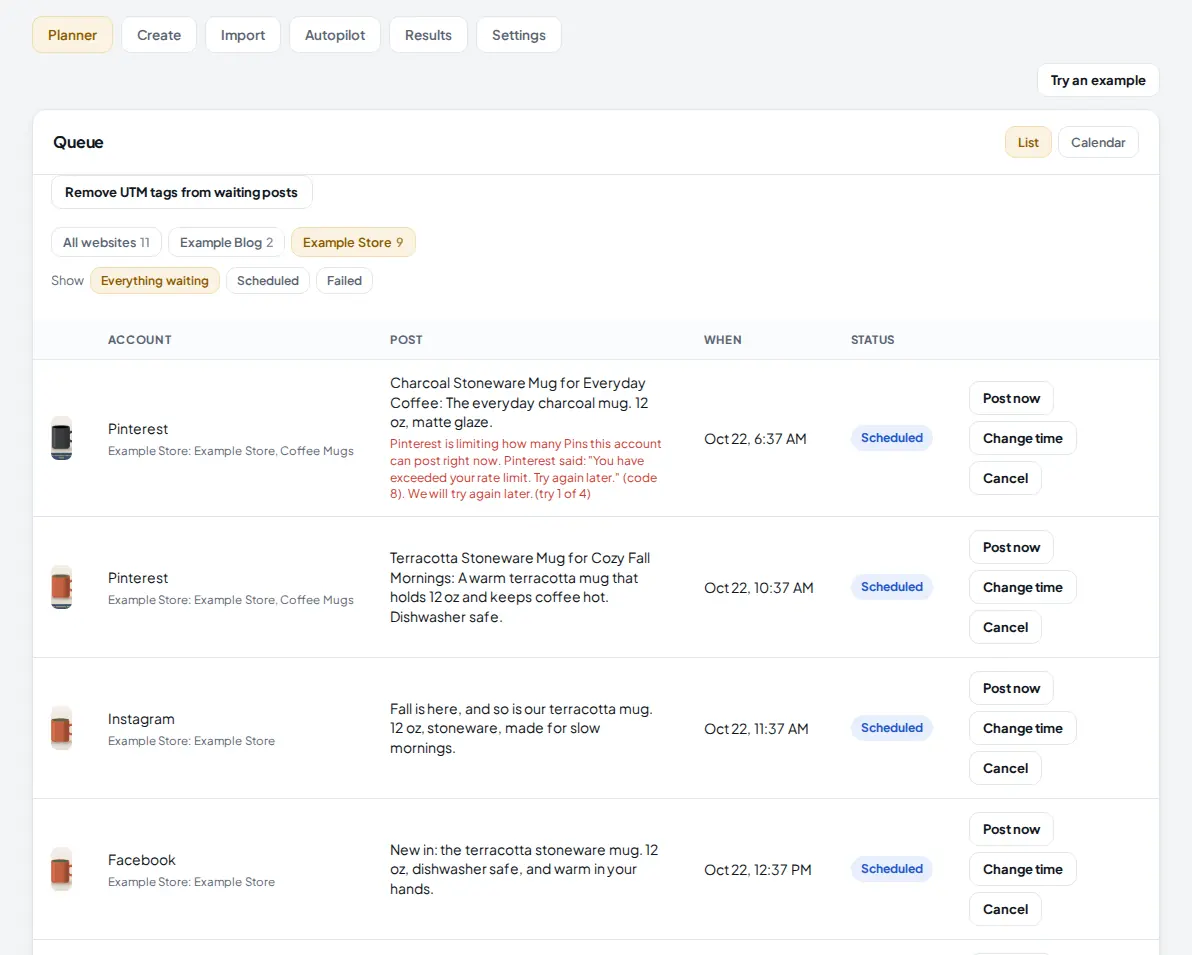
Click Planner. Every post waiting to go out is listed by website, with its account, text, time and status. AM Jarvis checks the queue every 5 minutes and posts what is due.
 1
2
3
4
5
1
2
3
4
5
- Planner holds the queue and the calendar.
- One tab per website, with how many posts wait there. Show lets you list everything waiting, only scheduled, or only failed posts.
- Calendar shows the month; click a day to list its posts.
- The status. A red line under a post explains a problem in plain words, here a Pinterest limit that is retried automatically.
- Post now, Change time or Cancel anything before it goes out.
9 Know what happens when a post fails
Most problems fix themselves. The reason is always shown under the post. Here is what Jarvis does with each kind of problem:
| Problem | What Jarvis does | What you do |
|---|---|---|
| Temporary error (network, platform down) | Tries again after 5, 15 and 60 minutes, up to 4 tries in total | Nothing. If all tries fail, click Retry |
| Pinterest limits the account | Shows what Pinterest said and tries again after 1, 3 and 8 hours | Nothing. Post fewer Pins a day if it keeps happening |
| Pinterest blocked links to your website as spam (code 9) | Marks the Pin Failed with steps to get the block reviewed, does not retry it, and holds back your other waiting Pins to that website with the same note | Claim the website in Pinterest (Settings > Claimed accounts > Websites) and ask Pinterest to review it (help.pinterest.com > Contact us). Once the block is gone, click Retry on each held Pin |
| Daily safety cap reached (50 posts a day per Pinterest or Facebook account, 100 per Instagram account) | Posts it later; this does not use up a try | Nothing |
| Instagram could not download the image | Tries again; any other image refusal is tried once more after 10 minutes | Retry with another image if it still fails |
| Account needs to be reconnected | Marks the account Needs reconnect | Click Reconnect in Settings, then Retry |
Tips
- Set up your websites first. Then pasting a link ticks the right accounts and you never post one site's product on another site's Page.
- Give each Pinterest account a default board in Websites so Pins land on the right board without thinking.
- Use a product photo when accuracy matters. AI generated images are inspired by the product and may not show it exactly.
- Spread Pins out. A new Pinterest account does best with 3 to 10 Pins a day.
Common mistakes
- Connecting a personal Instagram account. Switch it to Business or Creator in the Instagram app, then connect again.
- Using a page image without ticking the rights box. The image is not used until you confirm you may use it.
- Retrying a link blocked Pin over and over. Pinterest refuses it until the block is removed. Get the block reviewed first.
- Expecting test Pins on pinterest.com. In Trial access, Pins live in Pinterest's sandbox. Use View test Pin to see them.
What to do next
Let Jarvis post a product every day on its own, import a whole Content Pack and read your results in Run Social Autopilot on a schedule. More on the Social Autopilot page.
Frequently asked questions
Why can I not connect Pinterest?
AM Jarvis's Pinterest app needs Standard access from Pinterest before every user can connect. While it is in Trial access, the Pinterest card says "Social posting is being switched on" and only the admin can connect, and Pins go to Pinterest's sandbox where only the person who made them can see them. Once Pinterest grants Standard access, Pins are public and everyone can connect.
How many posts can I schedule?
Each account you post to counts as one post. Free includes 10 a month, Starter 150, Pro 1,000 and Agency has no cap. One post can go to up to 10 accounts, and up to 500 posts can wait in the queue at once.
Are UTM tags added to my links?
Not unless you ask. Tick "Add UTM tags" under More options in step 4 to add utm_source (the platform), utm_medium=social and your campaign name. The Planner also has a button to remove UTM tags from every post that has not gone out yet.
What happens if Pinterest blocks my website's links?
Pinterest sometimes flags a website's links as possible spam (its code 9). Jarvis shows that Pin as Failed with the steps to get the block reviewed, does not keep retrying it, and holds back your other waiting Pins to the same website so Pinterest is not asked again and again. Once Pinterest removes the block, click Retry on each of them.
Do I need my own AI account?
Captions are written by your own AI account, or the platform key if the admin set one. Connect OpenRouter in one click from Create, or add a key in Settings. You can also type the posts yourself.

Founder of AM Jarvis. More than a decade running e-commerce stores, Google Shopping campaigns and niche sites. About the author
The app changes often. If a screen here no longer matches what you see, let us know and we will update the guide.