Quick answer
You set keywords or categories and a few sales filters, and the Explorer lists eBay listings that already sell, with photos, units sold and sales a day. Click any product to find the same item at Amazon, Walmart, AliExpress, Alibaba, CJ and Temu, work out your profit after eBay fees, and save it to a folder.
This guide is for anyone who sells on eBay, or wants to, and needs a list of products that already sell. The Explorer does not guess. It reads eBay's own sold count on each listing and works out sales a day and revenue from it. Then it helps you find the same product at a supplier and shows what you would keep after fees.
Before you start: the Explorer is in Marketplace Research on every plan. One search uses 1 research run (Free has 5 a month, Starter 100, Pro and Agency no monthly cap). Finding suppliers uses up to 2 credits per product. eBay data needs the eBay App ID and Cert ID, and supplier matching needs the Serper key (Google), the CJ Dropshipping key or the AliExpress keys. The admin adds these once in Admin > Platform settings; you do not need your own.
1 Open the Product Explorer
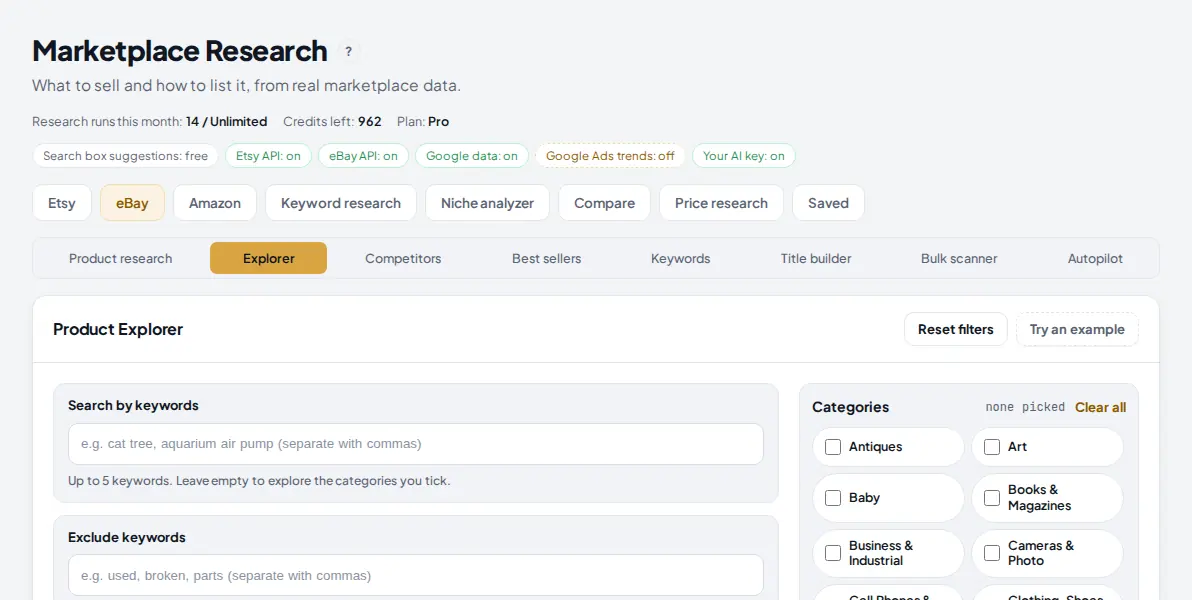
In the menu on the left, under Find, click Marketplace Research. Click the eBay tab, then Explorer in the row below it. The chips at the top tell you what is switched on: "eBay API: on" means eBay data works for you.
 1
2
3
1
2
3
- The eBay tab. All eBay tools sit behind it: Product research, Explorer, Competitors, Best sellers, Keywords, Title builder, Bulk scanner and Autopilot.
- Explorer is the tool for finding new products. Product research is for checking one product you already have in mind.
- Try an example fills in a ready search (phone stands under $20) so you can see how it works before you set your own filters.
Tip: Your research runs and credits for the month are shown on the line under the page title, so you always know what a search will cost you.
2 Tell it what to look for
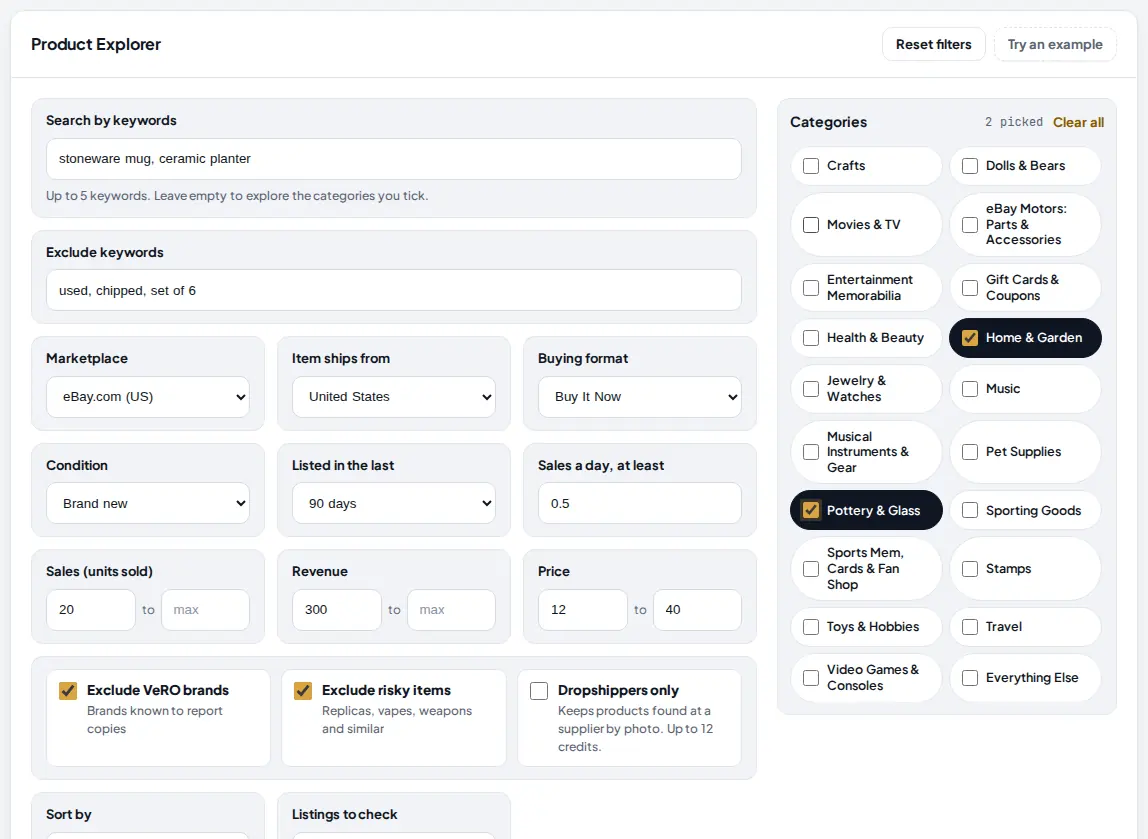
You can search by keywords, by categories, or both. Type up to 5 keywords in the first box, separated by commas, for example stoneware mug, ceramic planter. Add words you never want to see in the second box. Any listing whose title contains one of those words is left out.
Then tick the categories on the right. You can leave the keyword box empty and tick only categories to browse whole areas of eBay.com. Each keyword is searched in each ticked category, and one Explorer search runs at most 8 of these keyword and category pairs. So with 2 keywords, tick up to 4 categories; with 1 keyword, up to 8.
 1
2
3
4
1
2
3
4
- Search by keywords: up to 5, separated by commas. Leave it empty to explore the categories you tick.
- Exclude keywords: listings with any of these words in the title are removed, for example used, chipped, set of 6.
- Categories: eBay.com top level categories. A ticked category turns dark, and the counter at the top says how many you picked. Clear all unticks them.
- Marketplace: eBay.com, eBay.co.uk, eBay.de, eBay.com.au or eBay.ca. Pick the site you sell on, because prices, sellers and sold counts differ per site.
3 Set the sales filters
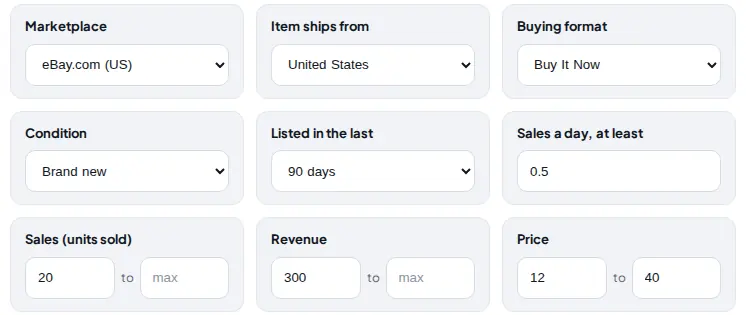
These filters decide what counts as "selling". Start loose, run the search once, then tighten. A listing that sold once is noise; a new listing that sells every day is what you want.
 1
2
3
4
5
6
1
2
3
4
5
6
- Item ships from: keeps listings that ship from one country. United States is a good start for eBay.com, because buyers there expect fast delivery.
- Listed in the last: 7 days to 6 months. With 30 days or less, eBay is asked for its newest listings first, so you find new listings that already sell.
- Sales a day, at least: units sold divided by the days since the listing started. 0.5 means about 15 sales a month.
- Sales (units sold): a minimum and an optional maximum for eBay's own sold count on the listing. A maximum helps you skip products that big sellers already own.
- Revenue: today's price times units sold. It is an estimate, because the price may have changed over time.
- Price: the listing price range. Set it where your margin works after fees and shipping.
| Filter | What it does | A good start |
|---|---|---|
| Buying format | Buy It Now, Auction or Best Offer. Auctions usually do not report a sold count. | Buy It Now (the default) |
| Condition | Brand new, Used, Refurbished or Any. | Brand new (the default) |
| Listed in the last | Only listings that started in that window. | 30 or 90 days |
| Sales a day, at least | Units sold divided by days since the listing started. | 0.3 to 0.5 |
| Sales (units sold) | A range for the listing's sold count. | 10 or more |
| Revenue | Price now times units sold. | 300 or more |
| Price | The listing price range. | Where your margin works |
Tip: The sold filters are applied to the listings that get a sold count check (step 4). If you get few results, raise "Listings to check" or lower the minimums before you change anything else.
4 Keep the safety filters on and choose how many listings to check
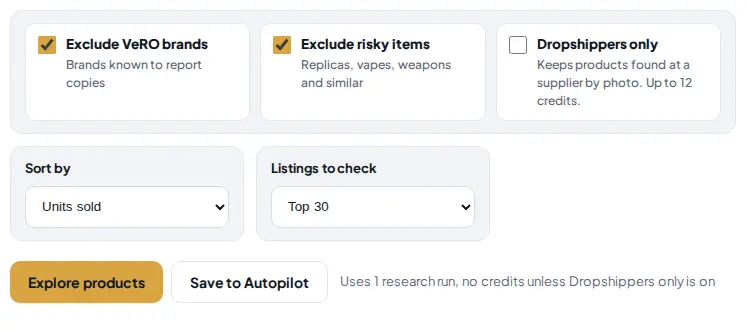
Two safety filters are on by default, and they should stay on. Under them you choose the sort order and how many listings get a sold count check.
 1
2
3
4
5
6
1
2
3
4
5
6
- Exclude VeRO brands: leaves out brands that are well known for reporting copies on eBay (VeRO is eBay's program for rights owners). It uses a built-in list of common brands, not eBay's full list, so still check a brand on eBay's VeRO pages before you list it.
- Exclude risky items: leaves out titles with words like replica, vape, CBD, knife types and other items eBay restricts.
- Dropshippers only: checks the photos of the top 12 products on Google and keeps only the ones a supplier also sells (Amazon, Walmart, AliExpress, Alibaba, CJ or Temu). It costs 1 credit for each photo that finds matches, so at most 12 credits. Turn it on when your list is already short.
- Listings to check: Top 20, 30 or 50. Jarvis asks eBay for the sold count of this many matching listings. More means more products, and a slower search.
- Explore products runs the search. It uses 1 research run and no credits, unless Dropshippers only is on.
- Save to Autopilot saves these filters as a daily search. It runs once a day for free and keeps the new strong sellers it finds (Free 1 saved search, Starter 3, Pro 10, Agency 30).
Sort by decides the order of the results: units sold, sales per day, revenue, lowest price, highest price or newest. Reset filters at the top of the card puts every filter back to its default.
5 Run it and read the results
Press Explore products. A progress bar shows each search, then the sold count checks. It runs on our server, so you can keep working in another tab; the result is also kept in "Recent runs in this tab" at the bottom of the page, where you can open it again without paying twice.
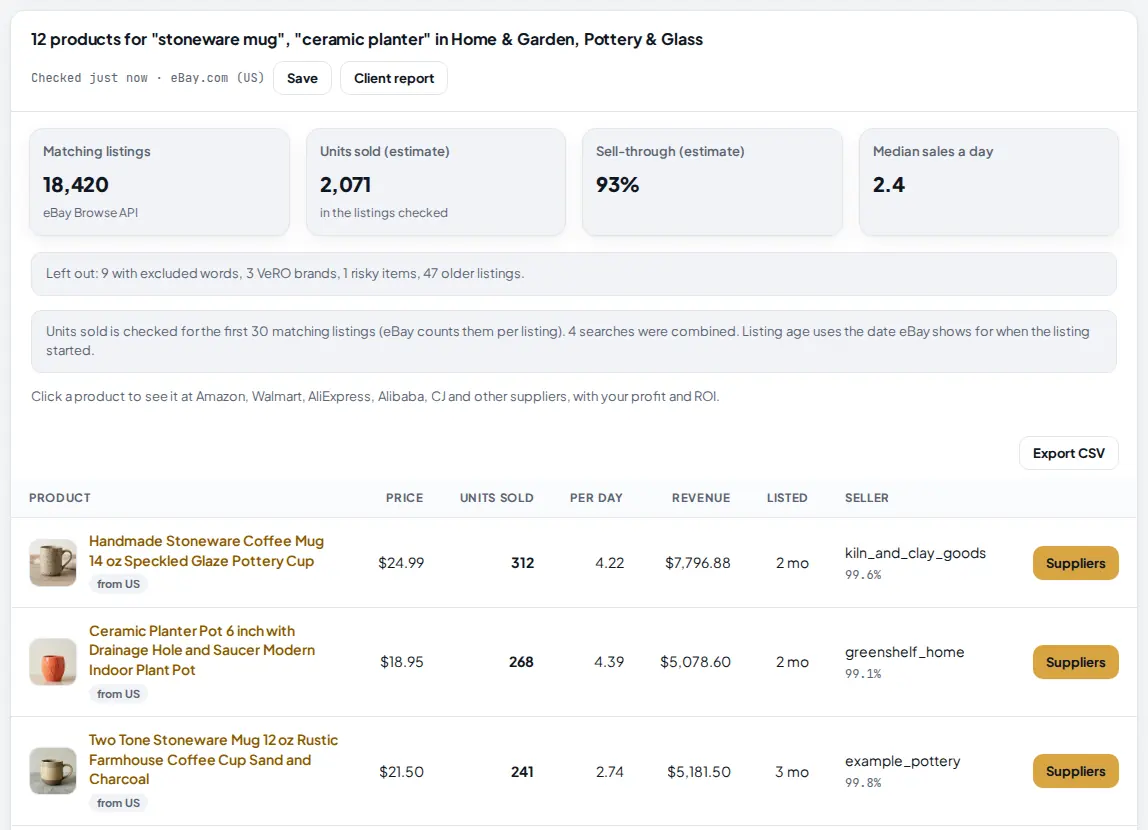 1
2
3
4
1
2
3
4
- The totals: matching listings on eBay, units sold in the listings checked, sell-through (listings with at least one sale, out of those that report a sold count) and median sales a day. All sold numbers are estimates from eBay's own counts.
- Left out: how many listings your exclude words, the VeRO filter, the risky filter and the age filter removed. If this number is huge, your filters are doing most of the work.
- Flags under each title. "from US" is where the item ships from. A red VeRO or Risky flag means a listing slipped through with the safety filters off.
- Suppliers opens the product panel for that listing. Clicking the product title does the same.
Each row shows the price, units sold, sales per day, revenue, how long ago it was listed and the seller with their feedback score. If a listing shows "not reported by eBay", eBay does not share its sold count (common for auctions); it does not mean zero sales.
Tip: Look for young listings with high sales a day. A listing from last month that sells 3 a day is a stronger sign than an old one with a big total.
6 Open a product
Click Suppliers on a row. A panel slides in from the right. The eBay listing is on the left, and the supplier search is on the right. Nothing is charged yet.
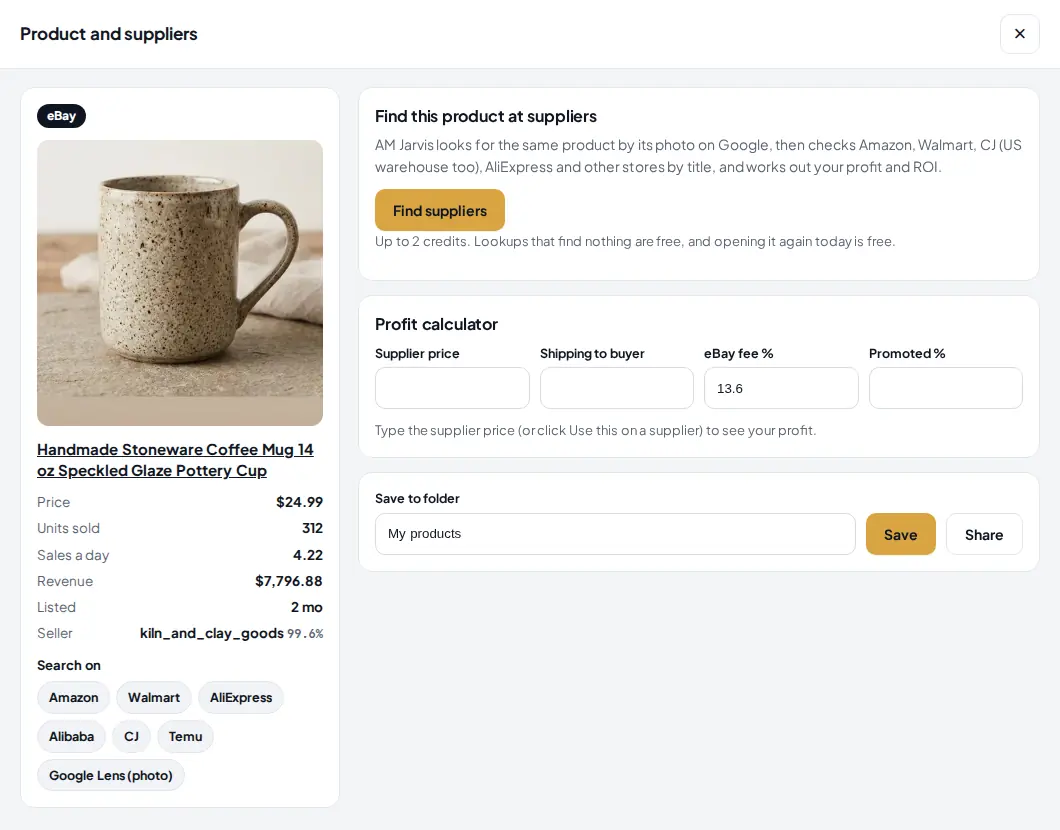 1
2
3
4
1
2
3
4
- The eBay listing: photo and title (the title links to eBay).
- Its numbers: price, units sold, sales a day, revenue, listing age and seller.
- Find suppliers starts the search. It uses up to 2 credits. Lookups that find nothing are free, and opening the same product again the same day is free.
- Search on: free links that open Amazon, Walmart, AliExpress, Alibaba, CJ, Temu and Google Lens with this product. They cost nothing and are useful when you want to look yourself.
7 Find the same product at suppliers
Press Find suppliers. Jarvis first looks for the same product by its photo on Google, then searches Amazon, Walmart, CJ (including CJ's US warehouses), AliExpress and other stores by a cleaned version of the title. The results are sorted into one tab per store.
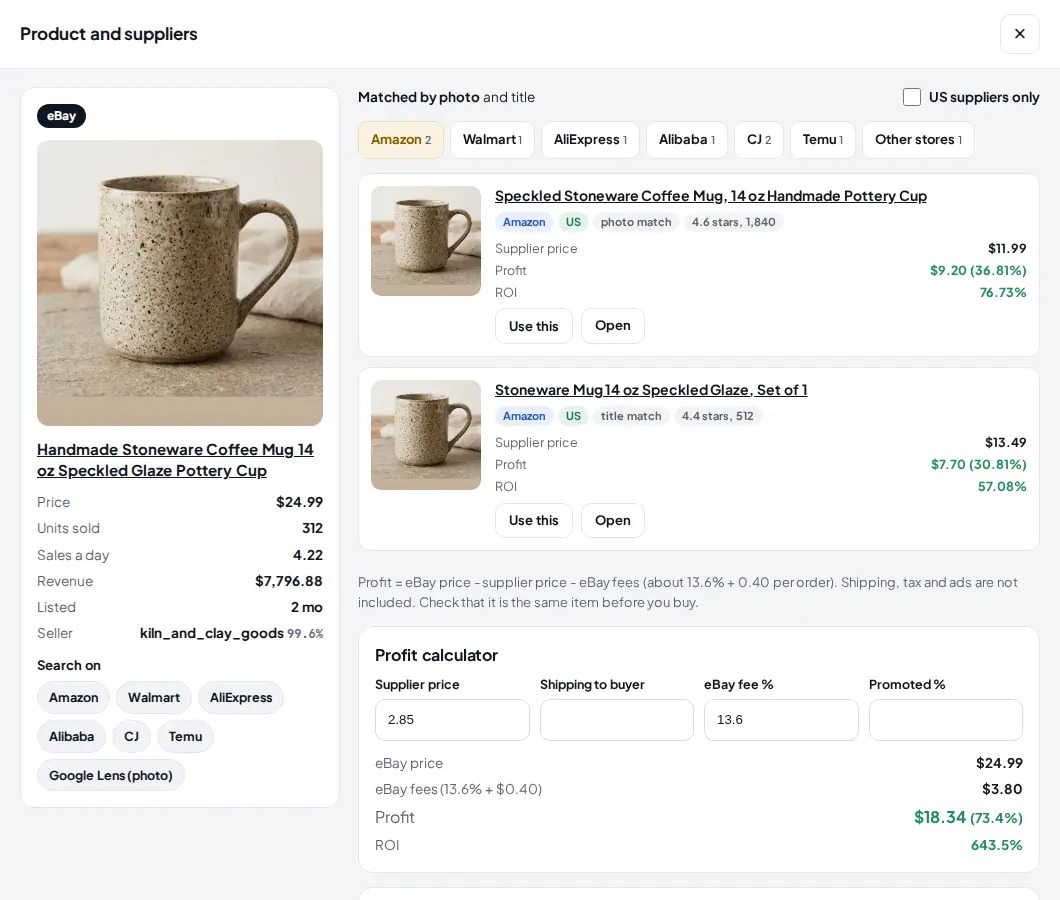 1
2
3
4
5
1
2
3
4
5
- How it matched: "Matched by photo" means Google found the same picture. "Matched by title" means only the words matched, so check those more carefully.
- US suppliers only: tick it to hide suppliers that ship from abroad (see the next step).
- Store tabs with the number of matches in each. A grey tab has none.
- Profit and ROI for each offer: the eBay price minus the supplier price minus eBay fees (about 13.6% plus $0.40 an order). Shipping and ads are not in this number yet.
- The calculator is filled with the cheapest supplier price it found. That is often an Alibaba wholesale price for bulk orders, so press Use this on the supplier you will really buy from.
Each offer has a photo, its store, a "US" chip when it ships from the US, whether it was a photo or title match, and the rating when the store shows one. Open takes you to the supplier page.
8 Keep US suppliers and pick the one you will use
eBay.com buyers expect fast delivery. Tick US suppliers only and the panel keeps only Amazon.com, Walmart.com and other US stores, plus CJ products that ship from a US warehouse. AliExpress, Alibaba and Temu drop to 0.
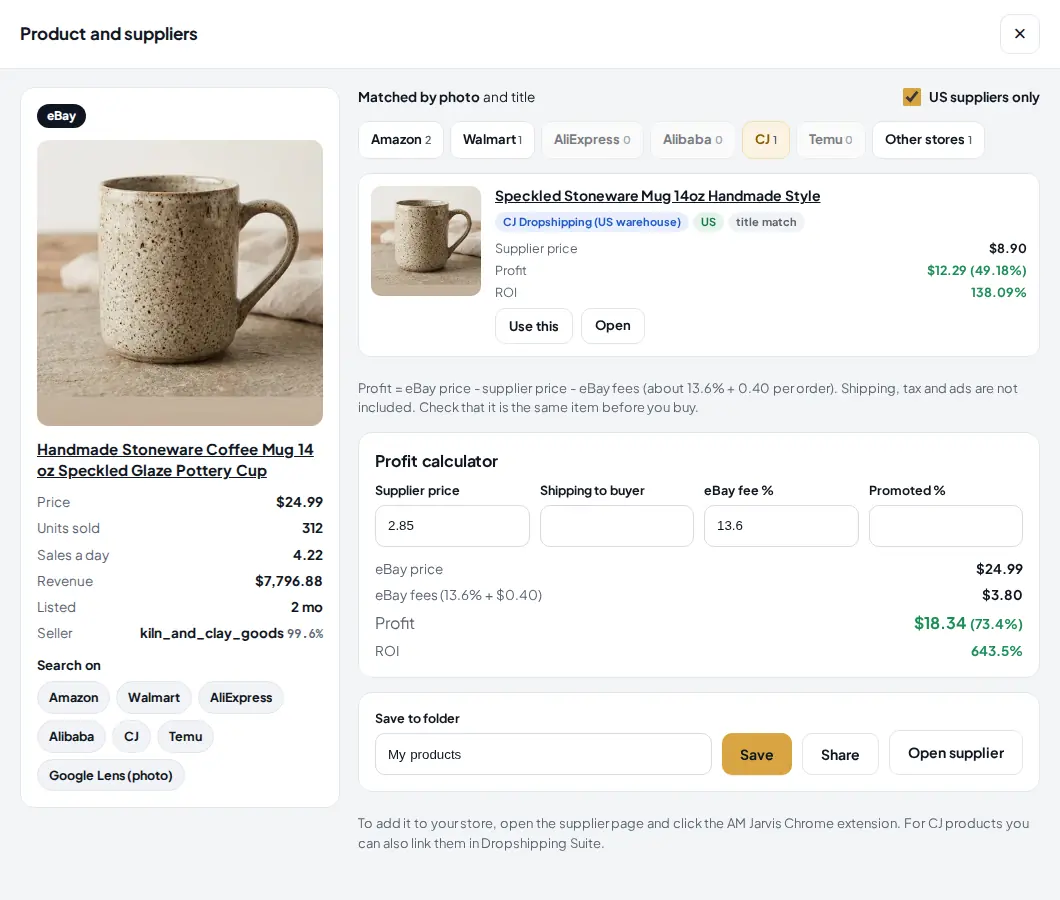 1
2
3
4
1
2
3
4
- US suppliers only is ticked.
- Tabs for suppliers that ship from abroad show 0 and turn grey.
- The US chip marks an offer that ships from the US. "CJ Dropshipping (US warehouse)" is a CJ product stocked in the US.
- Use this puts this supplier's price into the calculator and marks the offer as selected.
Tip: Ticking US suppliers only does not change the price already in the calculator. Always press Use this on the offer you picked, then check the numbers.
9 Check your profit, then save or share
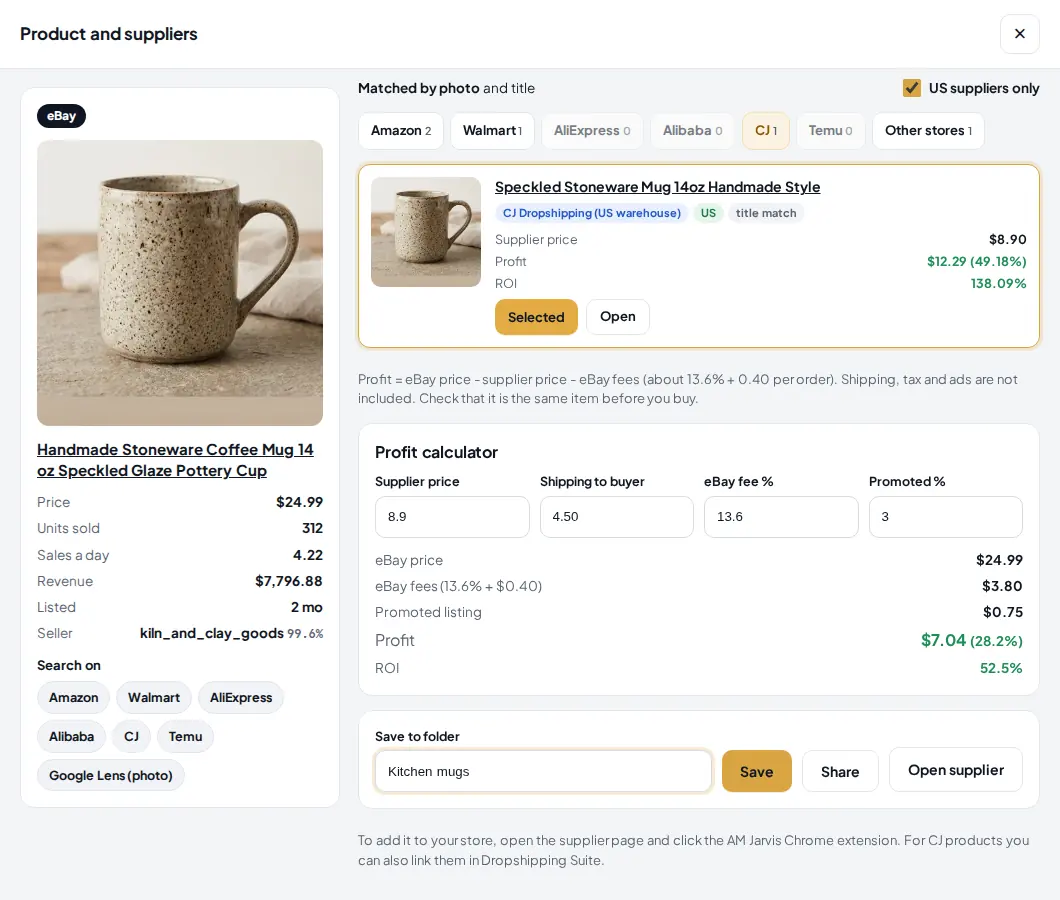
The profit calculator updates as you type. Add what shipping to the buyer costs you and your Promoted Listings rate, and you see the profit you would really keep.
 1
2
3
4
5
6
1
2
3
4
5
6
- Supplier price: filled by Use this, or type your own.
- Shipping to buyer: what you pay to get it to the customer. Leave it at 0 if the supplier price already includes shipping.
- Promoted %: your eBay Promoted Listings rate, taken from the sale price. The eBay fee % box next to it starts at 13.6; change it if your category has a different rate.
- Profit in dollars and as a share of the price, and ROI: profit divided by what you pay (supplier price plus shipping).
- Save to folder: type a folder name such as "Kitchen mugs", or pick one you used before, then press Save. The product is saved with the supplier you picked and your profit.
- Share copies a short summary to your clipboard: the title, eBay price and units sold with the link, the supplier with its link, and your profit and ROI. Paste it into a chat or a note.
When a supplier is selected, Open supplier takes you to its page. To add the product to your own store, open that page and click the AM Jarvis Chrome extension; CJ products can also be linked in the Dropshipping Suite. Close the panel with the × button or the Escape key.
10 Find your saved products again
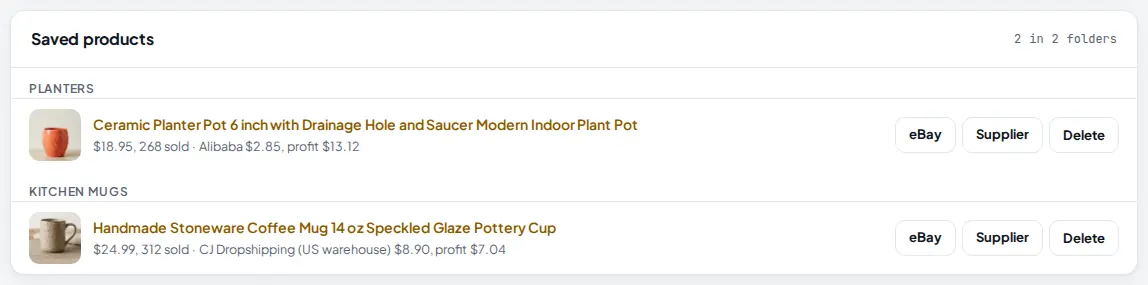
Saved products appear under the results, grouped by folder. They stay in your account until you delete them.
 1
2
3
4
1
2
3
4
- The folder name. Every folder you type becomes a group here.
- Click the title to open the product panel again with all its details.
- eBay and Supplier open the two pages side by side so you can compare them.
- Delete removes it. Click twice to confirm.
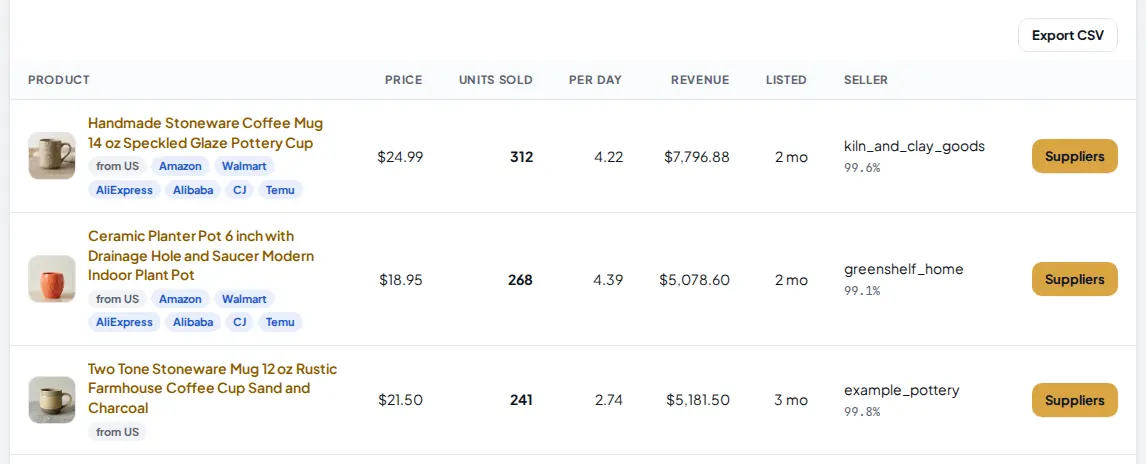
Back in the results, products you checked now show store chips under their titles, so you can see at a glance which ones a supplier sells. Export CSV downloads the whole table, including where each item ships from and its eBay link.
 1
2
1
2
- Store chips: the suppliers where this product was found.
- Export CSV: the full list for a spreadsheet. On the Agency plan, Client report at the top of the results makes a printable report.
11 Use the Suppliers button in Product research
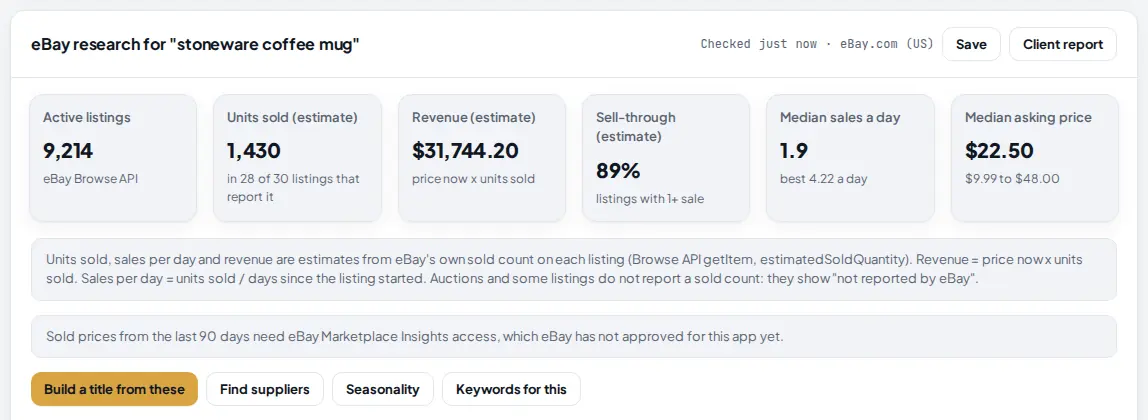
When you already know the product, use Product research (the first eBay sub tab) instead. Type the product, run it, and you get units sold, revenue, sell-through and a price spread for that search. There are two ways to find suppliers from there: Find suppliers above the chart checks your search phrase at the median price, and the Suppliers link at the right end of each listing row checks that exact listing with its photo and price. Scroll the table sideways if you do not see the link.
 1
2
1
2
- Units sold and the other totals for your search.
- Find suppliers checks suppliers for your search phrase. Build a title from these opens the title builder with the same product.
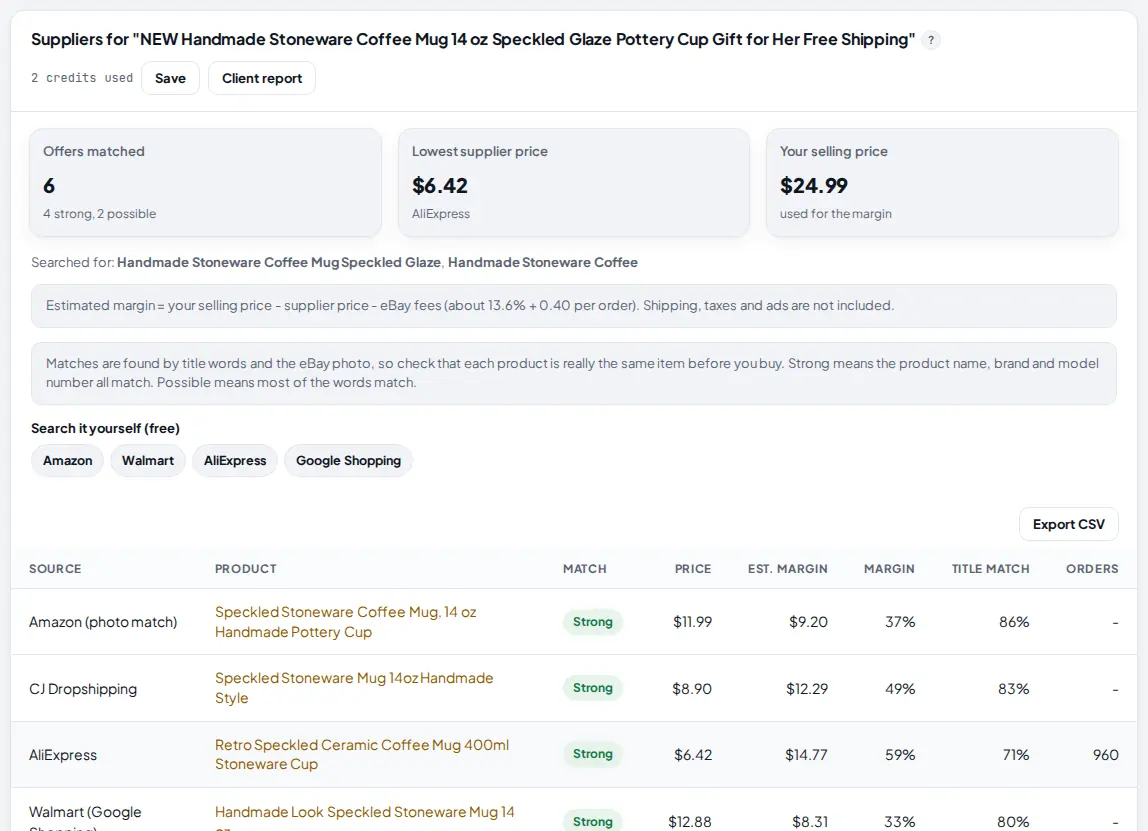
eBay titles are often long and full of extras like "NEW", "Free Shipping", emoji, pack sizes or holiday words. Before it searches, Jarvis cleans the title down to the product name, brand and model, so a title like "NEW Handmade Stoneware Coffee Mug 14 oz Speckled Glaze Pottery Cup Gift for Her Free Shipping" is searched as "Handmade Stoneware Coffee Mug Speckled Glaze". If that finds too little, it tries a wider search. It never uses more than 2 credits.
 1
2
3
4
1
2
3
4
- Offers matched, split into strong and possible, plus the lowest supplier price and the selling price used for the margin.
- Searched for: the cleaned searches Jarvis actually ran, so you know why you got these results.
- Strong means the product name, brand and model all match. Possible means most of the words match. Check Strong rows first.
- Free search links for Amazon, Walmart, AliExpress and Google Shopping with the cleaned name. When nothing matches, use these; they cost nothing.
This check uses 1 research run plus up to 2 credits, and the result is kept in "Recent runs in this tab".
Tips
- Start narrow: one product type and one or two related categories give cleaner results than five keywords at once.
- Hunt for new listings that already sell: set Listed in the last to 30 days, sort by sales per day and set a minimum of 0.3 sales a day.
- Use a maximum on units sold (for example 300) to skip listings that one big seller already dominates.
- Open the eBay page and the supplier page side by side before you buy. Photo matches are strong signals, not proof that it is the same item.
- When a search gives you a good list, press Save to Autopilot. It runs every day for free and keeps only the new strong sellers.
- Keep a folder per idea or per season ("Kitchen mugs", "Q4 gifts") so your saved products stay easy to review.
Common mistakes
- Trusting the cheapest supplier price. The calculator starts with the lowest price found, which is often an Alibaba bulk price. Press Use this on the supplier you will really order from.
- Forgetting shipping and ads. The profit on each offer card covers eBay fees only. Type your shipping cost and Promoted Listings rate in the calculator to see what you really keep.
- Ticking ten categories with five keywords. One search runs at most 8 keyword and category pairs, so the rest are skipped. Split big searches into two.
- Reading revenue as exact. Revenue is today's price times units sold. If the seller changed the price, the real number is different.
- Calling auctions dead. Auctions and some listings do not report a sold count. "Not reported by eBay" is not zero.
- Relying only on the VeRO filter. It covers well known brands, not eBay's full list. Check any brand on eBay's VeRO participant pages before you list it.
What to do next
Turn a winner into a listing with the eBay title builder, then add the product to your store with the Chrome extension. For every eBay tool in one place, see eBay Product Research.
Frequently asked questions
Where do the units sold numbers come from?
From eBay itself. Most fixed price listings show how many have sold, and Jarvis reads that number through eBay's official Browse API. Sales a day is units sold divided by the days since the listing started, and revenue is today's price times units sold. They are labeled as estimates because prices change and some listings do not report a sold count.
What does one Explorer search cost?
1 research run and no credits. Only Dropshippers only uses credits: 1 for each product photo that finds matches, at most 12. Finding suppliers for a product in the panel uses up to 2 credits, and is free when nothing is found or when you open the same product again the same day.
Why are some suppliers missing when I tick US suppliers only?
That switch keeps only suppliers that ship from the US: Amazon.com, Walmart.com, other US stores and CJ products in a US warehouse. AliExpress, Alibaba and Temu usually ship from abroad, so they are hidden. Untick it to see them again.
Is the VeRO filter enough to stay safe?
No. It removes brands that are well known for reporting copies, from a built-in list. eBay's VeRO program has many more members. Before you list a branded product, look the brand up on eBay's VeRO participant pages.
Can I use the Explorer for eBay.co.uk or eBay.de?
Yes. Pick the site under Marketplace. Prices and sold counts then come from that site, and profit is shown in its currency. The Item ships from filter lets you keep local sellers, for example United Kingdom for eBay.co.uk.
Does Jarvis list or buy anything for me?
No. The Explorer only reads public eBay data and supplier search results. You decide what to buy and list. Saving a product only stores it in your AM Jarvis account.

Founder of AM Jarvis. More than a decade running e-commerce stores, Google Shopping campaigns and niche sites. About the author
The app changes often. If a screen here no longer matches what you see, let us know and we will update the guide.